Installation Manual Smart Reader Data Logger Wi-Fi Version 3
Midmark and Rier branded M9 and M11 sterilizers are manufactured by Midmark Corporaon of Ohio, USA. MIDMARK, RITTER, M9, and M11 are trademarks of
Midmark Corporaon. Neither Smart Reader nor its data logger products are aliated with or endorsed by Midmark Corporaon in any way.
NOTE: To use the Wi-Fi backup, the mobile app or browser you need the cloud service.
Please contact us to obtain the service.
WiFi and Cloud Backup Setup
If you have purchase the Wi-Fi version of the Smart Reader Data Logger with the Cloud services,
please follow these instructions:
1. If you have purchased the Smart Reader Data Logger with the Wi-Fi and
cloud, the Mini SD card will be included in the package. (The cloud Service
login and password are preset)
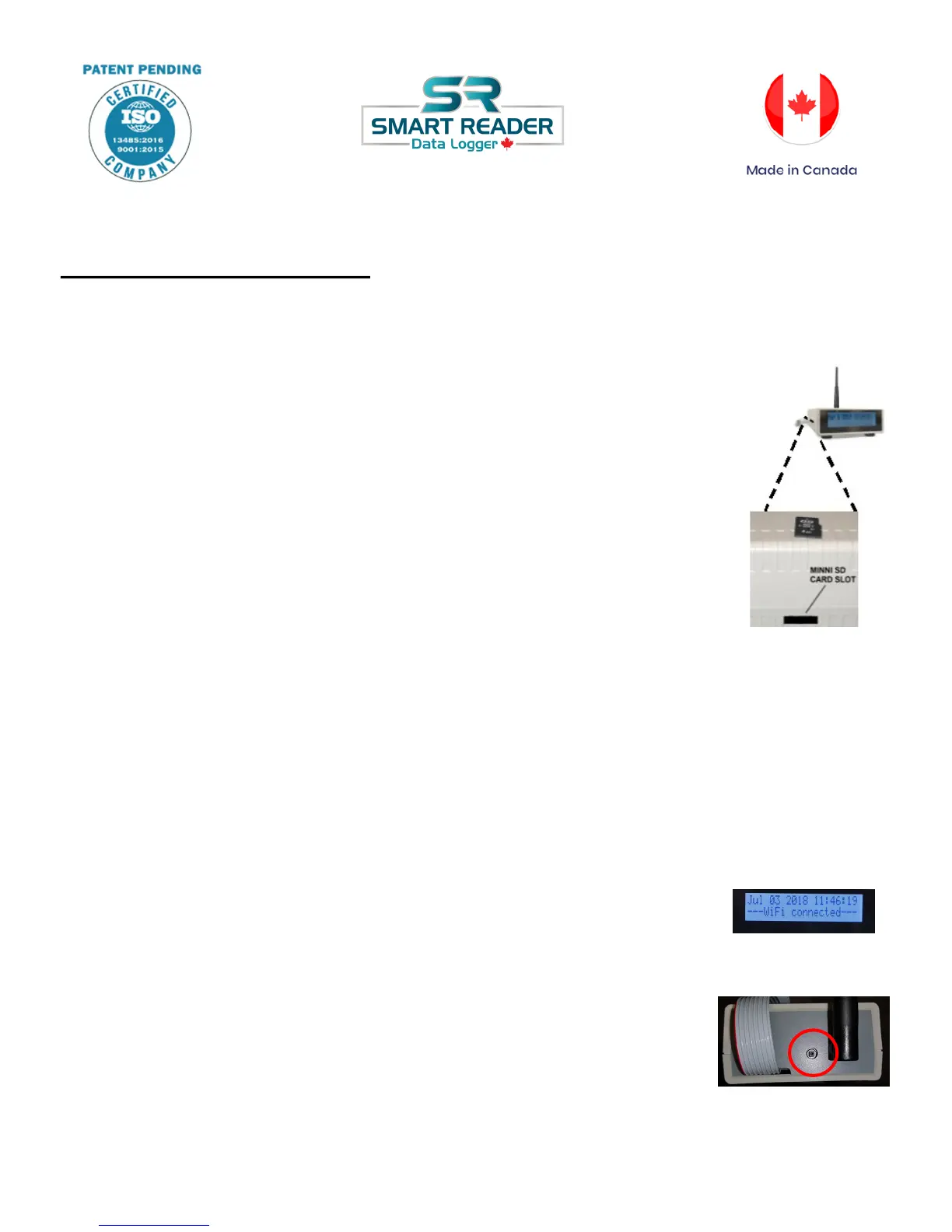
2. Remove the Mini SD card (Left-hand side of data logger) from the Smart
Reader Data Logger (Mini SD Card is much smaller than the SD Card).
3. Plug the Mini SD card in the PC by using the SD card reader. If you do not
have the SD card reader slot, you can purchase the SD card reader from
your electronic department store.
4. Once the folder shows up on your screen, double click the only file on the
card (autoconfig)
5. The notepad will open the file. You will see 6 lines. The first 2 lines contain
the information about your Wi-Fi network. Please setup the first 2 lines.
6. Enter your Wi-Fi information in the SSID and password areas, correctly. Capitals, spaces and
special characters. All are important. If you are not sure, please contact your IT support.
7. Please do not change any other login or password information in that file.
8. Once completed, please click on File ->Save as -> and save as the same file name. Do not
change the name.
9. Remove the Mini SD card from the reader and insert back into the Smart Reader Data Logger.
10. Unplug your Autoclave for 10 seconds. Restart.
11. With the Mini SD card is inserted and restart, you will see that the data
logger is connecting to your Wi-Fi. When the connection is successful you
will see on the Smart Reader display stating Wi Fi connected.
12. If the connection failed, please verify your Practice Wireless Information.
Please redo steps 4-12.
13. In the back of the Smart Reader Data Logger is a button, that you can
use to refresh the connection after verification of the information.



 To Next Page