EasyManua.ls Logo

Midtronics inCHARGE 940 - User Manual

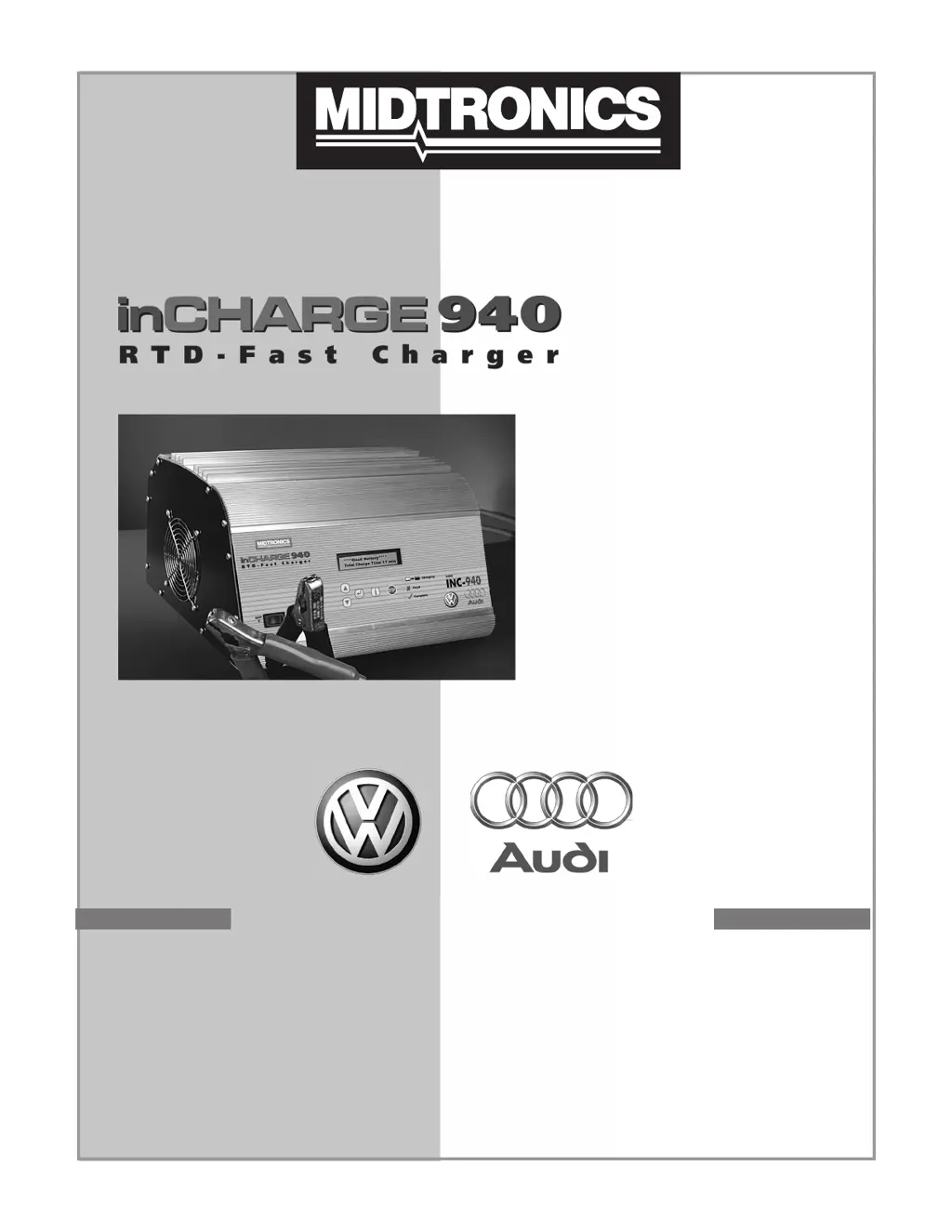
Midtronics inCHARGE 940
72 pages
Print Icon
To Next Page IconTo Next Page
Loading...
Model INC-940
Diagnostic
Conductance
Charging Station
For analyzing and
charging 12-volt
automotive batteries
English ...................................p. 1
Français .................................p. 21
Español ..................................p. 45
TM
Battery Management Innovation
INSTRUCTION MANUAL

Table of Contents

Questions and Answers

  • D
    dawn80Aug 17, 2025
    What to do if Midtronics inCHARGE 940 Battery Charger says 'Check Connection'?
    • B
      Brittney HarperAug 17, 2025
      If your Midtronics Battery Charger displays a 'Check Connection' message, try the following: * Clean the battery terminals. * Inspect and clean the clamps. After troubleshooting, repeat the charging process. If the message reappears, it may be necessary to replace the cable set. You can order P/N A078 from Midtronics: 1-800-776-1995.
  • E
    Eric DelgadoAug 20, 2025
    What to do if Midtronics inCHARGE 940 displays 'System Noise Detected'?
    • G
      Gavin JacksonAug 20, 2025
      If your Midtronics Battery Charger shows a 'System Noise Detected' message, take these steps: * Ensure all vehicle loads are off and the ignition is in the OFF position. * Make sure that you are not testing too close to a noise source, such as a charger or another high-current device. If so, move away and retest. If no noise source is identified, fully charge the battery and retest. If the message appears after recharging, replace the battery.
  • S
    Susan WilliamsAug 22, 2025
    What to do if Midtronics Battery Charger says 'Too Cold to Charge'?
    • A
      amorganAug 22, 2025
      If your Midtronics Battery Charger displays 'Too Cold to Charge', consider these solutions: * If the battery temperature is less than 32°F (0°C), the charger will not charge the battery. Allow the battery to warm up before attempting to charge it. Never charge a frozen battery. * If the battery temperature is above 32°F (0°C), clean the battery terminals, inspect and clean the clamps, and check the temperature sensor on the negative clamp. If the sensor is hot, allow it to cool before repeating the charging process. * If the message persists after troubleshooting, you may need to replace the cable set (P/N A078 from Midtronics: 1-800-776-1995).
  • P
    Pamela CarterAug 26, 2025
    What to do if Midtronics Battery Charger shows 'Battery Too Hot'?
    • J
      jacobhughesAug 26, 2025
      If the Midtronics Battery Charger stops charging and displays 'Battery Too Hot' (more than 160°F or 71°C), obtain a test code and replace the battery.
  • M
    Michael BartonAug 28, 2025
    How to fix Midtronics inCHARGE 940 when data will not print?
    • P
      Patricia CruzAug 28, 2025
      If the data from your Midtronics Battery Charger is not printing, here are a few things to check: * In the Options menu, verify that the PRINTER TYPE selected matches your printer (HP82240B, IrDA, or SERIAL). * If using a serial printer, ensure the printer cable is connected to both the charger and the printer, and that the printer is turned on. Data should print automatically if the printer is on before the charging session finishes. * If using an infrared printer, confirm the printer is on and the printer’s IR lens is aligned with the IR sensor on the back of the charger. Note: The IR printer may enter sleep mode to save battery. Press the INFO ( i ) button and select PRINT LAST TEST RESULTS.
  • S
    Suzanne RojasAug 31, 2025
    How to display Options menu on Midtronics Battery Charger?
    • T
      Theresa McdonaldAug 31, 2025
      To access the Options menu on the Midtronics Battery Charger, first turn off the device. Then, turn it back on while pressing and holding the INFO (i) button.
  • M
    Mark WuSep 2, 2025
    Why Midtronics Battery Charger has no display?
    • M
      Mark PhillipsSep 2, 2025
      If your Midtronics Battery Charger has no display, ensure it is plugged in and the outlet is providing current. The charger requires a 115-volt (nominal), 15-ampere circuit to operate. If the same outlet powers other devices along with the charger, a circuit breaker might trip.
  • A
    Adam CarterSep 5, 2025
    How to correct incorrect time or date on Midtronics Battery Charger?
    • G
      Gregory PonceSep 6, 2025
      You can change the clock time in the Options menu of the Midtronics Battery Charger. However, the date can only be set during the initial setup. If the date is incorrect, the device must be returned to Midtronics for a reset.
  • E
    emily12Sep 8, 2025
    How to change language on Midtronics Battery Charger?
    • D
      Donald ArmstrongSep 8, 2025
      You can change the language on your Midtronics Battery Charger (to English, French, or Spanish) through the Options menu.
  • J
    Joseph EdwardsSep 12, 2025
    Why Midtronics inCHARGE 940 test code is rejected?
    • K
      Kimberly BoothSep 12, 2025
      If the test code is rejected by your Midtronics Battery Charger, verify that your Dealer Number, R.O Number, and the last four digits of the VIN are correct.

Summary

SAFETY INSTRUCTIONS

OPERATION

OVERVIEW

General overview of the inCHARGE940 Diagnostic Conductance Charging Station's features and capabilities.

FRONT PANEL

Description of the buttons, LEDs, and LCD screen on the front of the device.

INITIAL SETUP

Instructions for the initial setup, including dealer information and date/time settings.

PRE-ANALYSIS BATTERY INSPECTION

Steps to inspect the battery for damages before performing analysis or charging.

BATTERY ANALYSIS AND CHARGING SETUP

AUTOMATIC CHARGING MODE

Details on selecting Automatic mode for charging and how the unit monitors the session.

MANUAL CHARGING MODE

Instructions for Manual mode charging, including setting time and rating system.

BATTERY ANALYSIS RESULTS AND INFORMATION

RESULT INTERPRETATION

Explanation of results like 'Good Battery', 'Charging Required', and 'Replace Battery'.

INFORMATION MENU OPTIONS

Accessing options to generate test codes, print, or view last test results from the Information Menu.

MAINTENANCE

CABLE SET REPLACEMENT

Procedure and information for replacing the charger's cable set.

TROUBLESHOOTING

ERROR MESSAGES

Common error messages and their corresponding solutions for the inCHARGE940.

DISPLAY PROBLEMS

Troubleshooting steps for issues related to the display, language, or time/date.

TEST CODE AND PRINTING PROBLEMS

Solutions for issues with test codes and data printing.

SPECIFICATIONS

PATENTS, LIMITED WARRANTY, AND SERVICE

Midtronics inCHARGE 940 Specifications

General IconGeneral
BrandMidtronics
ModelinCHARGE 940
CategoryBattery Charger
LanguageEnglish

Related product manuals