MENU SYSTEM
SYSTEM OVERVIEW
Game variables and diagnostics are presented in a series of on-screen menus. The Main Menu screen
allows the operator to view information, make changes, or verify equipment operation. Each Sub Menu
screen displays one specific group of choices. The Detail Menu presents data or runs the required test.
You must be at the Detail Menu level to detect errors, make changes, or activate tests. Both the operator
controls and the player controls are used to move through the menus and start or stop particular routines.
Each time the game is switched from normal play mode to the menu system and back, the
-
self-diagnostic
routine is activated. These basic tests run automatically; their purpose is to detect those faults that would
prevent the game or the menu system from operating properly. Messages appear on the screen as each
item is run, along with any errors detected. A successful self-test usually takes less than one minute to
complete. Write down any messages before proceeding to the menus or game play.
SCREEN LAYOUT
Each menu screen is different, but the material presented stays in the same physical location each time.
The color bar at the top center of each screen displays the current menu title.
The center of the screen is used for data (menu items, video signals, statistics, reports, etc.)
The bottom of the screen is for messages (explanations, control functions, revision levels, etc.)
ORGANIZATION
The menu system must be activated manually. It must also be deactivated manually to play the game.
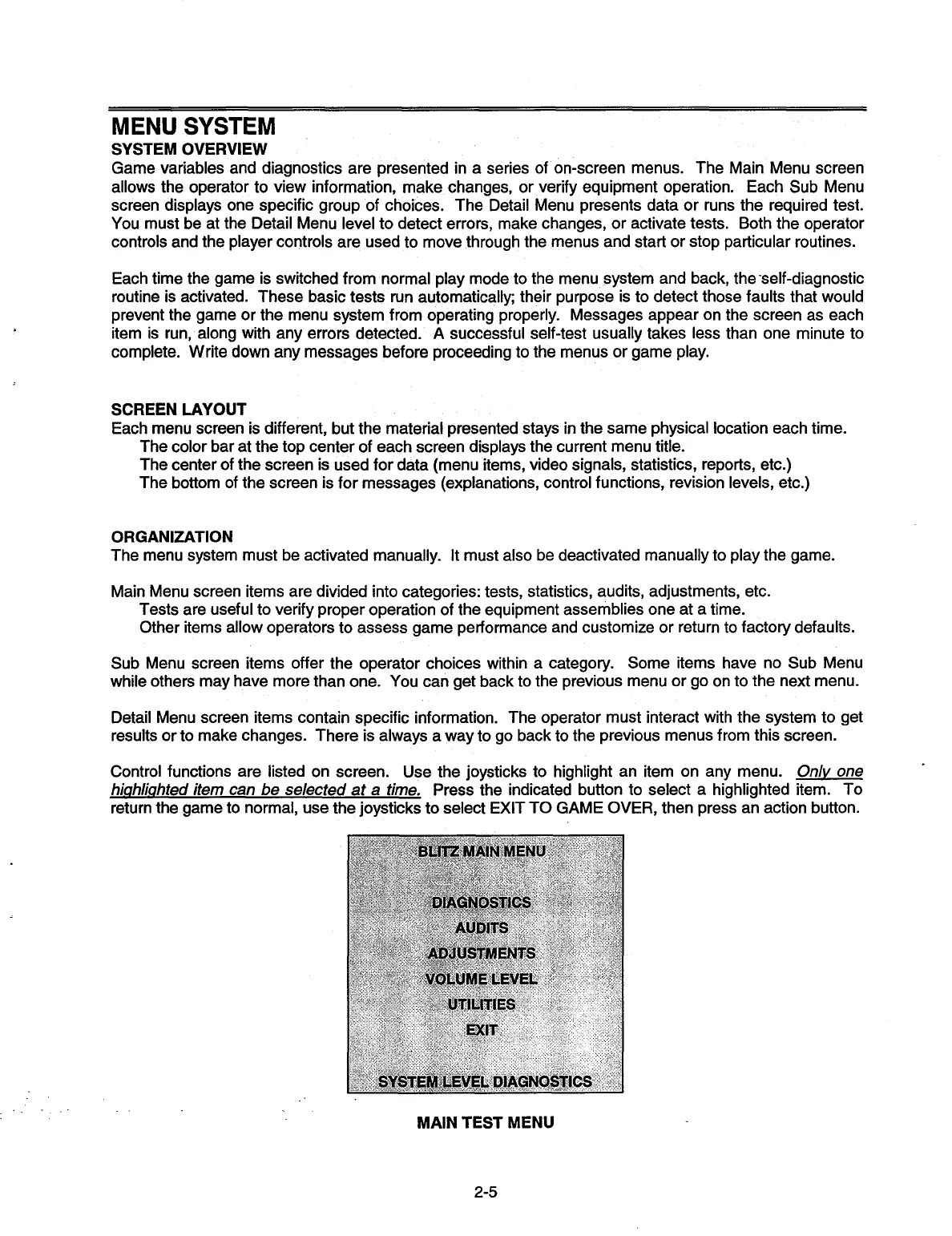
Main Menu screen items are divided into categories: tests, statistics, audits, adjustments, etc.
Tests are useful to verify proper operation of the equipment assemblies one at a time.
Other items allow operators to assess game performance and customize or return to factory defaults.
Sub Menu screen items offer the operator choices within a category. Some items have no Sub Menu
while others may have more than one. You can get back to the previous menu or go on to the next menu.
Detail Menu screen items contain specific information. The operator must interact with the system to get
results or to make changes. There is always a way to go back to the previous menus from this screen.
Control functions are listed on screen. Use the joysticks to highlight an item on any menu.
Only one
highlighted item can be selected at a time.
Press the indicated button to select a highlighted item. To
return the game to normal, use the joysticks to select EXIT TO GAME OVER, then press an action button.
MAIN TEST MENU
2-5


 To Next Page