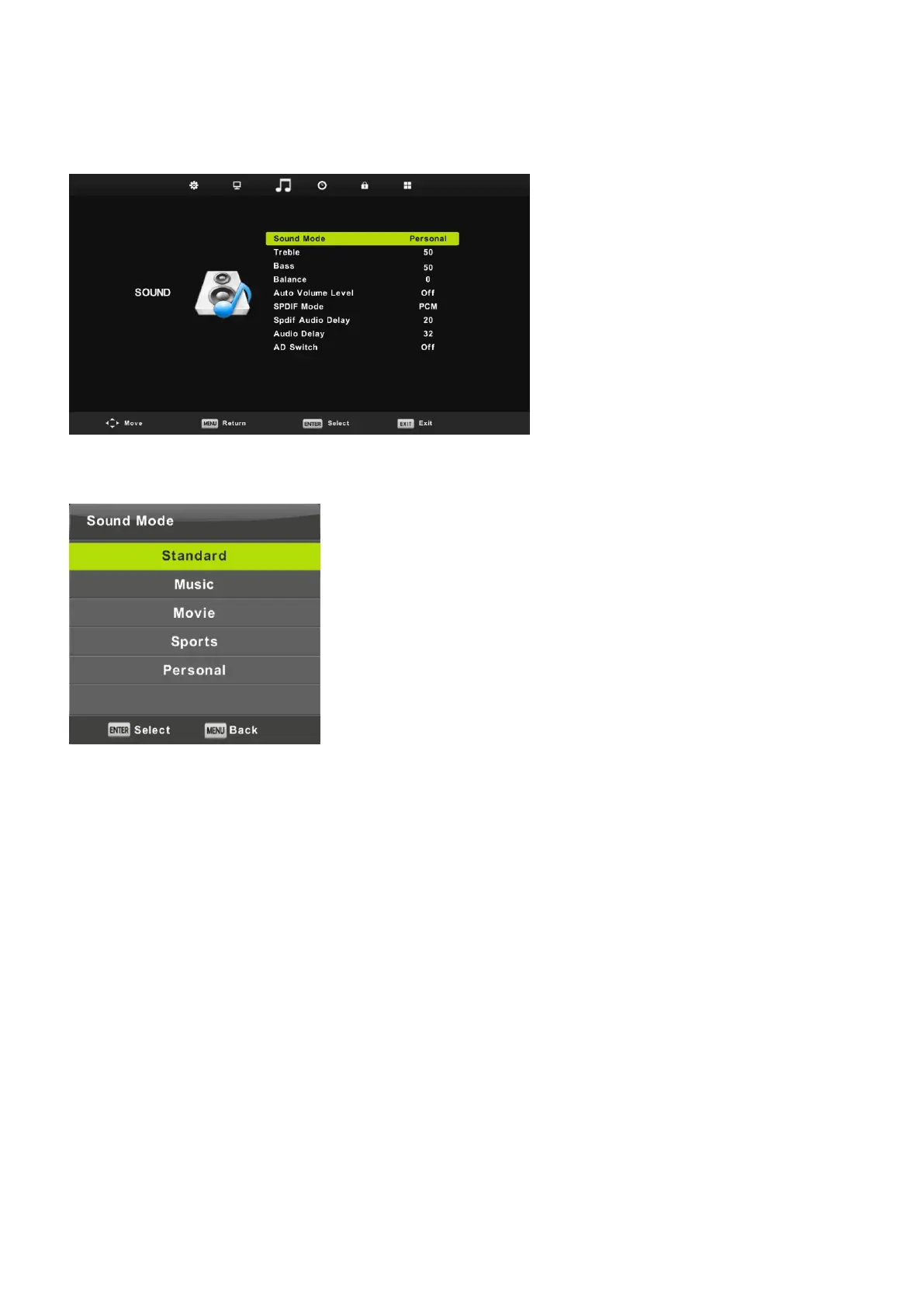
Sound Menu
Balance
Press ▼ / ▲ button to select option, Press ◄ / ► button to adjust.
You can change the value of Treble and Bass when the sound is in Personal mode.
TIPS: You can press SMODE button on the remote control to change the Sound Mode directly.
Auto Volume level
Press ▼ / ▲ button to select Auto Volume Level, then press ◄ / ► button to select On or Off.
SPDIF Mode
Press ▼ / ▲ button to select SPDIF Mode, then press ◄ / ► button to select Off / PCM / Auto.
NOTE:
Balance: This item can adjust the speaker’s output, it enables you to listen to best at your position.
Auto Volume: This item is used for reducing the difference between channel and program’s
volume automatically.
Press MENU button to display the main menu.
Press ◄ / ► button to select SOUND in the main menu.
1. Press ▼ / ▲ button to select the option that you want to adjust in the SOUND menu.
2. Press Enter button to adjust.
3. After finishing your adjustment, Press Enter button to save and return to the previous menu.
21
Sound Mode
Press ▼ / ▲ button to select Sound Mode,
then press Enter button to enter sub-menu.
Press▼/▲ button to select.
Standard Produces a balanced sound in all environments.
Music Preserves the original sound.Good for musical programs.
Movie Enhances treble and bass for a rich sound experience.
Sports Enhances vocals for sports.
Personal Select to customize sound settings.
Note:The treble and bass are only available in Personal mode,you can adjust them as you like.
AD Switch
Press ▼ / ▲ button to select AD Switch, then press ◄ / ► button to select On or Off.
Amblyopia function for the blind, the tracks will be mixed describe the current screen .
It need codestream to support.



 To Next Page