Need help?
Do you have a question about the Milesight UR32 and is the answer not in the manual?
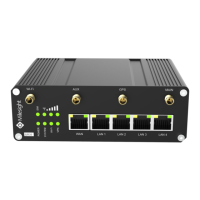
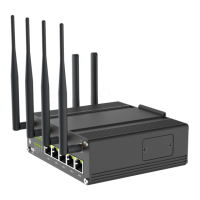
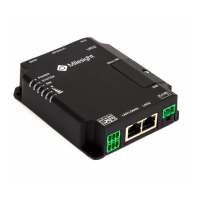
Details the main parts of the UR32 router, including connectors and indicators.
Provides the physical dimensions of the UR32 router in millimeters.
Explains the pin configuration and function for the UR32's serial and I/O connectors.
Describes the status indicated by the POWER, SYSTEM, SIM, and Signal Strength LEDs.
Details how to use the reset button to restore the router to factory defaults.
Explains the status of the Ethernet port's link indicator light.
Step-by-step guide to inserting SIM and Micro SD cards into the UR32 router.
Instructions on how to correctly install the cellular and GPS antennas.
Details on how to mount the UR32 router securely onto a wall.
Steps for attaching the UR32 router to a standard DIN rail.
Steps to configure your PC's network settings to connect to the UR32 router.
How to log in using default IP, username, and password for the UR32 router.
Guides on setting up the UR32 router for internet access via Ethernet WAN.
Instructions for configuring the UR32 router to connect to the internet using a cellular SIM card.
The Milesight UR32 is an industrial cellular router designed for reliable and secure data transmission in various industrial applications. This quick start guide outlines the installation process and initial configuration steps, enabling users to quickly set up and operate the device. For more advanced functionalities and detailed settings, users are directed to the comprehensive UR32 User Guide and Datasheet, available on the Milesight website.
The UR32 serves as a robust industrial cellular router, facilitating network connectivity through cellular, Ethernet, and Wi-Fi interfaces. Its primary function is to provide secure and stable internet access for connected devices in industrial environments. The router supports various network configurations, including WAN and cellular connections, and offers features like link failover to ensure continuous connectivity. It can operate as a gateway for local area networks, allowing multiple devices to share a single internet connection. The device is equipped with multiple ports and indicators to facilitate easy installation, monitoring, and troubleshooting.
The UR32 is designed for straightforward installation and configuration. The packing list includes all necessary components for initial setup, such as the UR32 unit, power adapter, Ethernet cable, 6-pin pluggable terminal, DIN rail kit, setscrews, quick start guide, magnetic cellular antennas, stubby Wi-Fi antenna (for Wi-Fi version), GPS antenna (for GPS version), and a warranty card. Users are advised to check the package contents upon receipt and contact sales if any items are missing or damaged.
The hardware introduction provides an overview of the device, detailing the location and function of various connectors and indicators. These include the main cellular antenna connector, GPS/WIFI antenna connector, AUX cellular antenna, LED indicator area, serial port & I/O, Ethernet LAN1/WAN port, Ethernet LAN2 port, power connector, and SIM and reset button holder. The LED indicators provide visual feedback on the device's status, including power, system operation, SIM card status, and signal strength. For instance, a green light on the SYSTEM LED indicates proper system operation, while a blinking orange light on the SIM LED signifies that SIM2 is registering or dialing up. Signal strength indicators (Signal 1/2/3) use green light to denote strong signals, while static/off/off indicates weak signals.
Installation of the UR32 involves several steps. First, SIM cards and Micro SD cards can be installed by unscrewing the cover, inserting the cards into the slots, and then screwing the cover back on. Antennas are rotated into their respective connectors, with external antennas recommended to be installed vertically in a location with good signal. The router offers flexible mounting options: it can be placed on a desktop, wall-mounted using four M3 x 6 flat head Phillips screws, or DIN rail-mounted using two M3 x 6 flat head Phillips screws and a standard bracket. Recommended torque for mounting is 1.0 N·m, with a maximum allowed of 1.2 N·m.
After physical installation, the device requires PC configuration to access its Web GUI. Users can connect their PC to a LAN port of the UR32 router and configure a static IP address or allow the PC to obtain an IP address automatically. The guide provides detailed steps for Windows 10, including navigating to the "Network and Sharing Center" and configuring IPv4 properties. Once the PC is configured, users can log into the router's Web GUI by typing the default IP address (192.168.1.1) into a web browser (Chrome is recommended) and entering the default username (admin) and password (password). For security, users are prompted to change the default password upon first login.
The Web GUI allows for comprehensive network configuration. For Ethernet WAN configuration, users can change LAN1 to a WAN port and then configure WAN parameters such as static IP, DHCP client, or PPPoE type. Link failover can be configured to prioritize WAN over cellular connections. For cellular connection configuration, users insert a SIM card (e.g., into SIM1 slot) and configure cellular information like APN, username, and password through the "Cellular Setting" interface. The router can automatically obtain ISP information if "Auto" is selected and the SIM card is from a well-known ISP. Link failover can also be configured to enable SIM1 and set its link priority. The status of cellular connection can be monitored via the "Status > Cellular" page, where "Connected" indicates successful dial-up. The SIM indicator also provides visual confirmation of successful connection.
The UR32 incorporates features that aid in maintenance and troubleshooting. The LED indicators provide immediate visual cues for various operational states, allowing users to quickly diagnose common issues such as power status, system errors, SIM card registration problems, or weak signal strength. The reset button, located under the SIM slots, allows users to restore the router to factory defaults by pressing and holding it for more than 5 seconds. This can be useful for resolving configuration issues or preparing the device for redeployment.
The Web GUI offers a "Status" page where users can view system information, including model, serial number, firmware version, hardware version, local time, uptime, CPU load, RAM and Flash usage, and WAN/cellular connection status. This information is crucial for monitoring device health and performance. The "Status > Cellular" page specifically displays modem status, signal level, register status, IMEI, IMSI, ICCID, ISP, network type, and data usage, which are vital for diagnosing cellular connectivity problems.
The device also supports ICMP ping detection configuration, allowing users to set primary and secondary servers, interval, retry interval, timeout, and maximum ping retries. This feature helps in monitoring network reachability and diagnosing connectivity issues. The "Link Failover" functionality, which allows users to prioritize different network interfaces (WAN, Cellular-SIM1, Cellular-SIM2), is a key maintenance feature that ensures network resilience and minimizes downtime by automatically switching to an available connection if the primary one fails.
Environmental requirements for the UR32, such as a power input of 9-48 VDC, typical power consumption of 1.9W (Max 2.4W), operating temperature range of -40°C to 70°C, and relative humidity of 0% to 95% (non-condensing) at 25°C/77°F, are specified to ensure the device operates within optimal conditions, contributing to its longevity and reliability.
Milesight provides technical support via email (iot.support@milesight.com), telephone (86-592-5085280), and fax (86-592-5023065) for assistance with installation, configuration, or troubleshooting. The quick start guide also includes a revision history, documenting updates to the document, such as initial version, web interfaces upgrade, and layout replacement, which helps users stay informed about changes and improvements.
 General
| Model | UR32 |
|---|---|
| Category | Wireless Router |
| Cellular Connectivity | 4G LTE |
| Ethernet Ports | 2 x 10/100 Mbps |
| Wi-Fi | 802.11 b/g/n |
| Power Supply | 9-48V DC |
| Housing | Metal |
| Storage Temperature | -40°C to 85°C |
| Humidity | 5% to 95% (non-condensing) |
| Memory | 128 MB RAM, 16 MB Flash |
| Operating Temperature | -40°C to 70°C |

 To Next Page