UR35 Quick Start Guide
www.milesight-iot.com
E. Open your preferred browser on PC, then type any available web address into address bar and see if it
is able to visit Internet via UR35 router.
5.2 Cellular Connection Configuration
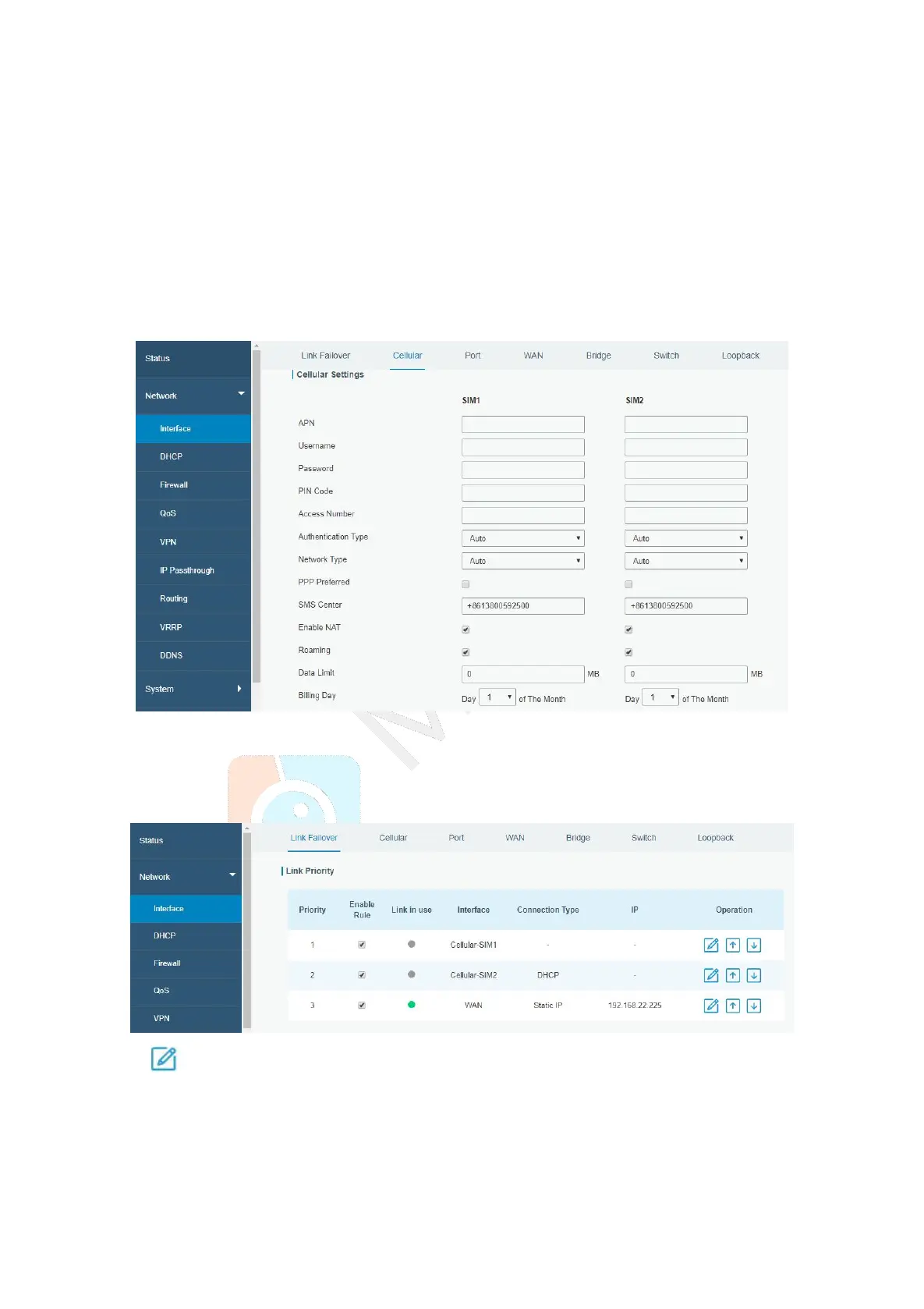
Take inserting SIM card into SIM1 slot as an example; please refer to the following detailed operations.
A. Click “Network > Interface > Cellular > Cellular Setting” to configure the cellular info, like APN and
network type.
B. Click “Save” and “Apply” for configuration to take effect.
If you select “Auto”, the router will obtain ISP information from SIM card to set APN, Username, and
Password automatically. This option will only be taken effect when the SIM card is issued from a
well-known ISP.
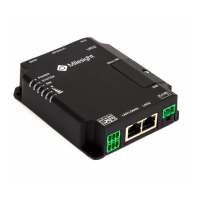
C. Go to “Network > Interface > Link Failover” to enable SIM1 and rise link priority of SIM1.
D. Click to configure ICMP ping detection information.


 To Next Page