Milestone Husky - Administrator Manual
About motion detection and PTZ cameras
Motion detection generally works the same way for pan-tilt-zoom (PTZ) cameras as it does for
regular cameras. However, you cannot configure motion detection separately for each of a PTZ
camera's preset positions.
In order to activate unwanted recordings, notifications and more, the system automatically disables
motion detection while a PTZ camera moves between two preset positions. After a number of
seconds has passed, the system automatically enables motion detection again. This period of time
is known as the transition time and is specified on the PTZ camera's PTZ patrolling properties (see
"PTZ patrolling" on page 102).
In order to activate unwanted recordings, notifications and more, the system automatically disables
motion detection while a PTZ camera moves between two preset positions. After a number of
seconds has passed, the system automatically enables motion detection again. This period of time
is known as the transition time and is specified on the PTZ camera's PTZ patrolling properties (see
"PTZ patrolling" on page 102).
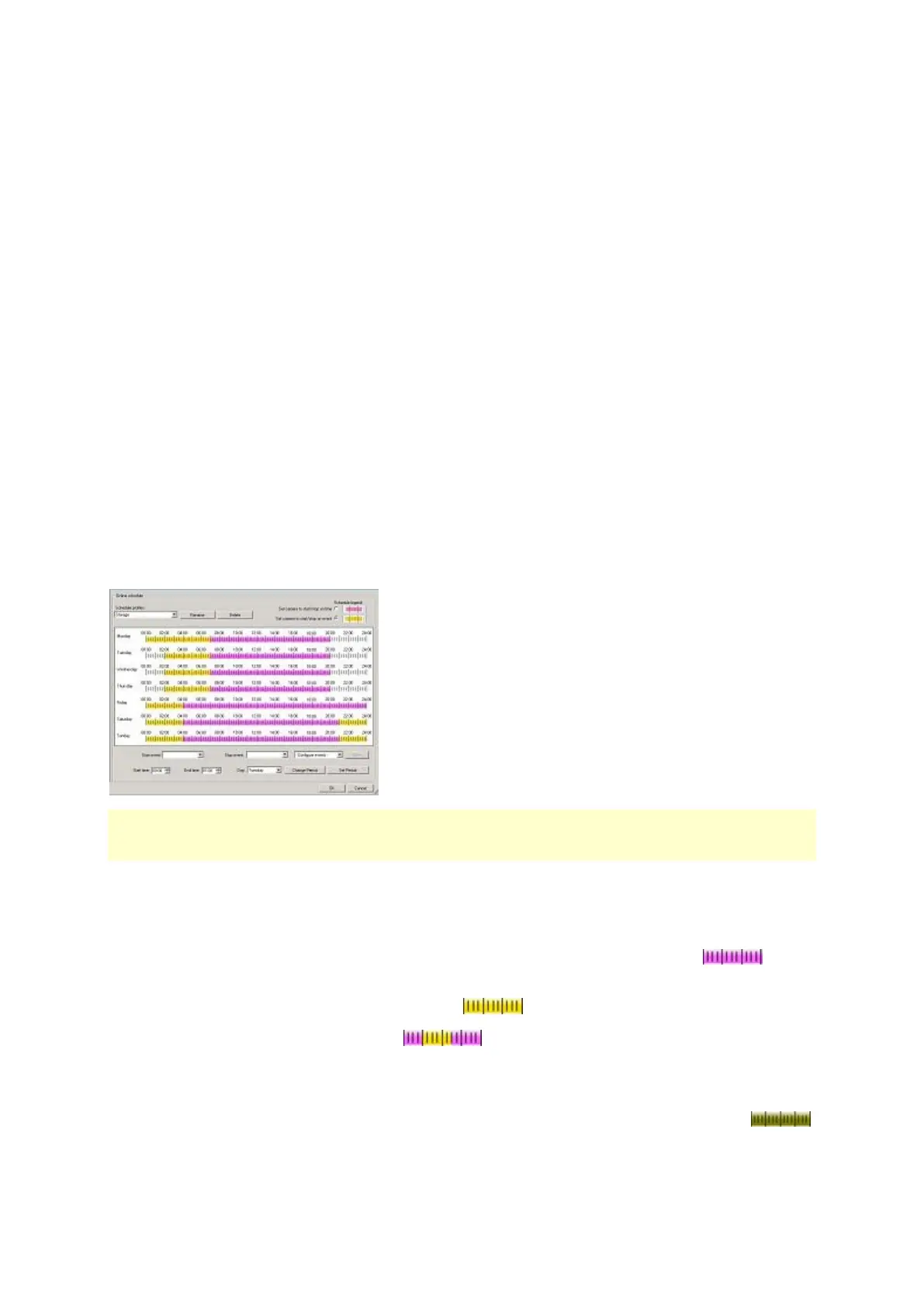
Configure camera-specific schedules
If you base your schedule profile—or parts of it—on events within periods of time, remember to
select Start event and Stop event from the lists below the calendar section.
Use the Configure events list located below the other fields to define events that suit your needs.
The fact that a camera transfers video to your system does not necessarily mean that video from
the camera is recorded. Recording is configured separately, see Configure video and recording (see
"About video and recording configuration" on page 60).
For each camera, you can create schedule profiles based on:
Online periods
Periods of time (example: Mondays from 08.30 until 17.45), shown in pink:
Events within periods of time (example: from Event A occurs until Event B occurs Mondays
from 08.30 until 17.45), shown in yellow:
The two options can be combined , but they cannot overlap in time.
Speedup
Periods of time (example: Mondays from 08.30 until 17.45), shown in olive green:


 To Next Page