22
23
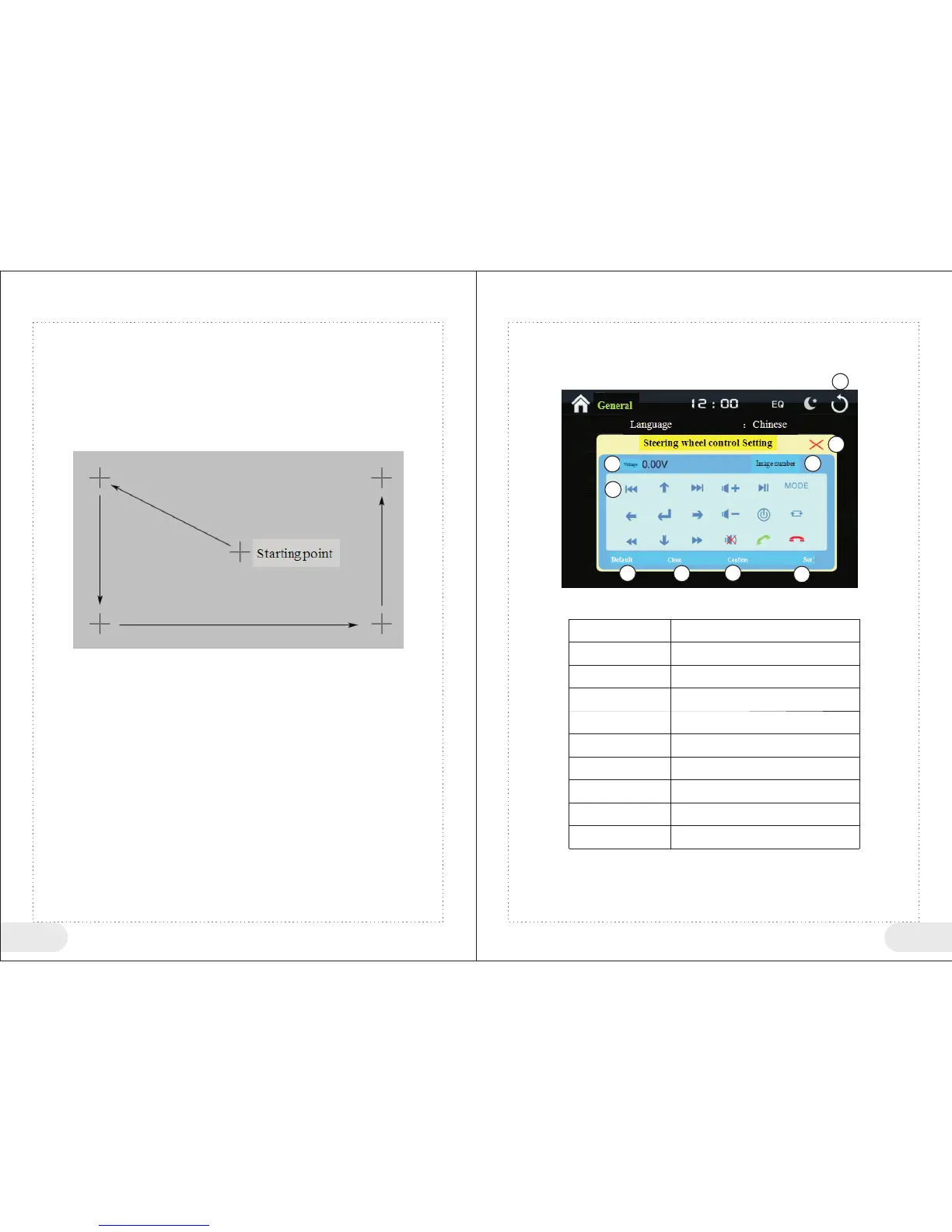
2、 Touch Screen Calibration
① Click “Touch Screen Calibration” while setting general menu to enter touch screen
calibration interface.
② Calibration method: Align the center of “+” icon with touch pen and hold it, till “+” icon
runs to the next calibration point, repeat the previous action, and calibrate 5 points
according to sequence, and click the touch screen to exit touch screen status, if the
center of “+” icon is not aligned during calibration, it will be recalibrated, and exit touch
screen calibration status after calibration is done.
3、Steering wheel control Setting
Click “Steering wheel control Setting” in the general setting to enter setting interface.
2
3
4
5
6
7
8
9
1
<Dashboard Button> Table
1
2
3
4
5
6
7
8
9
Return to main menu
Exit steering wheel control interface
Voltage display
Image number display
Common function buttons
Restore default value
Clean
Confirm
Set
Instruction: During Steering wheel control setting, press a single button,
button voltage value will be displayed on screen, and required button
functions could be assigned
Button No
Function Instructions


 To Next Page