11
the camcorder to access the USB port. Insert the small end of the USB plug
to the USB port on your
computer.
show three options Charging Mode where you can use the camcorder
files stored on the memory card from your computer and where
the camcorder can be used as a web cam. Use the UP or DOWN buttons to
navigate the menu and press the OK or POWER buttons to enter your
selected mode.
2.8
Connecting to a TV
The camcorder can also be connected to a TV. When connected, the
camcorder screen will turn off and the camcorder playback mode will be
shown on the TV. Use the TV as the camcorder screen. To connect the
camcorder to your TV, open the jack door on the side of the camcorder to
access the HDMI port. Insert the small end of the HDMI plug into the
nto the HDMI port on your TV. Then turn
on the camcorder and it will be ready for use.
2.9
Using the Zoom Function
This camcorder has a digital zoom function. To operate the zoom function,
press the back of the ZOOM button to zoom in closer to the subject, and
press the front of the ZOOM button to zoom in closer to the subject. The zoom
magnification level will be displayed on the LCD screen.
2.10
Using the LED Light
This camcorder has a built-in LED light giving you the ability to capture photos
and videos in a dark environment.
In Photo or Video mode, press the POWER button once to enable the LED
light. To disable the light, press the POWER button again.
2.11
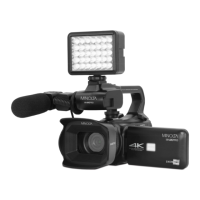
Attaching External Accessories
There are a number of external accessories that are included with the
camcorder. The types of accessories, their purpose and how they attach to
the camcorder can be found below.


 To Next Page