EasyManua.ls Logo

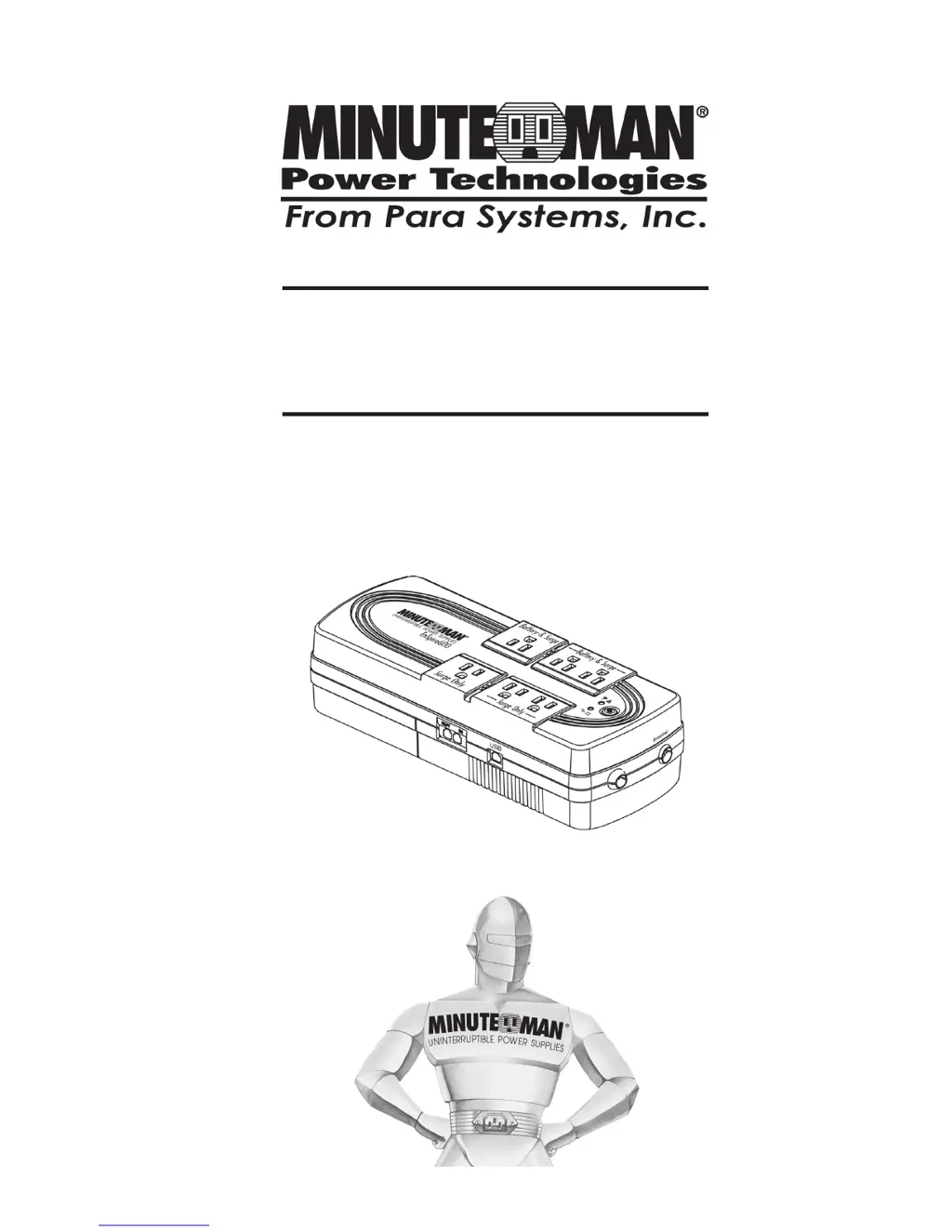
Minuteman Enspire Series - User Manual

Minuteman Enspire Series
21 pages
Print Icon
To Next Page IconTo Next Page
Loading...
User's Manual
Enspire
Series UPS

Questions and Answers

  • E
    Elaine TaylorAug 18, 2025
    What to do if Minuteman UPS warning light is on and beeping?
    • P
      Paul GreenAug 18, 2025
      If the Warning / Fault LED is illuminated and the alarm is sounding 1-beep every 0.5 seconds, your Minuteman UPS may be overloaded. Check the specifications and remove part of the load. If the UPS shuts down because of an Overload, remove part of the load and then press the On/Off button to turn the UPS on.
  • R
    robert74Aug 21, 2025
    Why is my Minuteman UPS beeping 3 times every 5 minutes?
    • J
      James JenningsAug 21, 2025
      If the Warning / Fault LED is illuminated and the alarm is sounding 3-beeps every 5 minutes, check the battery connections of your Minuteman UPS. Also, charge the batteries for 8 hours and retest. If the problem persists, consider replacing the batteries.
  • G
    Gloria GomezAug 23, 2025
    What to do if Minuteman Enspire operates in battery mode even with normal AC?
    • D
      deanna45Aug 23, 2025
      If your Minuteman UPS is running on battery even when AC power is available, the input AC circuit breaker may have tripped. Try resetting it by pressing the plunger back in. If the breaker trips again after the UPS starts, reduce the load on the UPS.
  • C
    Cheryl LoveAug 26, 2025
    What to do if Minuteman Enspire UPS does not provide expected runtime?
    • R
      Richard SmithAug 26, 2025
      If your Minuteman UPS isn't providing the expected runtime, it could be that the batteries are weak or nearing the end of their service life. Try charging the batteries for 8 hours and then retest. If the runtime is still less than what you expect, you might need to replace the batteries.
  • J
    Jeanette MorganAug 28, 2025
    What does it mean when Overload LED is illuminated on Minuteman UPS?
    • J
      Juan BakerAug 28, 2025
      If the Overload LED is lit on your Minuteman UPS, it means the load connected to the UPS exceeds its capacity. To resolve this, remove some of the connected equipment to reduce the load. Check the specifications to ensure you are within the UPS's limits.
  • F
    floresalisonAug 30, 2025
    What to do if Low Battery LED is illuminated on Minuteman Enspire?
    • B
      Brent EverettAug 30, 2025
      If the Low Battery LED is illuminated on your Minuteman UPS, it could be due to loose connections, weak batteries, or bad batteries. Check the battery connections, charge the batteries for 8 hours. If the issue persists, replace the batteries.
  • T
    terricastanedaSep 1, 2025
    What to do if the On Utility LED is illuminated, but there is no output from Minuteman Enspire UPS?
    • D
      David MorganSep 1, 2025
      If the 'On Utility' LED is illuminated but there's no output from your Minuteman UPS, it might be controlled through its communication port. Disconnect the computer cable from the UPS and press the On button. If the UPS then works normally, the software has control of the UPS.
  • M
    Michael DoughertySep 4, 2025
    What to do if the Fault LED is illuminated on Minuteman UPS?
    • H
      hooverpaulSep 4, 2025
      If the Fault LED is illuminated on your Minuteman UPS, it indicates that the UPS has detected an internal fault. Call for service.
  • E
    Edward MccarthySep 6, 2025
    What to do if my Minuteman Enspire UPS operates in battery mode with AC power?
    • K
      Keith GarciaSep 6, 2025
      If your Minuteman UPS is operating on battery even when AC power is available, try resetting the input circuit breaker by pressing the plunger back in. If the circuit breaker trips again after restarting the UPS, consider reducing the load on the UPS.
  • B
    Brandi BrownSep 8, 2025
    What to do if Minuteman Enspire has AC normal LED on but no output?
    • K
      kelsey93Sep 8, 2025
      If the AC normal LED is illuminated on your Minuteman UPS, but there is no output, disconnect the computer cable from the UPS and press the On/Off button. If the UPS then works normally, the software had control of the UPS.

Summary

Introduction to the Enspire Series UPS

Important Safety Instructions

Key safety guidelines for installation and maintenance of the UPS.

Safety Symbols and Meanings

Explanation of symbols used in the manual for safety alerts.

Electrical Safety Precautions

Critical safety advice regarding electrical connections and potential shocks.

FCC Compliance and Interference

Information on equipment compliance with FCC rules and potential radio interference.

Receiving Inspection and Damage Handling

Procedure for inspecting the UPS upon arrival and handling shipping damage.

Battery Handling Precautions

Safety warning regarding handling of damaged batteries, including Pb symbol.

Life Support Policy

Controls and Indicators Overview

Receptacle Descriptions

Details on the types and functions of output power receptacles.

LED Indicators Explained

Explanation of the status indicated by the Low Battery/Overload/Fault and On Utility/On Battery LEDs.

Ports and Connections

Description of RJ11/45 and RJ45 ports for phone/fax/modem and USB connectivity.

Installation Guide

Environmental Considerations

Recommended environmental conditions for optimal UPS operation and longevity.

Wall Mounting Procedure

Step-by-step instructions for securely mounting the UPS on a wall.

Connecting the Batteries

Procedure for connecting the internal UPS batteries, requiring qualified personnel.

Connecting Your Equipment

Guidance on connecting devices to the UPS output receptacles.

Connecting the UPS to an AC Source

Instructions for safely connecting the UPS to the main power supply.

Charging the Battery

Information on how the UPS battery is charged and recommended charging times.

RJ45 USB Communications Port Connection

Optional connection for monitoring and control via USB.

Phone;Fax;Modem Protection Connection

Optional connection for protecting phone, fax, or modem lines.

UPS Operation

System Overview

Explanation of the UPS's function in protecting equipment from power anomalies.

Turning the Unit On;Off

Instructions for powering the UPS on and off using the On/Off button.

USB Communications Port Usage

Details on using the USB port for computer connectivity and software.

Power Monitoring Software

Information about the included software for monitoring UPS performance.

Alarms and Warnings

Description of audible alarms and LED indicators for various UPS conditions.

Troubleshooting Common Issues

Troubleshooting Symptoms and Solutions

Common problems, their possible causes, and recommended solutions.

Replacing the UPS Battery

Battery Replacement Warnings and Precautions

Critical safety warnings and precautions before attempting battery replacement.

Battery Specifications and Recharge Time

Details on battery types, ratings, recharge, and expected lifespan.

Battery Replacement Procedure

Step-by-step guide for safely removing and installing a new UPS battery.

Obtaining Service and Support

Service and Support Contact Information

How to get assistance from the dealer or technical support department.

Packaging and Return Instructions

Guidelines for packing the UPS for return shipment and required documentation.

Technical Specifications

System Specifications

Details on power capacity, input, and output parameters of the UPS.

Physical Dimensions and Weight

Information on the physical size and weight of the UPS for shipping and installation.

Regulatory Compliance

Details on safety approvals and EMC standards met by the UPS.

Limited Product Warranty

Warranty Coverage and Exclusions

Details on what the warranty covers, duration, and conditions for voiding it.

Limitation of Liability and Remedies

Information on warranty limitations, liability disclaimers, and available remedies.

Declaration of Conformity

RoHS Compliance Statement

Statement regarding the product's compliance with the Restriction of Hazardous Substances Directive.

Minuteman Enspire Series Specifications

General IconGeneral
TopologyLine Interactive
Input Voltage120VAC
Output Voltage120VAC
Communication PortUSB
Form FactorTower
WaveformSimulated Sine Wave
DisplayLED indicators
Operating Temperature32°F to 104°F (0°C to 40°C)
Humidity0-95% non-condensing
Frequency50/60Hz
Output Frequency60 Hz
Outlets6 NEMA 5-15R
Battery TypeSealed Lead Acid
Backup TimeVaries by load
DimensionsVaries by model
WeightVaries by model
Transfer Time4-6 ms
Storage Temperature14°F to 113°F (-10°C to 45°C)

Related product manuals