11
Planning your tour
The Tours provides the recorded routes that give the best
experience for cycling provided by other users and official
institutes.
If there is no route downloaded, you can download routes from
MioShare™ (http://mioshare.com) and/or the third-party services.
Starting the tour
1. Do one of the following to start the Tours:
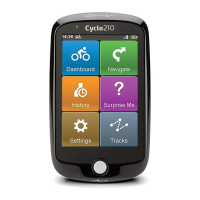
• Tap Main menu > ; or
• Tap Main menu > > Tours.
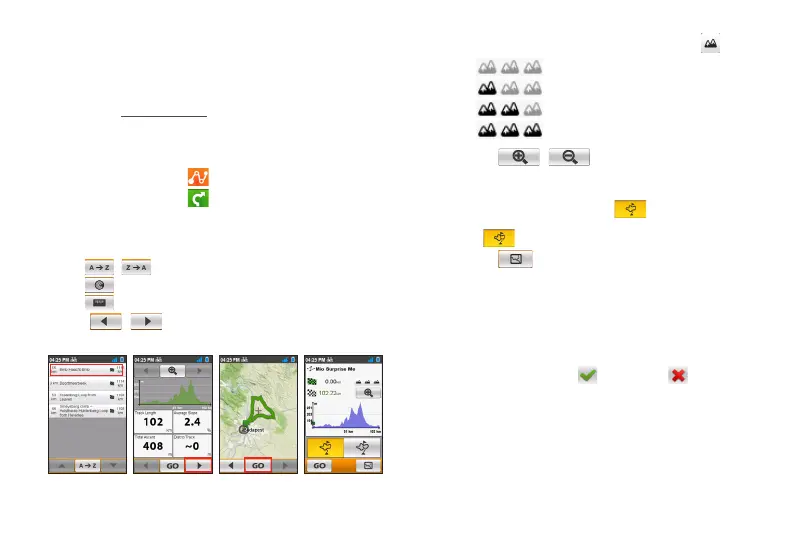
2. Choose the desired route from the downloaded routes list.
Tap the Sort by button at the bottom of the screen to change the
sorting order of the entries:
/ : by name;
: distance from the current location;
: by distance.
3. Tap / to display more information of the route.
4. Tap GO to preview the information of the route.
You can do one of the following:
• Judge the difficulty level of the route by the icon:
: easy
: moderate
: difficult
: very difficult
• Tap / to zoom in/out the elevation plot.
Tap the Left/Right button to scroll through the plot when
it is zoomed in.
• Select the Nearby mode ( ) to navigate to the
nearest point of your route, or Back-to-Start mode
( ) to navigate to the starting point of your route.
• Tap to display the route to the destination.
5. Tap GO to start navigating.
NeverMiss™: Notifications of POI (Point of Interest)
The NeverMiss™ function allows you to enjoy your cycling
without missing any POI (Point of Interest) during the trip.
You can select Main menu > Settings > System > Alerts
> Spots remind to enable ( ) or disable ( ) the
NeverMiss™ function. When the function is enabled:
• When you download the route with POIs, you will get
notifications as you approach the defined points.
• If the POI contains a link providing more information, scan
the pop-up QR code by using your smartphone and get the
details of the POI.
This feature requires an Internet connection.


 To Next Page