19
Customising your device
There are various customisation options available to enhance
your navigation and cycling experience. With the Settings menu,
you will be able to customise your device such as the system
settings, user profiles, map settings, and more.
• To access the Settings menu, tap from the Main menu
screen.
• Tap / to scroll through the Settings menu
screens.
• While changing the settings, the check mark ( ) next to
the option button indicates the setting status.
Example:
: on/enabled
: off/disabled
• When the settings have been changed, tap at the
bottom of the screen to complete and return to the previous
screen.
Profiles
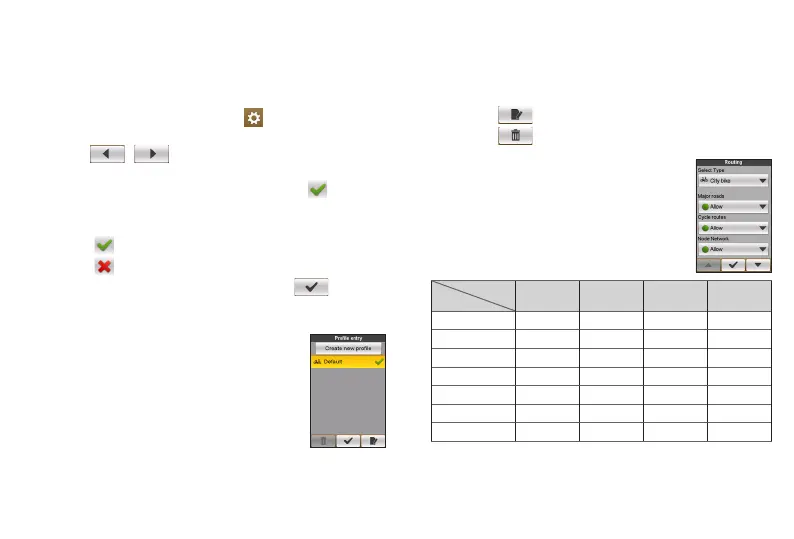
The Profile entry screen displays the existing
profile(s).
• You can set up to 6 profiles on the device.
• Tap Create new profile and enter the
personal data (including Name, Birth date,
Weight, Gender, and profile Type) to create
a new profile entry.
You can select the profile Type as City bike, Mountain bike,
Race bike or Run & Walk. The system will create different
routes depending on the profile type. For example, Mountain
bike will use unpaved routes which will be avoided by using
Race bike.
Select the E-Bike option if you use an electric bicycle.
• Select an existing profile entry and then do one of the
following:
• Tap to edit the name of the entry.
• Tap to delete the entry.
Routing
This setting allows you to set the routing
preference by selecting Prefer, Allow or Try to
avoid in each route option.
The available options may be different
depending on the selected routing type:
Routing type
Options
City bike Mountain bike Race bike Run & Walk
Major roads V V V V
Cycle routes V V V
Node network V V V
Unpaved roads V V V
Cobblestone V V V V
Ferries V V V V
Walking routes V


 To Next Page