13
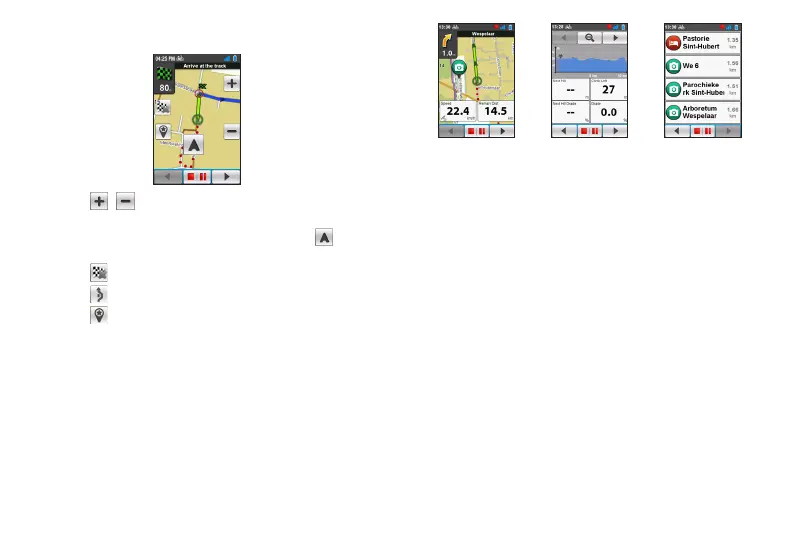
Tap on the Navigation screen briefly to display the onscreen
buttons.
• Tap / to zoom in/out the map.
• You can navigate the map anywhere by dragging and then
moving the map. While navigating the map, tap to display
your current position on the centre of the map.
• Tap to stop navigation.
• Tap to avoid a certain distance of route ahead.
• Tap to save the current location as a new place and
upload it to Place Manager of the MioShare website.
Viewing the dashboard screens
The Map also provides the extended dashboard screens that can
be used to assist you in your travels. The layout of the dashboard
screens can be customised to display the information (e.g.
speed, distance, time, calories, etc.) you want to know.
Navigation screen Elevation screen POI list
To learn how to customise the dashboard screens, see “Dashboard” in the
“Customising your device” section.


 To Next Page