7
English
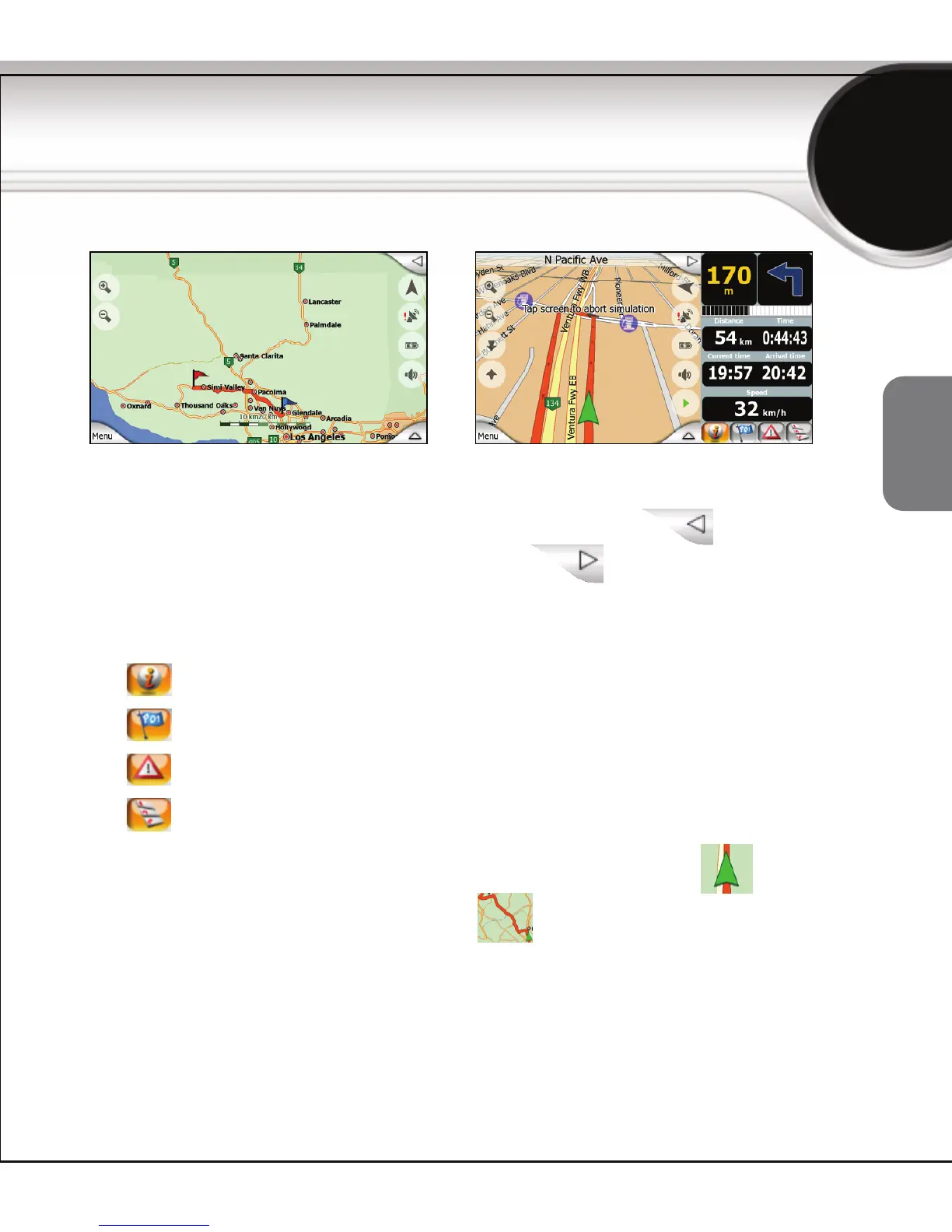
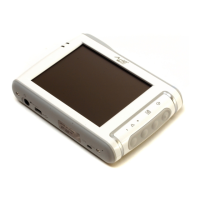
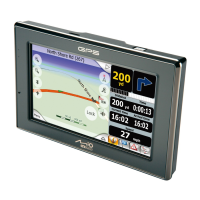
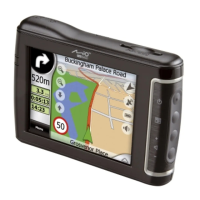
MioMap has a map screen for both map browsing and navigation. Browse the
full screen map, or open a data panel on the right with the
button in the
top right corner. To close the data panel, tap the
button.
With the data panel open, you will find four buttons at the bottom that serve as
hot keys for the following functions:
z Tap to see time, speed, distance and other route information.
z Tap to see the list of POIs around the current position directly.
z Tap to see the list of TMC events, if the feature is enabled.
z Tap to see the route itinerary with a list of the maneuvers.
The map looks like a conventional road-map. The Green arrow represents
your current position, and the Orange line
shows the recommended route.
Tap the satellite dish icon to open the GPS Data screen.
If you have moved the map or changed the view, a Follow button appears. Tap
this button to jump to the current GPS position and re-enable Smart Zoom.
The Map screen



 To Next Page