How do I delete NavPix
TM
from an Album?
NavPix
TM
can be deleted from an Album on your Mio internal memory or your memory card.
Note: When a NavPix
TM
has been saved as a Favourite destination, you will not delete the Favourite if you subsequently
remove the
NavPix
TM
.
1. From the Album screen, tap Browse.
The Select an Album screen will display.
2. Select the Album you want to view.
3. Tap and hold, then drag across the screen to select the
NavPix
TM
you want to delete.
As each
NavPix
TM
is selected, a green border will appear around it.
To cancel a selection, tap and drag across the NavPix
TM
again.
4. When you have finished the selection, tap Delete.
5. A warning screen will display, asking you to confirm or cancel the procedure.
If confirmed, the
NavPix
TM
will be deleted.
Tip: You can also delete a single NavPix
TM
via the Photo Details screen.
NavPix
TM
management
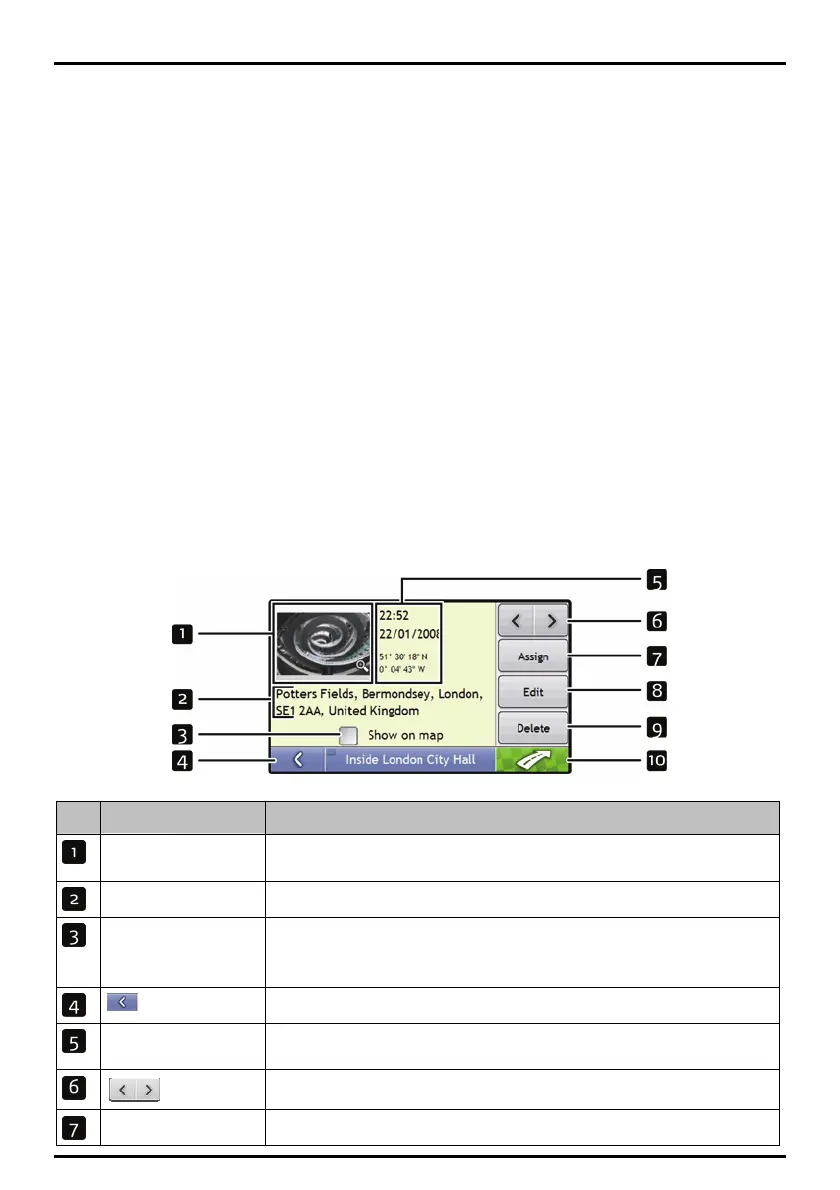
The NavPix
TM
Details screen displays information about your NavPix
TM
. Tap a NavPix
TM
to display the
Photo Details screen.
Element Description
Thumbnail A thumbnail of the
NavPix
TM
.
Tap to display the
NavPix
TM
in full-screen.
NavPix Title The title of the
NavPix
TM
; tap Edit to add a title or edit the existing title.
56
Show on Map When selected, displays an icon on the map at the location the
NavPix
TM
was taken.
Note: Show on map is available only if this is a
NavPix
TM
with embedded GPS
coordinates.
Tap to return to your album.
Time / Date and Location
Coordinates
Displays the time and date the
NavPix
TM
was taken. Displays the GPS coordinates if
available.
Tap the scroll buttons to scroll through your album.
Assign Allows you to save a
NavPix
TM
to an existing favourite or as a POI, if GPS coordinates


 To Next Page