MIOPS MOBILE Remote User Manual
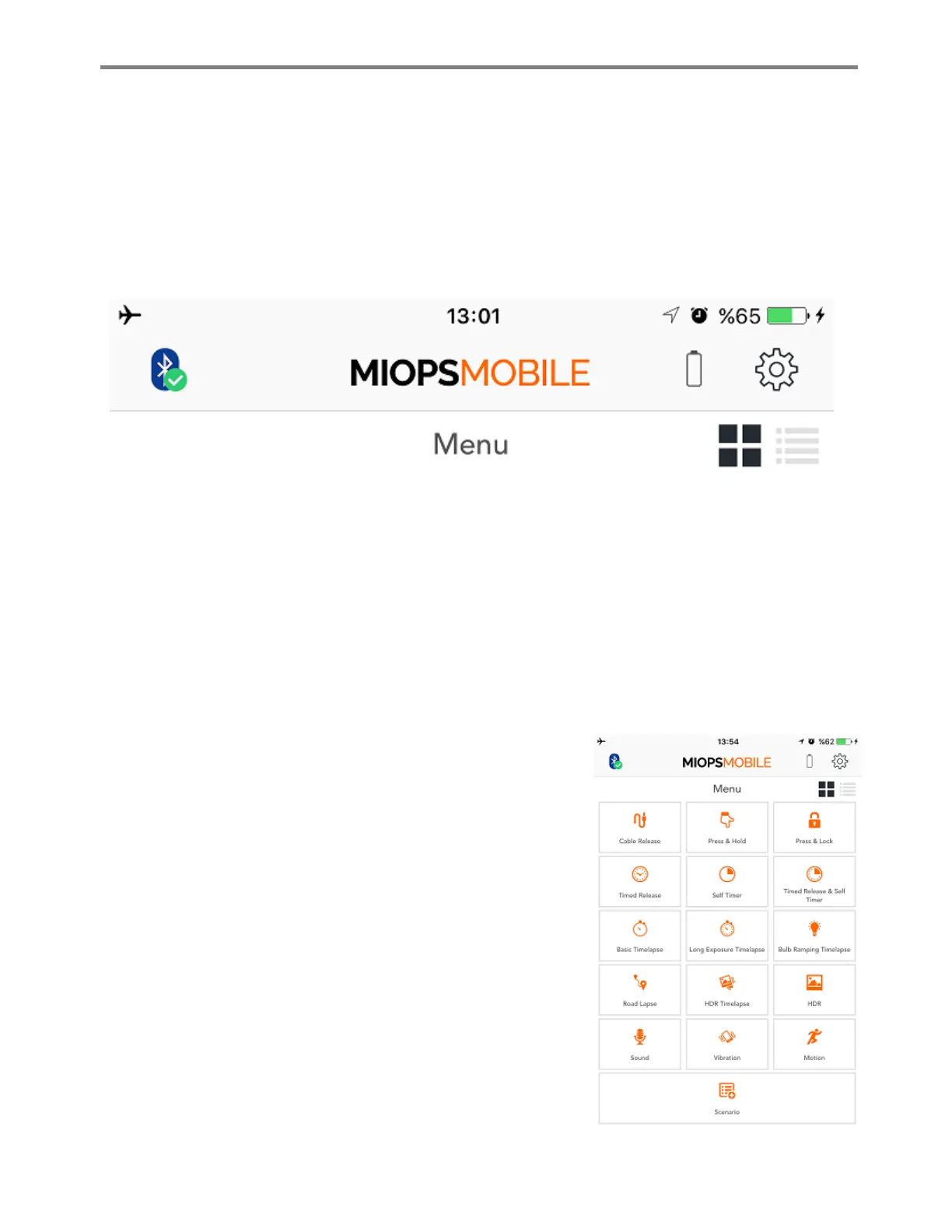
Once you successfully connect to the MIOPS Mobile Remote, the Menu screen will appear. On top
left of the screen, you will see a small icon which indicates the current type of the connection. If
there is a successful Bluetooth connection between your smartphone and MIOPS Mobile Remote,
you will see a Bluetooth icon with a green check on it. If the Bluetooth connection is lost for some
reason, there will be a red sign on the Bluetooth icon.
Bluetooth Icon with Green Check
You can switch between Bluetooth and Cable connection. In order to do that, just touch the
Bluetooth icon at the left top of the screen. You will be asked if you want to end the Bluetooth
connection between MIOPS Mobile Remote and your smartphone. If you confirm, you will be taken
back to the Connection Selection screen. Here you can start over and select the connection type.
IMPORTANT NOTE: The ‘Cable Connection’ will only work if you are using MIOPS Mobile Dongle. The
MIOPS Mobile Remote requires ‘Bluetooth’ connection to connect your smart phone. MIOPS Mobile
Remote will not work if you select cable connection.
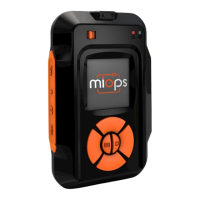
The smartphone app offers the modes with the Menu screen.
On this screen, you will find the icons of available modes. The
modes are listed in a logical order starting with cable release
modes, timer and time-lapse modes and finally the creative
modes.
The icons cover the screen in tiles version. If you want to
switch to a list mode, you can simply touch the list icon at the
right top of the screen. In the list mode, the modes will be
given in a list. You can switch back to tiles mode, by touching
the tiles again at the same spot.


 To Next Page