MIOPS MOBILE Remote User Manual
b. Connection Type
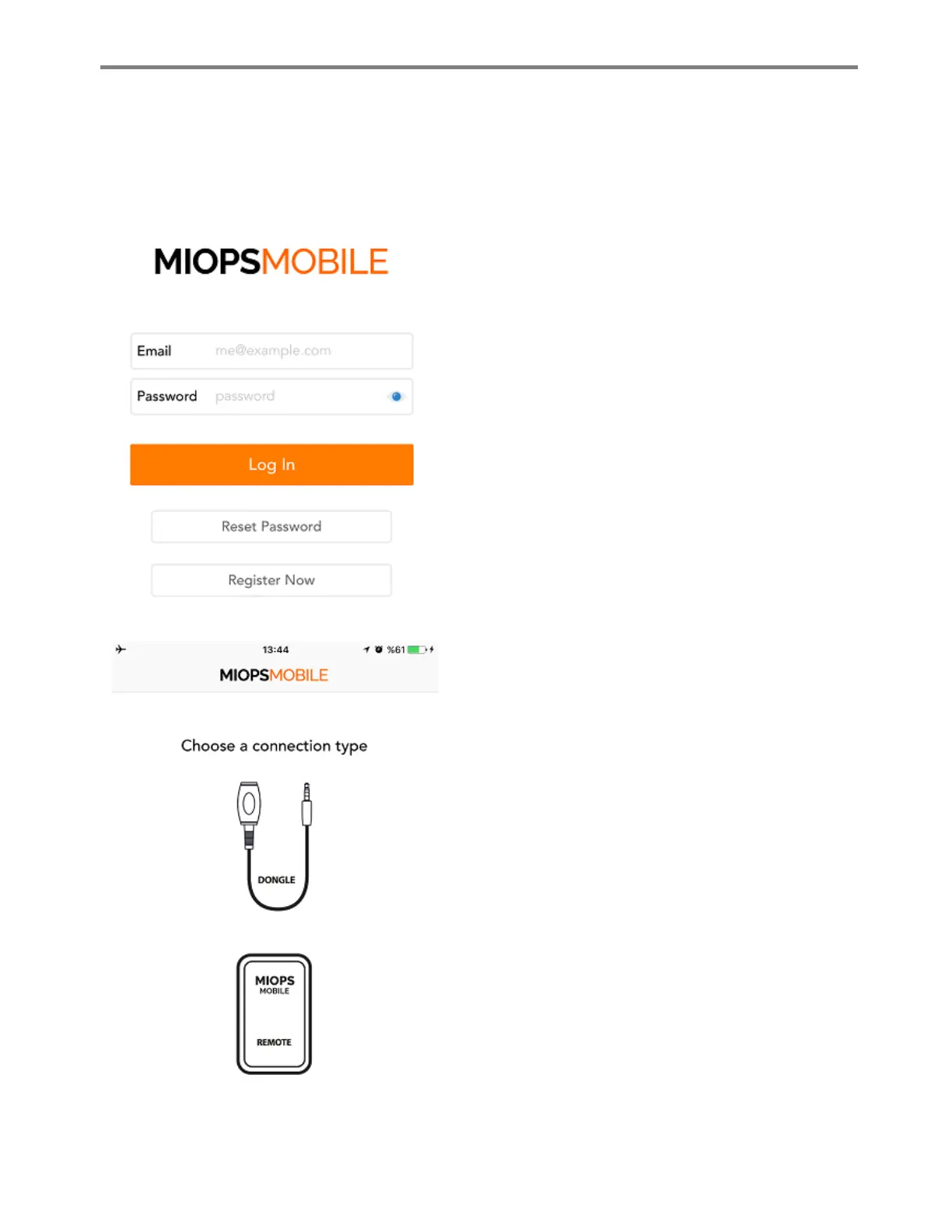
MIOPS Mobile Remote requires you to create a user account and to login to use the app. You can
create an account over the app right away. Once you run the app for the first time, it will ask you
whether you have a user account or not. If you have one, you can go ahead and log in.
If you don’t have a user account, you can touch the
“Register Now” button and a form will be displayed.
You can create a user account by providing some basic
information. The registration and log in requires an
internet connection. Once you log-in you don’t need
to have an internet connection to use MIOPS Mobile
Remote.
After you successfully login, the app will show a
‘Connection Type’ screen. The MIOPS MOBILE app is
used for both MIOPS Mobile Remote and MIOPS
Mobile Dongle. If you are using the MIOPS Mobile
Remote, select ‘Bluetooth’ connection. If you are
using the app with ‘MIOPS Mobile Dongle’, then select
the ‘Cable’ connection
After you select the ‘Bluetooth’ option, the app will
ask for permission to access the Bluetooth services of
your smartphone. You need to grant access to connect
to your MIOPS Mobile Remote.
Once you grant access, the app will list the nearby
MIOPS Mobile Remote devices. If your device is listed,
you can just select it to connect using the app.
If the app is not listed, you can touch the ‘Scan’ sign at
the right top of the screen. This will scan the Bluetooth
range for any MIOPS Mobile Remote device. If your
device is still not listed, make sure that it is turned on.
Connection Selection Screen
Login and Register Screen


 To Next Page