InstaLink™ Hotspot
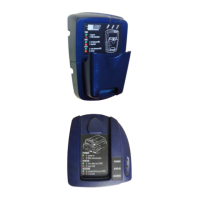
The InstaLink™ Hotspot Station will listen and com-
municate with Instadose®+ dosimeters that are within
range. When data has been captured it is sent to
Mirion’s servers and saved in the dose record.
1
2
3
Install the InstaLink™ Hotspot
Mount the InstaLink™ hotspot in a location where dosime-
ters are stored, for example in a hallway or break room, in
close proximity to the dosimeter badge board.
Connect InstaLink™ to the Internet
Initial configuration requires a wired Ethernet connection on
a network using a DHCP server. Each InstaLink™ requires
HTTPS access via Port 443 and Port 123 (UDP via ntp.org),
and the ability to resolve the *.instadose.com domain name
to capture and communicate dose reads.
* Your IT administrator may need to approve and/ or enable access.
Wireless Connection Option (WiFi should only be used as a last resort, when
a wired Etherenet connection is not an option.) To configure the InstaLink™
Hotspot for wireless connectivity you will need the IP address that was assigned
to it via Ethernet. You can then enter the assigned IP address into an HTML5
compatible browser to reach the login page (the username is: support and the
password is: instadose). Upon logging in you can select the “Wireless” option
under the “Connect Using” heading. This will display additional fields to select
your access point (or input the SSID directly), enter your security mode (WEP/
WPA/etc.), and then enter the security key. Lastly press the “Save Changes”
button at the bottom of the configuration page. The hotspot will reboot using the
new settings and you may remove the Ethernet cable.
Verify Connection
When connected to the network the InstaLink™ will automat-
ically connect to the Instadose® servers. When a connec-
tion has been made, a green light will flash.
LED Light Status Codes
Status Codes
Connectivity Codes
Boot up started
Boot up completed
All good/No errors
General, non critical error
Instadose Comm Success
Instadose Comm Failure
Ethernet/Wifi Interface Problem
Unable to get IP Address
Unable to resolve DNS to Mirion
Unable to get Network Time Protocol
solid yellow
rapid white blinking
green blinking
red blinking
short, rapid navy blue blinking
short, rapid red blinking
=
=
=
=
=
=
=
=
=
=
rapid pink blinking
rapid light blue blinking
rapid purple blinking
rapid orange blinking
Hotspot Installation and Set-up
Led Status
Indicator Light






 To Next Page