Connect Your Android Device
Android devices support a variety of connectivity standards.
Here are a few examples of how you would connect:
Note: You may need to check with your device manufacturer
to verify that your Android device supports video out.
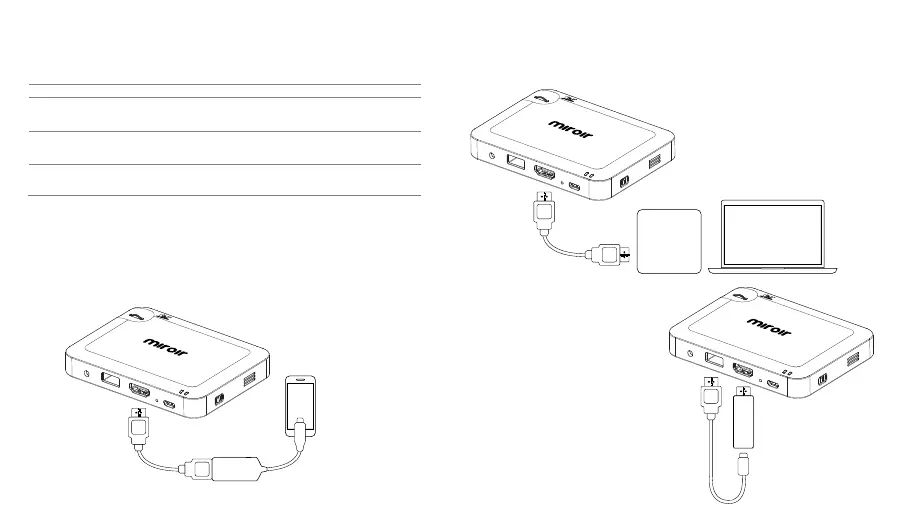
To connect your Samsung S8 you will need a Samsung
USB-C to HDMI adapter (sold separately) and an HDMI cable
(included in the box).
Connect Your HDMI Connected
Devices: Laptops, Streaming
Devices, Streaming Sticks
HDMI Cable
(Included)
AUDIO
HDMI
USB 5V OUT
Micro USB Power
Reset
USB Power Cable
(If Required)
To connect your HDMI connected
streaming stick, simply plug it
directly into your Miroir
projector’s HDMI port.
Note: Some streaming sticks
require their own power. The USB
power cable for those devices can
be plugged into the USB port on
the projector or a USB wall outlet.
AUDIO
HDMI
USB 5V OUT
Micro USB Power
Reset
Source Device Cable/Adapter Required
support USB-C Video out
SlimPort
Android devices with MHL
USB-C to HDMI Adapter (sold separately)
and HDMI Cable (included in the box)
Slimport to H(sold separately) and
HDMI Cable (included in the box)
MHL to HDMI Adapter (sold separately)
and HDMI cable (included in the box)
HDMI Cable
(Included)
Samsung
USB-C to HDMI
(Sold separately)
AUDIO
HDMI
USB 5V OUT
Micro USB Power
Reset
To connect your HDMI
connected laptop or
streaming box, you will
need an HDMI cable
(included in the box).


 To Next Page