Call Forwarding
Call Forward lets you redirect incoming calls to an alternate number when your phone is busy, you're not answering, or all the
time.
To quickly activate call forwarding always:
- Press the MENU button( ), press the Call Forwarding softkey, then enter the forward to number (please note that
your external dial digit, normally 9 should be entered before an external number) and press Activate, the calls
forwarded icon( ) will now display in the top left of the screen.
To quickly deactivate call forwarding always:
- Press the MENU button( ), press the Call Forwarding softkey, then Deactivate softkey.
To activate call forwarding via a profile:
- Press the MENU button( ), press the Call Forwarding softkey, then the Edit Default, edit the appropriate Profile
options from either: Always, Busy Internal, Busy External, No Answer Int or No Answer Ext.
- Enter the number you require the calls to be forwarded to (please note that your external dial digit, normally 9 should
be entered before an external number), then press Ok then Save and finally Activate to enable to profile.
To deactivate call forwarding via a profile:
- Press the MENU button( ), press the Call Forwarding softkey, then the Deactivate softkey.
Ad-Hoc
Conferencing
To form a Conference when a two–party call is already in place, or to add another party to an existing Conference;
Press TRANS/CONF button( ), dial the number of the next party, wait for an answer and press TRANS/CONF button( )
to complete the process, other conferencing options are;
- To leave a Conference; hang up or press the cancel button( ).
- To Split a Conference and speak privately with the original party, press the Split softkey.
- To call another party when you are in an established two–party call, Press TRANS/CONF button( ), then dial the
number. To alternate between the two parties, press the Trade Calls softkey.
Listening to your
voicemails
To check your voicemail press the MESSAGE button( ) . This will then dial your mailbox, follow the prompts to listen / delete
your voicemails or change the mailbox options. The first time you access your voicemail you will be given a system tutorial.
Copyright © 2016 Flip Connect. All Rights Reserved. No part of this publication may be reproduced, transmitted,transcribed, stored in a
retrieval system, or translated into any language in any form or by any means without the written permission of Flip Connect.
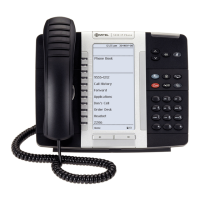
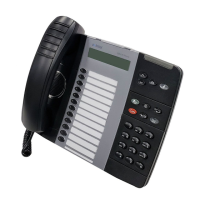
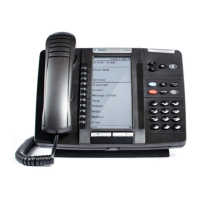
Mitel 5320(e) IP Phone
Quick User Guide
ECT
Better . Connected
TM
Page 4 of 4 Flip Connect Hosted VoIP – Mitel 5320(e) IP Phone Quick User Guide www.flipconnect.co.uk/support/userguides
Call Control cont.
Call Conferencing
Voicemail
Listening to group or
shared voicemails
If you have access to a shared or group voicemail box, you will have a key programmed on to the idle page of your phone, this
will flash to indicate that there is a new voicemail, press the button to access the voicemail box.
Key Icons and
Quick Help
Built within the phone is a help guide, to access this press the Help softkey from the idle page, you will then be able to select
either the Quick Help or the Key Icons guide, you can page through the results using the Navigation Page Keys (6).
Built in help



 To Previous Page