EasyManua.ls Logo

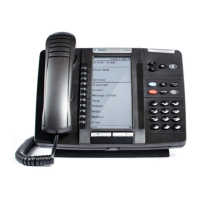
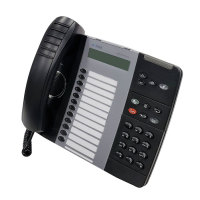
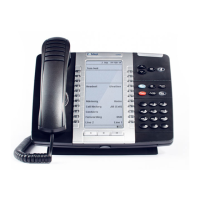
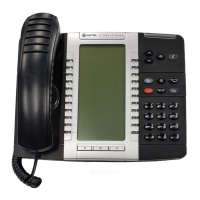
Mitel 5320e User Manual

Mitel 5320e
126 pages
To Next Page IconTo Next Page
Page #1 background imageLoading...
Page #1 background image
MITEL
5000 COMMUNICATIONS
PLATFORM (CP)
MITEL 5320e/5330e/5340e
USER GUIDE

Table of Contents

Other manuals for Mitel 5320e

Questions and Answers:

Mitel 5320e Specifications

General IconGeneral
HeadsetDedicated headset port
Supported CodecsG.711, G.729, G.722
Weight2.2 lbs
Ethernet Ports2 x 10/100 Mbps
Power over Ethernet (PoE)IEEE 802.3af
AudioWideband audio
SpeakerphoneFull-duplex
ProtocolsMiNet, SIP
Programmable Keys8 context-sensitive softkeys, 12 fixed function keys

Summary

Chapter 1: Getting Started

About Your IP Phone

Details phone models, physical components, and their functions.

Phone Feature Descriptions

Explains the function of each physical phone component such as handset and display.

Phone Signals

Describes audio and visual indicators for call and feature activity.

Comfort and Safety Tips

Provides guidelines for ergonomic use and hearing protection.

Viewing the Phone Information

Instructions on how to access system and phone details.

Using a Headset

Instructions for connecting and using telephone headsets.

Using the 5310 IP Conference Unit

Guide to operating the conference phone unit and its features.

Using the Line Interface Module (LIM)

Instructions for connecting an analog phone line for backup.

Making and Answering Calls Using the Analog Button

Procedures for handling calls via the analog phone line.

Making and Answering Calls Using the Failover Mode

Call handling procedures when the IP connection fails.

Chapter 2: Personalizing Your Phone

Adjusting the Viewing Angle

How to tilt the phone stand for better screen visibility.

Changing Volume Levels

Adjusting ringer, handset, headset, and speaker volumes.

Changing the Ring Tone

Selecting from available ring sounds for incoming calls.

Adjusting the Display Contrast and Brightness

Customizing the phone's screen appearance.

Changing the Language

Setting the phone's display and prompt language.

Changing the Text Size on the Display

Modifying font size for programmable button labels.

Using the Screen Saver

Configuring the phone's screen saver feature.

Viewing Call History

Accessing a log of missed, received, and dialed calls.

Deleting Call Records

Removing entries from the phone's call history.

Reviewing Call Record Icons

Understanding the symbols used in call logs.

Customizing Your Contact List

Adding, editing, and managing phone contacts.

Dialing from Your Contact List

Making calls using stored contact information.

Specifying Audio Feedback Options

Adjusting beep volumes and audio feedback settings.

Using the Dialpad Buttons to Enter Characters

Method for text input using the phone's dialpad.

Using Programmable Buttons

Assigning features or numbers to programmable buttons.

Default Access Codes

Common system access codes for features and lines.

Extension Numbers

Information on phone extension assignments.

Default Feature Codes

Standard codes used to activate phone features.

Listening to Background Music

Instructions for playing music through the phone speaker.

Viewing Button Assignments

Checking the functions assigned to phone buttons.

Resetting Programmable Buttons

Restoring programmed buttons to their default settings.

Resetting the IP Phone to the Default Settings

Restoring the phone to its original factory default settings.

Switching Keymaps

Changing the phone's button layout configurations.

Activating Door Relay

Using the phone system to unlock doors.

Chapter 3: Answering and Placing Calls

Overview

Introduction to handling incoming and outgoing calls.

Answering Calls

Basic procedures for answering incoming calls.

Answering Waiting Calls

Handling secondary incoming calls while on an active call.

Using Automatic Call Access

Enabling auto-answer functionality for incoming calls.

Redirecting Calls

Forwarding incoming calls to different destinations.

Using Automatic Trunk Answer

Automatic answering for external calls.

Placing Calls

General instructions for making outgoing calls.

Placing Emergency Calls

Procedures for dialing emergency services like 911.

Placing Internal Calls

Dialing other extensions within the phone system.

Requesting a Callback (Queuing the Phone)

Asking to be called back when an extension is busy.

Using Camp-on

Waiting for a busy extension to become available.

Placing External Calls

Making calls to outside phone numbers.

Redialing a Number

Quickly redialing the last dialed number.

Using Speed Dial

Quickly dialing stored phone numbers.

Using the Directory

Searching for contacts and activating system features.

Using Account Codes

Entering codes for call tracking or billing purposes.

Chapter 4: Call Features

Overview

Introduction to various call management features.

Using Handsfree Mode

Operating the phone using the speakerphone functionality.

Using Ring Intercom Always

Forcing intercom calls to require handset pickup.

Using Mute

Temporarily disabling the microphone during a call.

Placing Calls On Hold

Temporarily suspending a call.

Entering a Hookflash

Using the hookflash for feature access.

Transferring Calls

Moving calls to other extensions or external numbers.

Using Reverse Transfer

Picking up calls from other extensions.

Viewing Your System Information

Displaying user name, extension, date, and time.

Viewing Caller ID Information

Accessing details of incoming callers.

Forwarding Calls

Redirecting incoming calls to another number.

Manual Call Forwarding

Setting up individual call forwarding.

System Forwarding

System-wide call forwarding configurations.

Using Dynamic Extension Express

Routing incoming calls to multiple destinations.

Using the Handoff - Push/Pull Feature

Seamlessly transferring active calls between devices.

Placing Ad Hoc Conference Calls

Setting up multi-party calls on the fly.

Dropping Out of a Conference

Leaving a conference call.

Ending a Conference and Placing all Parties on Hold

Holding all conference participants simultaneously.

Using Meet-Me Conferencing

Scheduling and joining pre-arranged conferences.

Conference Assistant

Voice-guided service for managing conference calls.

Access Codes

Codes required to join or initiate Meet-Me Conferences.

Setting Up a Meet-Me Conference

Creating a scheduled conference call.

Joining a Meet-Me Conference

Participating in a scheduled conference call.

Using Record-A-Call

Recording ongoing calls as mailbox messages.

Using Group Listen

Allowing others to hear call audio via the speaker.

Using Call Logging

Reviewing recent call history details.

Using Secondary Extension Buttons

Using additional phone lines assigned to extensions.

Using Hot Desking

Personalizing phone settings on shared phones.

Using the Configuration Assistant

Remote phone configuration via a voice-guided portal.

Changing Your Station Passcode

Securing phone access by changing the passcode.

Accessing the Configuration Assistant

How to connect to the phone configuration portal.

Changing the Dynamic Extension Express Settings

Customizing call routing rules for incoming calls.

Changing the DND Settings

Managing Do-Not-Disturb status and messages.

Changing the Manual Call Forwarding Settings

Configuring manual call forwarding options.

Managing Meet-Me Conferencing Access Codes

Creating and managing access codes for conference calls.

Chapter 5: Messages

Overview

Introduction to phone messaging features.

Leaving Messages at Other Extensions

Sending inter-station or voice messages to colleagues.

Viewing and Responding to Messages

Accessing and replying to messages.

Canceling Messages Left at Other Extensions

Removing sent inter-station messages.

Deleting Waiting Inter-Station Messages

Removing unread inter-station messages.

Using Do-Not-Disturb (DND)

Blocking incoming calls and pages to your extension.

Using Reminder Messages

Setting timed message alerts for appointments or tasks.

Paging Other System Users

Broadcasting announcements to multiple phones.

Chapter 6: Hunt Groups

Overview

Explanation of hunt group functionality and types.

Logging in to ACD Hunt Groups

Agent login process for Automatic Call Distribution.

Logging out of ACD Hunt Groups

Agent logout process from call distribution.

Stopping the ACD Hunt Group Wrap-up Timer

Managing post-call processing time for hunt group agents.

Other Hunt Group Features

Additional functions available for hunt groups.

Requesting Agent Help

Seeking assistance from a supervisor during a hunt group call.

Diverting Hunt Group Calls

Temporarily redirecting hunt group calls away from the extension.

Hunt Group Supervisor Features

Functions available exclusively to hunt group supervisors.

Accepting or Rejecting Agent Help Calls

Supervisor actions for handling agent help requests.

Monitoring Calls

Listening to hunt group calls without participation.

Stealing Hunt Group Calls

Taking over a hunt group call from another agent.

Using Barge-In

Joining an ongoing call discreetly or openly.

Chapter 7: Cordless Devices

Overview

Introduction to cordless phone accessories and their use.

Cordless Module

Description of the module connecting accessories to the phone.

Handset and Headset Combinations

Supported pairing configurations for cordless accessories.

Pairing the Cordless Module and Devices

Connecting cordless accessories to the cordless module.

Using a Cordless Device as a Remote Control

Using cordless accessories to control phone settings.

Alerting Tones and LEDs

Understanding device status indicators and sounds.

Low Battery Level

Warnings and behavior for low battery on cordless devices.

Cordless Handset

Instructions for using the wireless handset.

Cordless Handset Features

Details on cordless handset buttons and indicators.

Answering Calls

How to answer calls using the cordless handset.

Hanging Up

How to end calls using the cordless handset.

Cordless Handset LEDs

Indicator lights on the cordless handset.

Cordless Headset

Instructions for using the wireless headset.

Cordless Headset Features

Details on cordless headset components.

Using the Cordless Devices Application

Managing cordless accessories via the phone's application.

Viewing Cordless Module Information

Accessing details about the cordless module.

Chapter 8: Troubleshooting

Overview

Introduction to solving common phone issues.

Contact Information

How to reach support and system administrators for assistance.

Error Messages

Explanations of common error messages displayed on the phone.

Troubleshooting Tips

Solutions for typical phone and feature problems.

Related product manuals