To use Manual Call Forwarding:
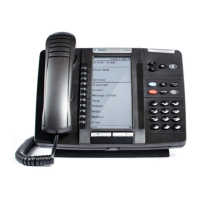
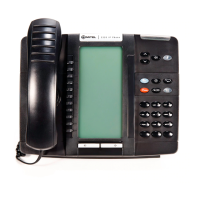
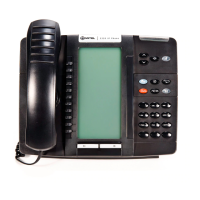
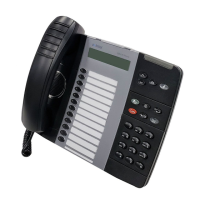
1. Press the Fwd All button (5320e/5330e IP Phone) or Forward button followed by the menu
button designation (5340e IP Phone), or dial the Manual Call Forwarding feature code from
the previous table. ENTER FORWARD DEST appears.
2. Enter the extension number, or press the Outgoing button or the Outside menu button
(5340e IP Phones only), and then dial the telephone number. On the 5340e IP Phone, you
can press the VOICE MAIL menu button to forward calls to the Message Center (voice
mailbox). FWD ALL CALLS TO <number> appears.
To cancel a Manual Call Forwarding request:
• 5320e/5330e IP Phone: Press the Fwd All button, and then press # (Speaker), or lift
the handset.
• 5340e IP Phone: Press Forward button, and then press the FWD OFF menu button.
System Forwarding
You can use System Forwarding to route calls based on the type of call and the idle or busy
status of your IP phone. You cannot program the System Forward destination. You can only
turn it on or off. Contact your system administrator for more information.
To turn System Forwarding on or off:
• Dial 354. SYSTEM FORWARD ON appears. Dial 354 again to turn System Forwarding off.
Note: If the Configuration Assistant feature is enabled for your system, you can access
a voice guided configuration portal that provides easy-to-use, remote access to the
Call Forwarding feature. See page 72 for details.






 To Next Page