© Copyright 2018, Mitel Networks Corporation. All Rights Reserved.
The trademarks, service marks, logos and graphics (collectively "Trademarks") appearing on Mitel's Internet sites or in its publications are registered and unregistered trademarks of Mitel Networks Corporation (MNC) or its subsidiaries (collectively "Mitel") or their
respective owners. Use of the Trademarks is prohibited without the express consent from Mitel. Please contact our legal department at legal@mitel.com for additional information. For a list of the worldwide Mitel Networks Corporation registered trademarks,
please refer to the website: http://www.mitel.com/trademarks. Customer's use of this product and/or software shall be in accordance with the EULA and /or other accompanying licensing terms.
Mitel’s Power Over Ethernet (PoE) Powered Device (PD) products are covered by one or more of the U.S. patents (and any foreign patent counterparts thereto) identified at Mitel’s website: www.mitel.com/patents. For more information on the PD patents that are licensed,
please refer to www.cmspatents.com.
QUICK REFERENCE GUIDE
Quick Reference Guide
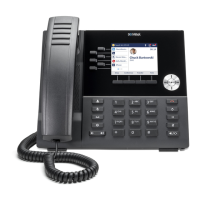
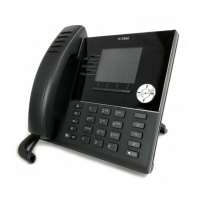
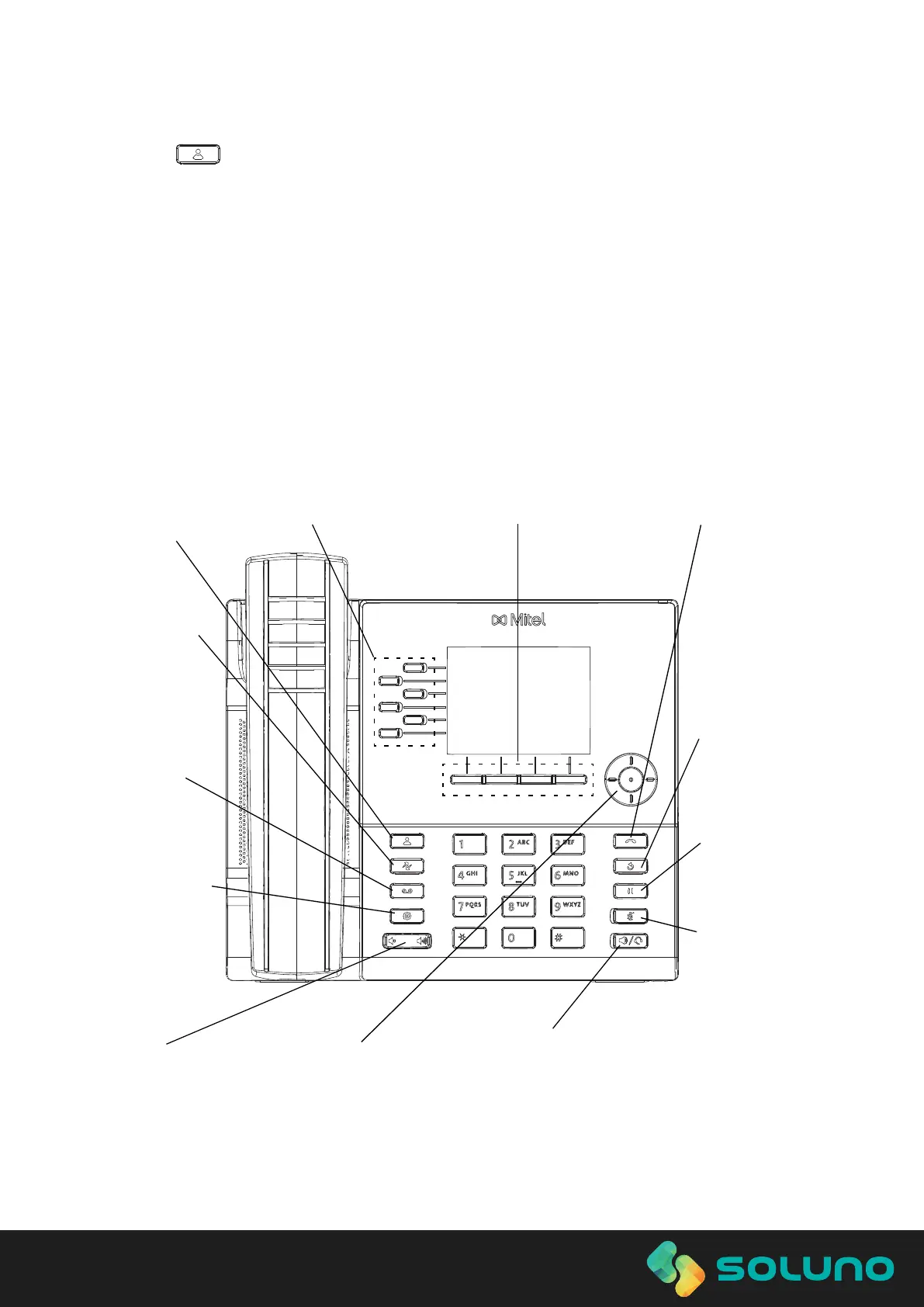
Mitel 6920 SIP Phone
Getting started
Contacts
Voicemail
Settings
Provides
services and
options that
allow you to
customize
your phone.
Volume
Speaker/Headset
Toggles the phone’s audio between speaker
and headset. If you are using a DHSG/EHS
headset, ensure that the headset jack adapter is
removed from the headset port. See the Mitel
6920 SIP Phone Installation Guide for more details.
Warning!
The headset port is for headset use only.
Plugging any other devices into this port
may cause damage to the phone and will
void your warranty.
Mute
Navigation/Select
Multi-directional navigation
keys are used to navigate
through the phone menu.
Press the center button
the left and right navigation
keys can be used to switch
Top SoftKeys
6 programmable keys that support
Bottom Softkeys
4 context-sensitive softkeys.
Redial
Goodbye
Hold
Ends the active
call and used
Mutes/unmutes
Displays Call
Places an active
call on hold or
Displays
a list of your
contacts.
Adjusts the
volume for
the ringer,
handset,
speaker,
Provides
service.
your voicemail
access to
History with a list
of outgoing calls.
from headset,
handset or
speaker.
Call History
Displays a list
of missed,
outgoing and
received calls.
resumes a call
from hold.
to select menu options and
perform various actions.
up to 20 functions.
that support up to 18 functions.
between the home screen,
the line manager, and active calls.
Basic call handling
Making a call
1. Lift the handset or press the key, and
at the dial tone, enter the number.
2. Press the Line / Call appearance button and
at the dial tone, enter the number.
Ending or ignoring a call
Place the handset back in its cradle, press the Ignore softkey, or press the key.
Answering a call
Lift the handset, press the Answer softkey or press the key for handsfree
operation.
Redialing
Press the Redial softkey once or the key twice to call the last dialed number
or
Press the key once to access the Call History application that displays a list of
recently dialed numbers. Use the up and down navigation keys to scroll through the
entries and select a number. Press either the Select button or Dial softkey to redial the
selected number.
Muting or unmuting a call
Press the key while on an active call to mute the microphone for your handset,
headset, or speaker. Press the key again to unmute the audio.
Holding and resuming a call
1. To place an active call on hold, press the key. A (hold) icon flashes on the
respective Line key.
2. To resume the call, press the key again or press the respective Line key.
Note: For details on all the available features and options, refer to the Mitel 6920 SIP Phone User
Guide.
Making a call using the Directory
© Copyright 2018, Mitel Networks Corporation. All Rights Reserved.
The trademarks, service marks, logos and graphics (collectively "Trademarks") appearing on Mitel's Internet sites or in its publications are registered and unregistered trademarks of Mitel Networks Corporation (MNC) or its subsidiaries (collectively "Mitel") or their
respective owners. Use of the Trademarks is prohibited without the express consent from Mitel. Please contact our legal department at legal@mitel.com for additional information. For a list of the worldwide Mitel Networks Corporation registered trademarks,
please refer to the website: http://www.mitel.com/trademarks. Customer's use of this product and/or software shall be in accordance with the EULA and /or other accompanying licensing terms.
Mitel’s Power Over Ethernet (PoE) Powered Device (PD) products are covered by one or more of the U.S. patents (and any foreign patent counterparts thereto) identified at Mitel’s website: www.mitel.com/patents. For more information on the PD patents that are licensed,
please refer to www.cmspatents.com.
QUICK REFERENCE GUIDE
Quick Reference Guide
User Interface (UI) overview
Home screen
The Home (default) screen is displayed when the phone is in the idle state. The Home
screen displays the current line, status indicators, status messages, the date and time,
and a list of configurable top and bottom softkeys.
Call screen
When on an active call, caller’s avatar, name, number, and the call-duration timer are
displayed. The context-sensitive softkeys are updated with applicable call-handling
features.
Applications
Directory
The Directory application stores personal phone book and directory. The Mitel 6920 SIP
phone supports a localized personal directory as well as enhanced functionality allowing
for interoperability with LDAP (corporate) directories.
.
Making a call using the Directory
1. Press the key to access the Directory.
2. Navigate to the respective contacts folder and scroll through the contacts by using the
navigation keys
or
Enter characters using the keypad and press the Search softkey to use the search
feature.
3. When the applicable contact is highlighted, press the Select button or the Dial softkey
to place a call using the entry’s default phone number
or
To place a call to a different phone number defined for the entry (for example, a mobile
number), press the right navigation key, highlight the phone number you want to call
using the up or down navigation keys, and press the Select button or the Dial softkey.


 To Previous Page
 Loading...