To Check Call History:
1. Press the key once to access a list of recently dialed number. Use the UP and Down navigation
keys to scroll through the entries and select button the number or the DIAL softkey to redial the
selected number.
To Change The Ring Tone:
1. Press the Settings key .
2. Navigate to the Audio key .
3. Select the Ring Tones key .
4. Choose a ring tone and then click SAVE.
Contacts:
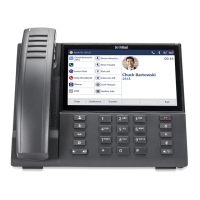
The Contacts application is your personal phone book and directory, conveniently stored within your
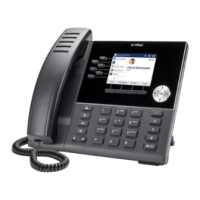
phone. Mitel MiVoice 6930 IP phone supports a localized Personal contact folder as well as enhanced
functionality allowing for interoperability with LDAP (Corporate) directories.
1. Press the (Contacts) key.
2. You can view the list of contact on the right for each respective contact folder by pressing the up
and down navigation keys. Note: If any of the folders are empty, a “Directory empty” message
displays on screen.
3. Press the right navigation key to move to the contact selection column. From this column, you
can use the up and down navigation key to scroll through the list of contacts.
4. From the contact selection column, press the right navigation key to display the contact card for
the selected contact.
5. Press the up and down navigation keys to scroll through the list of numbers.
6. Press the (Goodbye) key, or CLOSE softkey to exit.
To perform a search:
1. Press the (Contacts) key.
2. Using the dialpad keys enter the first letters of the contact’s name and (if required) press the SEARCH
softkey.
To Add a Contact:
Press the Contact Key.
1. Press the Add New softkey.
2. Press the right navigation key to move to the FIRST NAME then to the LAST NAME and enter the names
using the Dial Pad keys.
3. Press the NUMBER category to enter the telephone number.
4. Click the SAVE softkey.
To Edit or Delete a Contact:
Press the Contact Key.
1. Highlight the contact you want to edit or delete.
2. Press the right navigation key to move to the selected contact and press the EDIT or DELETE softkey.
3. Use the navigation key through the various tabs to edit.
4. Press the SAVE softkey to save your changes or the DELETE softkey to delete the contact.


 To Next Page