4
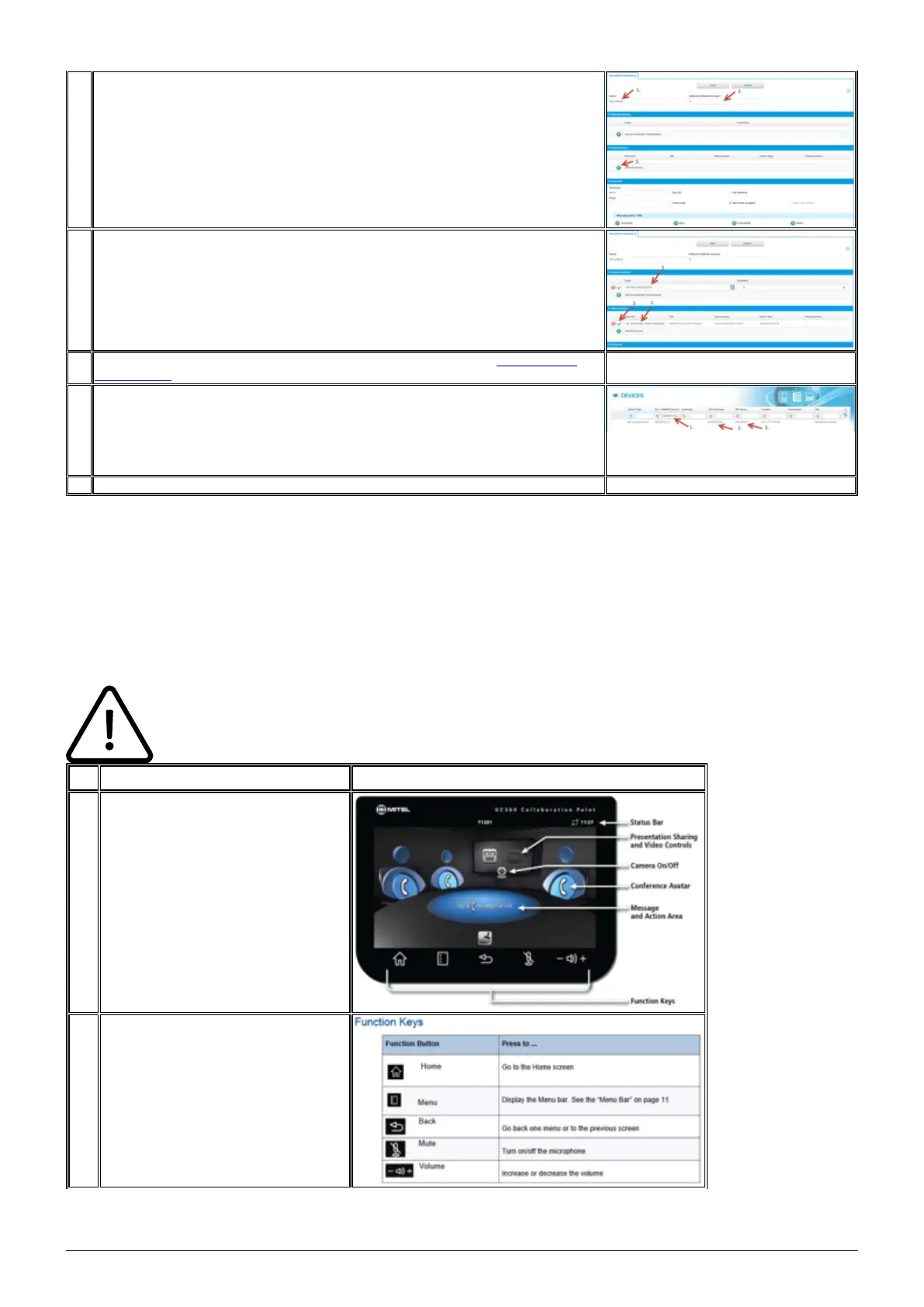
7. A new window appears, enter here:
[1.] Add a name, e.g. Dik Linthout.
[2.] Add an extension.
[3.] Select new device.
8. [1.] Enter here again the MAC address to select your device.
[2.] Once selected, you need to confirm your result.
[3.] Select an outbound trunk, if the device needs an external access.
9. All the other settings for this device, e.g. voicemail, are described in the administration
portal manual.
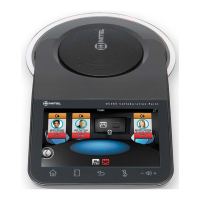
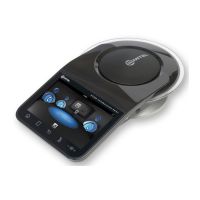
10. Now your Mitel UC360 is added and set up. For the settings of the UC360 you need the
next information:
Change to Elements/Devices then:
[1.] Enter the MAC address (fast search).
[2.] This is your userID for the UC360 settings!
[3.] This is your password for the UC360 settings!
11. Now you can change the settings in your Mitel UC360 device.
D. Mitel UC360 settings
Der folgende Abschnitt beschreibt, wie das Mitel UC 360 konfiguriert wird.
In diesem Merkblatt werden keine detaillierten Beschreibungen zu den
Nutzungsmöglichkeiten des Mitel UC360 gegeben.
Nr. Beschreibung Bild
1. Hauptbildschirm
2.
Wählen Sie Menü.




 To Next Page