Moneris Core® Move/5000 Wireless Terminal: Setting up Your Hardware 7
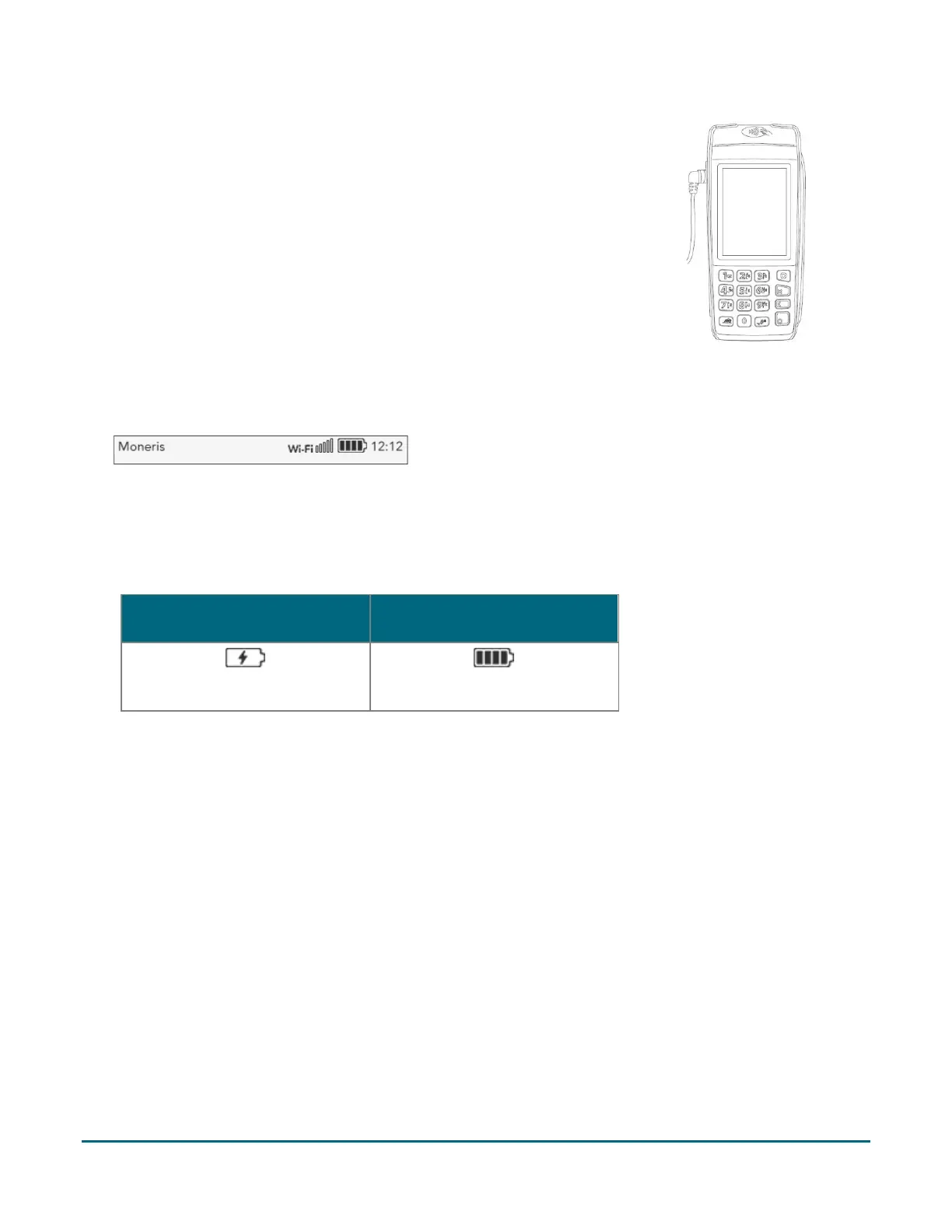
3. Insert the direct-to-terminal cable connector into the port.
4. Plug the other end of the cable into a working power outlet.
5. When the terminal powers on, proceed to step 6 below.
6. Wait for the “Welcome! Let’s get you payment ready” prompt to appear. (This should take about 60
seconds.)
7. Locate the Battery icon appearing at the top of the terminal screen in the status bar:
8. Wait for the Battery icon to display the “lightning bolt” icon. This indicates that the battery is charging and
may take several minutes to appear.
Note: The "lightning bolt" portion of the icon displays only if the terminal is connected to an external power
source.
Terminal IS CONNECTED to
external power source
Terminal IS NOT CONNECTED to
external power source
9. Keep the direct-to-terminal charge cable (or the optional base charge cable) connected while continuing the
rest of the setup procedures.
10. Your hardware setup is complete. To set up your software and communications, refer to the Moneris Core®
Move/5000 Setting up Your Software guide available at moneris.com/support-move5000.


 To Next Page