26 Chapter 3 Using the System
Configuring front panel buttons
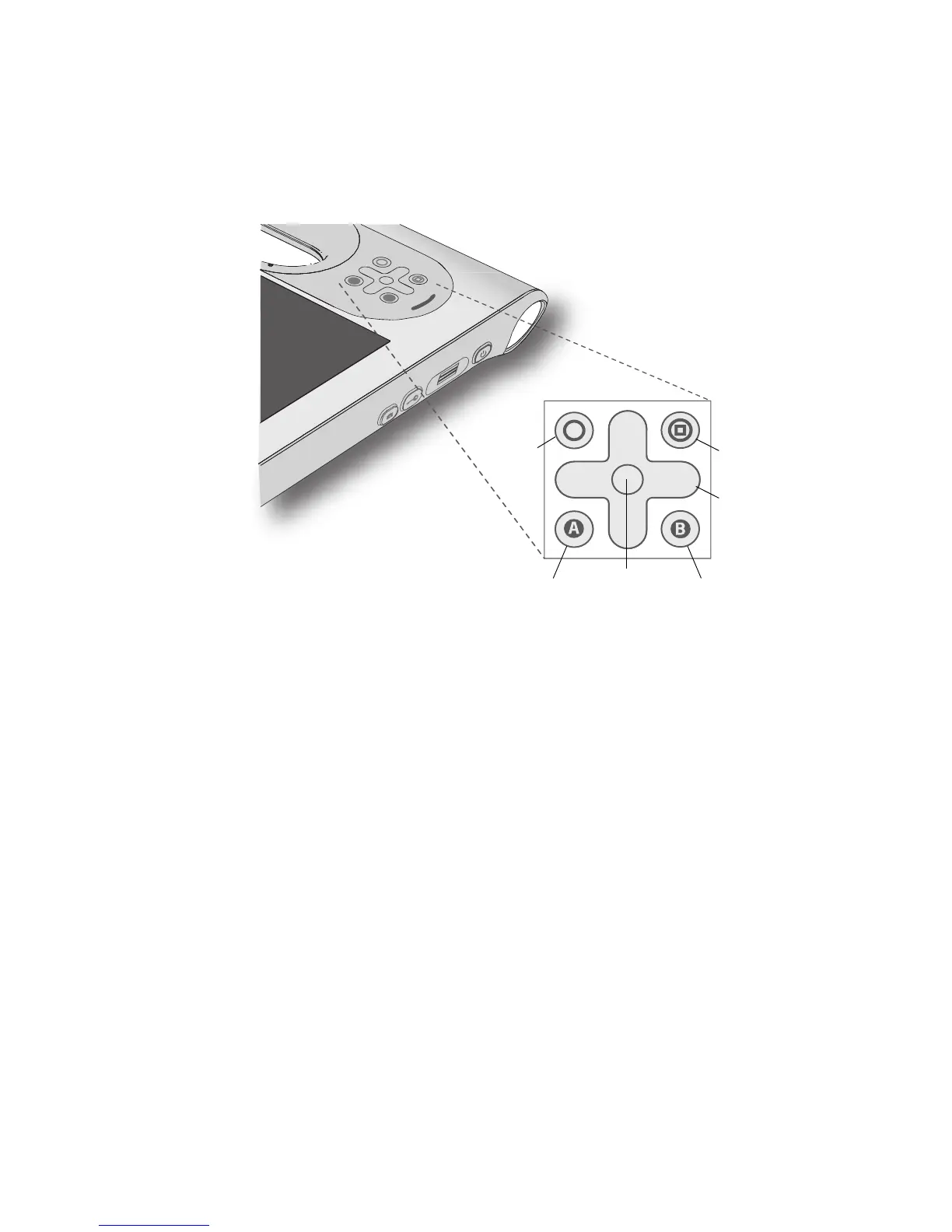
As you become more familiar with your system, you may want to customize the buttons on
the front panel. You can configure the buttons to start your favorite program, run a
command, or enter a key combination.
To configure the front panel buttons
1. Open Motion Dashboard to the Pen & Tablet panel (page 22).
2. Tap the Tablet PC Settings button.
3. In the Tablet PC Settings window, tap the Buttons tab.
4. Select the button combination you want to change. The currently selected buttons
appear in red.
5. Tap Change.
6. Select the appropriate action for the button.
For some actions, you must enter more information, such as the location of a program
to start. You can select an action for Press and another for Press and hold. For more
information, tap What is press and hold?
Note: To reset the buttons to their default values, tap the Reset button.
A
B
Function
Dashboard
A button
B button
Directional pad
Enter


 To Next Page