62 Appendix A Troubleshooting and Support
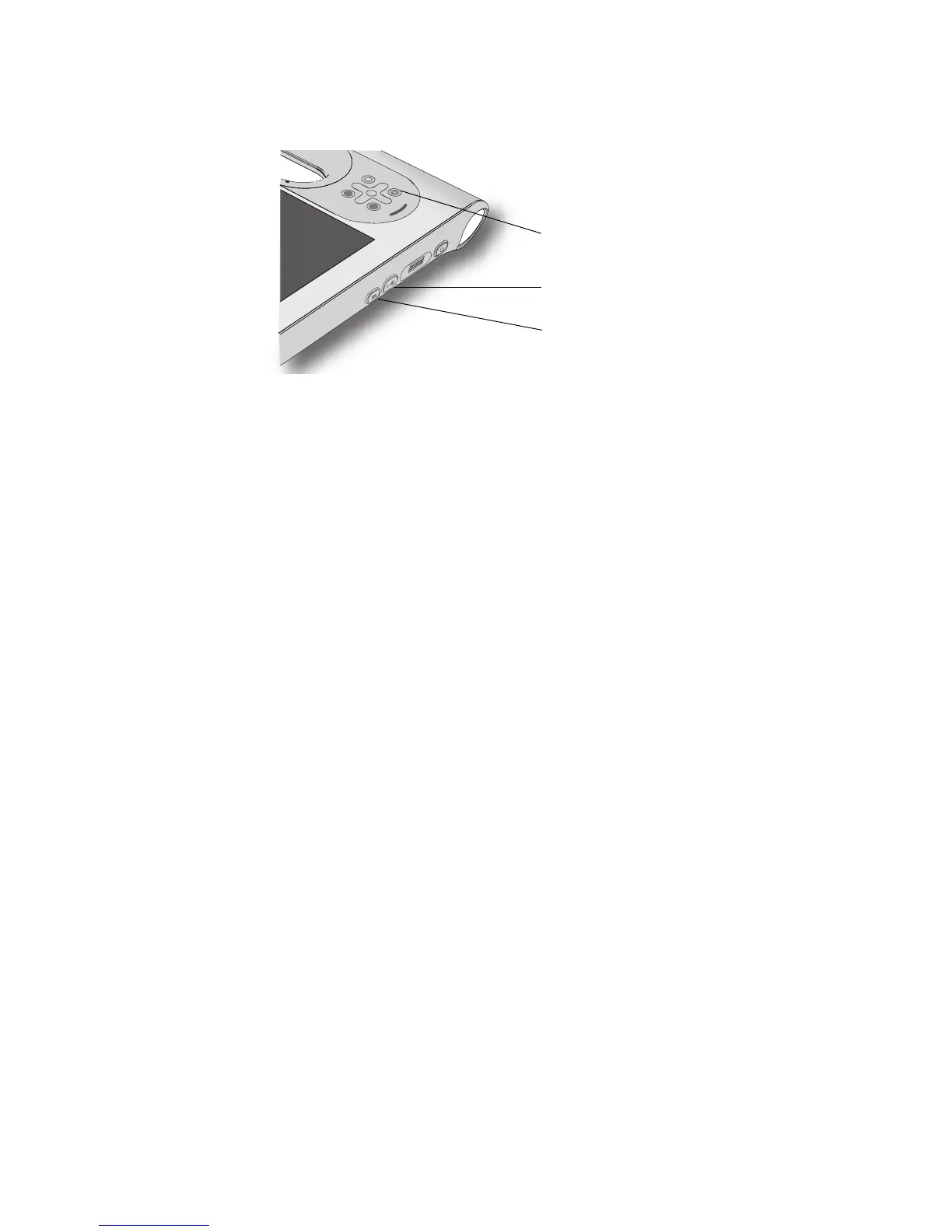
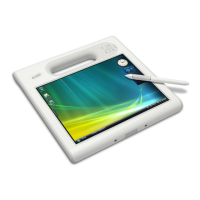
3. Press the camera, Windows Security, and dashboard buttons, simultaneously. For the
locations of these button, see below.
The tablet will not enter Hibernation mode.
• Hibernation might not be enabled. Use Motion Dashboard to enable Hibernation. See
“Using Hibernate” on page 38.
The tablet does not return from Hibernation while on battery power
• The battery might be depleted. Plug the unit in to AC power.
The display goes black while the system is still turned on
• The computer might have turned off the display to save power. To restore the display,
touch the screen with the pen or press a button.
• The tablet might have gone into Sleep mode. Press and hold the power switch for about
one second.
• The tablet might have gone into low-battery Hibernation mode. Plug the tablet in to AC
power, then press and hold the power switch for about one second.
Battery
The battery does not last very long (less than three hours)
• Hot or cold conditions can adversely affect the battery charge. Use AC power if you are
operating the tablet in these conditions.
• Accessory devices, such as a DVD player, and applications that make heavy use of the
hard drive can drain the battery more quickly.
• The battery may be weakening. Use a different battery if possible.
A
B
Dashboard button
Windows Security button
Camera button


 To Next Page