EasyManua.ls Logo

Motorola MC3090G - Win CE 5.0 Core - User Manual

Motorola MC3090G - Win CE 5.0 Core
146 pages
Print Icon
To Next Page IconTo Next Page
Loading...
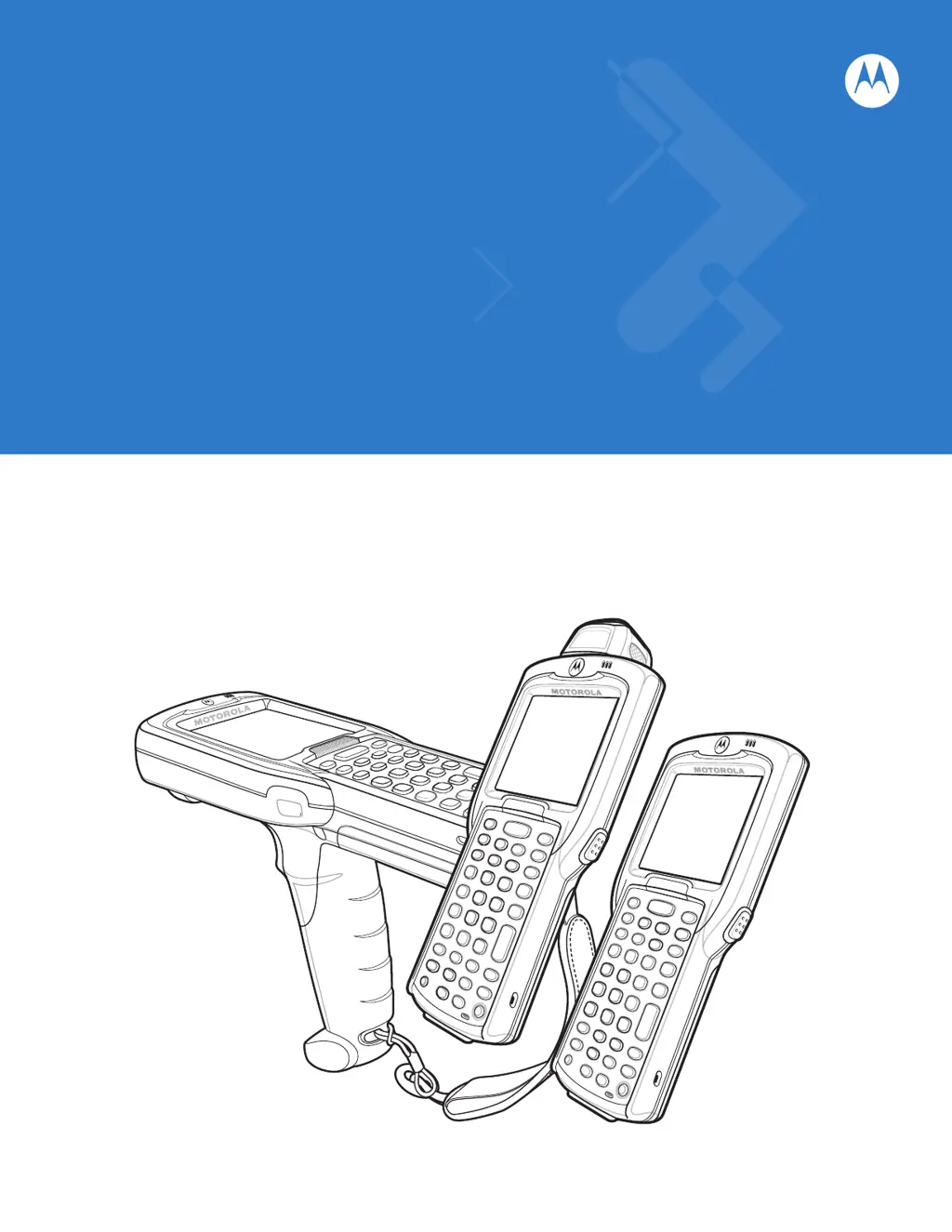
MC3000
User Guide

Table of Contents

Questions and Answers

  • Z
    Zachary WilsonAug 15, 2025
    How to fix Motorola MC3090G - Win CE 5.0 Core mobile computer that does not turn on?
    • A
      Anthony PerezAug 15, 2025
      If your Motorola Handhelds mobile computer isn't turning on, first charge or replace the main battery. If that doesn't work, make sure the battery is installed correctly. If the issue persists, try performing a warm boot. If it still fails to power on, attempt a cold boot.
  • D
    David LynchAug 18, 2025
    Why does my Motorola MC3090G - Win CE 5.0 Core mobile computer turn itself off?
    • N
      Nancy GarciaAug 18, 2025
      If your Motorola Handhelds mobile computer turns itself off, it could be due to inactivity, which can be set from one to five minutes. Another reason could be a depleted battery, so recharge or replace it. Also, ensure the battery is properly inserted.
  • J
    Jennifer VelasquezAug 21, 2025
    What to do if Motorola MC3090G - Win CE 5.0 Core Handhelds amber Charge LED Indicator does not light?
    • C
      Candice HarrisAug 21, 2025
      If the amber Charge LED Indicator does not light when you insert your Motorola Handhelds mobile computer into the cradle, ensure the power cable is securely connected to both the cradle and the AC power. Also, make sure the mobile computer is correctly seated in the cradle by removing and re-inserting it.
  • D
    David HarringtonAug 25, 2025
    Why is my Motorola MC3090G - Win CE 5.0 Core mobile computer battery not charging?
    • J
      jasongonzalezAug 25, 2025
      If your Motorola Handhelds mobile computer battery isn't charging, ensure the cradle is receiving power and that the computer is seated correctly in the cradle. If the battery is fully depleted, it can take up to four hours to fully recharge a Standard Battery or up to six hours for an Extended Life Battery. If the problem persists, verify that other batteries charge properly; if they do, replace the faulty battery.
  • D
    David CarrollAug 27, 2025
    What to do if my Motorola MC3090G - Win CE 5.0 Core battery did not charge?
    • Y
      Yvonne AndradeAug 27, 2025
      If the battery did not charge in your Motorola Handhelds device, the battery may have failed, so replace it. If that doesn't work, try a warm boot, then a cold boot. Also, ensure that the mobile computer remains in the cradle while charging. The Standard Battery requires up to four hours to recharge fully, and the Extended Life Battery requires up to six hours. Finally, the battery won't charge if the ambient temperature is below 32°F (0°C) or above 104°F (40°C).
  • S
    Sarah BurnsAug 30, 2025
    Why tapping the window buttons or icons does not activate the corresponding feature on Motorola Handhelds?
    • T
      timothyjacobsonAug 30, 2025
      If tapping window buttons or icons doesn't activate the corresponding feature on your Motorola Handhelds device, the touch screen may not be calibrated correctly. To re-calibrate, from the Demo window, double-tap the Ctl Panel icon and then double-tap on Touch Calibrate, following the screen prompts. Alternatively, the system may have crashed, so try warm booting the system.
  • A
    adamskarenSep 2, 2025
    What to do if Motorola MC3090G - Win CE 5.0 Core Handhelds mobile computer does not accept scan input?
    • S
      Savannah CardenasSep 2, 2025
      If your Motorola Handhelds mobile computer does not accept scan input, first, verify that the mobile computer is loaded with a scanning application. Ensure the symbol is not defaced, and that the mobile computer is within the proper scanning range. Make sure the mobile computer is programmed to accept the type of bar code scanned and that the application is set to generate a beep on a good decode. Finally, check the battery level, as the mobile computer automatically goes into suspend mode when the battery is low.
  • D
    Danielle OrozcoSep 5, 2025
    How to fix Motorola Handhelds when I cannot see characters on screen?
    • S
      Sydney MejiaSep 5, 2025
      If you cannot see characters on the screen of your Motorola Handhelds device, press the Power button to turn on the mobile computer.
  • V
    Veronica CastilloSep 8, 2025
    What to do if Motorola MC3090G - Win CE 5.0 Core memory is full?
    • C
      Calvin CabreraSep 8, 2025
      If a message appears stating that the Motorola Handhelds memory is full, delete unused memos and records, saving them on the host computer if necessary. Also, remove unused installed applications from the mobile computer to recover memory.
  • A
    Angela DickersonSep 12, 2025
    What to do if during data communication, no data was transmitted, or transmitted data was incomplete on Motorola MC3090G - Win CE 5.0 Core?
    • S
      Steven ClarkSep 12, 2025
      During data communication, if no data was transmitted or transmitted data was incomplete on your Motorola Handhelds device, replace the mobile computer in the cradle, or reattach the cable and re-transmit.

Summary

About This Guide

Introduction

Describes the guide's purpose and content.

Documentation Set

Lists related guides and resources.

Software Versions

OEM Software Versions

How to check the device's OEM software version.

Fusion Software Versions

How to check the device's Fusion software version.

Chapter Descriptions

Chapter 1, Getting Started

Overview of Chapter 1 content.

Chapter 2, Operating the MC3000

Overview of Chapter 2 content.

Chapter 3, Using Bluetooth

Overview of Chapter 3 content.

Chapter 4, Accessories

Overview of Chapter 4 content.

Related Documents and Software

Service Information

How to get support and contact information.

Chapter 1 Getting Started

Introduction

Overview of getting started procedures.

Unpacking the Mobile Computer

Steps and items for unpacking.

Chapter 2 Operating the MC3000

Keypads Overview

Details available keypad configurations and functions.

Data Capture

Explains how the mobile computer captures data.

Chapter 3 Using Bluetooth

Modes

Explains Wizard and Explorer modes for BTExplorer.

Discovering Bluetooth Device(s)

Steps to find and connect to Bluetooth devices.

Chapter 4 Accessories

Cradles

Describes different types of cradles for charging and syncing.

Spare Battery Chargers

Details options for charging spare batteries.

Cables

Describes various communication and charge cables.

Chapter 5 Maintenance and Troubleshooting

Maintaining the Mobile Computer

Tips for keeping the device in good condition.

Troubleshooting the Mobile Computer

Common problems and solutions for the device.

Appendix A Technical Specifications

Mobile Computer Technical Specifications

Lists technical specifications for the device.

Accessory Specifications

Lists technical specifications for accessories.

Appendix B Keypad Functions;Special Characters

Keypads Overview

Describes the different keypad types.

Special Character Generation Map

Table showing how to generate special characters.

Motorola MC3090G - Win CE 5.0 Core Specifications

General IconGeneral
BrandMotorola
ModelMC3090G - Win CE 5.0 Core
CategoryHandhelds
LanguageEnglish

Related product manuals