EasyManua.ls Logo

Motorola MC3090Z - User Manual

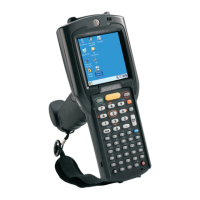
Motorola MC3090Z
62 pages
Print Icon
To Next Page IconTo Next Page
Loading...
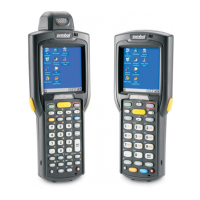
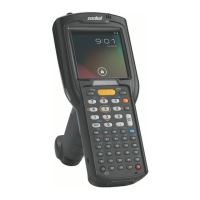
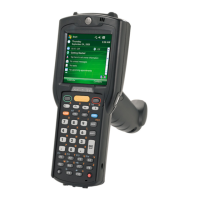
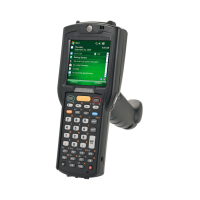
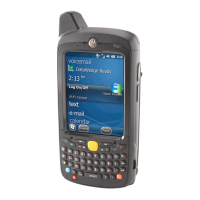
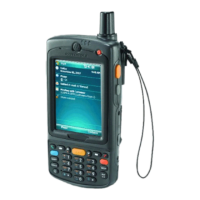
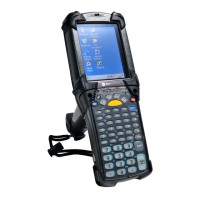
MC3090Z RFID Mobile Computer
Integrator Guide

Other manuals for Motorola MC3090Z

Questions and Answers

  • M
    millervincentAug 13, 2025
    How to fix Motorola MC3090Z that does not turn on?
    • V
      vangshannonAug 14, 2025
      If your Motorola Handhelds mobile computer does not turn on, there are several potential causes. First, the lithium-ion battery might not be charged, so charge or replace it. Second, the battery may not be installed properly; ensure it is correctly installed. Finally, a system crash might have occurred. In this case, perform a warm boot. If the device still does not turn on, perform a cold boot.
  • A
    Alice FrancoAug 17, 2025
    What to do if Motorola MC3090Z Handhelds memory is full?
    • M
      mcarlsonAug 17, 2025
      If your Motorola Handhelds device displays a message indicating that the memory is full, it could be due to having too many files stored on the device. Try deleting unused memos and records, and save these records on the host computer. Alternatively, too many applications installed on the mobile computer may be the cause. If additional applications have been installed, remove them to free up memory by tapping Start > Settings > System tab > Remove Programs icon.
  • D
    Daniel WhitneyAug 21, 2025
    What to do if Motorola MC3090Z Handhelds rechargeable lithium-ion battery did not charge?
    • R
      Rebekah CurtisAug 21, 2025
      If your Motorola Handhelds rechargeable lithium-ion battery did not charge, it could be due to a battery failure, in which case you should replace the battery. If the mobile computer still does not operate, try a warm boot, then a cold boot. Another possible cause is removing the mobile computer from the cradle while the battery was charging. If this happened, insert the mobile computer in the cradle and begin charging. Note that the lithium-ion battery requires less than four hours to recharge fully.
  • S
    Sophia MartinezAug 25, 2025
    Why is Motorola MC3090Z reader not reading tags?
    • M
      Maria HopkinsAug 26, 2025
      If the reader on your Motorola Handhelds device is not reading tags, it could be due to several reasons. The tag might be out of its read range; move the tag into the read range. The tags could be damaged; use tags of good quality. The tags might not be EPCgen2; use EPCgen2 tags. Finally, the read application might not be loaded; verify that the unit is loaded with a read application.
  • M
    Matthew LeeAug 28, 2025
    Why does Motorola MC3090Z turn off during heavy use?
    • R
      Regina TaylorAug 29, 2025
      If your Motorola Handhelds mobile computer turns off without warning during heavy use, it may be due to component tolerances when using battery part number 55-060112-xx. To resolve this, use battery 55-002152-xx (p/n 82-127909-xx).
  • M
    Michael WhiteheadSep 1, 2025
    What to do if Motorola MC3090Z Handhelds reader is not reading tags and the LLRP icon is red?
    • J
      Jacqueline CampbellSep 1, 2025
      If the reader on your Motorola Handhelds device is not reading tags and the LLRP icon is red, the battery may be cold or degraded. Try recharging or replacing the battery. If the problem persists, exit and restart LLRP.
  • S
    Susan BrandtSep 5, 2025
    How to turn on sound on Motorola MC3090Z Handhelds?
    • R
      richardcolemanSep 5, 2025
      If there is no sound on your Motorola Handhelds, the volume setting may be low or turned off. Increase the volume setting to resolve this.
  • D
    daniel23Sep 9, 2025
    Why tapping on Motorola Handhelds does not work?
    • J
      Jimmy WintersSep 9, 2025
      If tapping the window buttons or icons on your Motorola Handhelds does not activate the corresponding feature, it could be because the LCD screen is not aligned correctly. In this case, you should re-calibrate the screen. Another possible cause is that the battery is not inserted properly; insert the battery correctly.

Summary

Chapter 1 Getting Started

RFID Components

Details the components of the MC3090Z RFID system, including tags, antenna, and radio module.

MC3090 Z RFID Mobile Computer

Describes the features and capabilities of the MC3090Z RFID mobile computer.

Chapter 2 Updating the Mobile Computer

Updating the Device Image

Details the process of updating the mobile computer's operating system image using update loader packages.

Updating Images via AirBEAM

Explains how to update device images using the AirBEAM method.

Updating the RFID Firmware

Details how to update the RFID radio firmware using the RFID_FLASH utility.

Updating the Firmware and OEM Data Using the RFID_FLASH Utility

Provides step-by-step instructions for updating firmware and OEM data via the RFID_FLASH utility.

Chapter 3 LLRP Functionality

Configure Region

Guides on setting the regulatory region for LLRP operation upon startup.

Configure LLRP

Details how to configure LLRP to operate in Client Mode.

Chapter 4 RFID Sample Application

Launching the RFID Sample Application

Provides instructions on how to start the RFID sample application on the mobile computer.

Connection

Describes how to view and manage the reader's IP and port number.

Antenna

Guides on configuring antenna settings like sensitivity and transmit power.

Reading Tags

Details how to use the sample application to read RFID tags and interpret the results.

Chapter 5 Tag Locator

Using Tag Locator

Provides instructions on how to use the Tag Locator application to find tag locations.

Chapter 6 Troubleshooting

Troubleshooting

Offers solutions to common problems encountered with the MC3090Z RFID mobile computer.

Appendix A Technical Specifications

Technical Specifications

Summarizes the physical, environmental, and performance specifications of the RFID reader.

Appendix B RFID APIs

Motorola MC3090Z Specifications

General IconGeneral
BrandMotorola
ModelMC3090Z
CategoryHandhelds
LanguageEnglish

Related product manuals