EasyManua.ls Logo

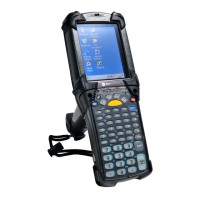
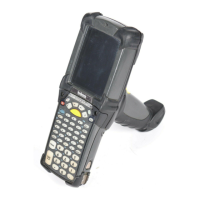
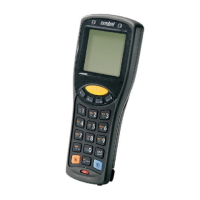
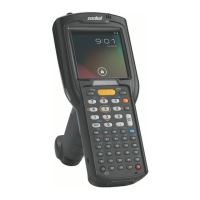
Motorola MC2100 - User Manual

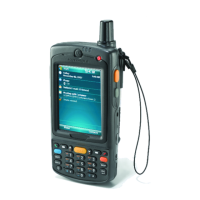
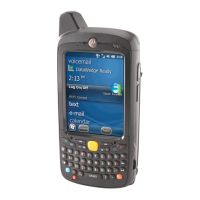
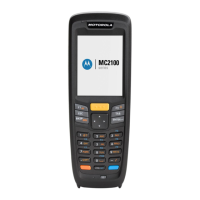
Motorola MC2100
106 pages
Print Icon
To Next Page IconTo Next Page
Loading...
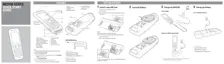
MC21XX SERIES
MOBILE COMPUTER
USER GUIDE
LIM
IMINARY
IM
PRELIM
ELI
ELI
ELI
EL
L
L
L
L
L

Table of Contents

Other manuals for Motorola MC2100

Questions and Answers

  • E
    erik58Aug 14, 2025
    What to do if my Motorola Handhelds MC21XX does not turn on?
    • S
      Sandra CaseyAug 14, 2025
      If your Motorola Handhelds MC21XX does not turn on, it could be due to several reasons: the main battery might not be charged (in which case you should charge or replace it), the main battery might not be installed properly (ensure it is correctly installed), or the system may have crashed (try performing a warm boot, and if that doesn't work, perform a cold boot).
  • J
    Jennifer GibbsAug 18, 2025
    Why does my Motorola MC2100 Handhelds battery not charge?
    • V
      Vanessa BruceAug 18, 2025
      Your Motorola Handhelds battery might not be charging because it has failed (replace the battery), the MC21XX was removed from the power source while charging (connect the power source and allow up to four hours for a full recharge), or the battery temperature is extreme (it won't charge below 32°F (0°C) or above 104°F (40°C)).
  • R
    Rachel KellyAug 21, 2025
    What to do if Motorola MC2100 Handhelds MC21XX turns itself off?
    • O
      osbornedouglasAug 21, 2025
      If your Motorola Handhelds MC21XX turns itself off, it may be due to inactivity (the device turns off after a set period, adjustable from one to five minutes), or the battery is depleted (recharge or replace the battery).
  • A
    Andrea ChavezAug 25, 2025
    Why Motorola MC2100 MC21XX battery is not charging (LED Indicator does not light)?
    • S
      Stephen CamachoAug 25, 2025
      If the LED indicator doesn't light when charging your Motorola Handhelds MC21XX, the cradle might not be receiving power (ensure the power cable is securely connected), the MC21XX was removed from the cradle too soon (it can take up to five hours to fully recharge a depleted battery), no battery installed (install battery), the battery is faulty (test with other batteries, and replace if necessary), or the MC21XX is not fully seated in the cradle (remove and re-insert the MC21XX, ensuring correct seating).
  • B
    Brian KnoxAug 28, 2025
    What to do if Motorola MC2100 MC21XX memory is full?
    • A
      Andrew DeleonAug 28, 2025
      If a message appears stating that the Motorola Handhelds MC21XX memory is full, it could be due to too many files stored on the device (delete unused memos and records, saving them on the host computer if needed), or too many applications installed (remove unused applications to recover memory).
  • T
    Thomas WilliamsAug 31, 2025
    Why Motorola MC2100 MC21XX performs a cold boot after performing a Battery Swap?
    • A
      Andrew JohnsonAug 31, 2025
      The Motorola Handhelds MC21XX might perform a cold boot after a battery swap if the Battery Swap Procedure was not followed or the backup battery is not adequately charged (ensure the backup battery charges fully).
  • M
    mccoythomasSep 4, 2025
    Why Motorola Handhelds MC21XX does not accept scan input?
    • T
      Trevor HillSep 4, 2025
      If your Motorola Handhelds MC21XX does not accept scan input, possible reasons include: the scanning application is not loaded, the bar code is unreadable (ensure the symbology is not defaced), the distance between the scan window and bar code is incorrect (ensure proper scanning range), the MC21XX is not programmed for the bar code type (ensure it is programmed to accept the scanned bar code type), or the battery is low (check the battery level).
  • F
    fparsonsSep 7, 2025
    What to do if I cannot see characters on Motorola MC2100 Handhelds screen?
    • E
      Erica SantiagoSep 7, 2025
      If you cannot see characters on the screen of your Motorola Handhelds, ensure that the MC21XX is powered on by pressing the Power button.
  • P
    Peggy HillSep 10, 2025
    What to do if tapping the window buttons or icons does not activate the corresponding feature on Motorola MC2100 Handhelds?
    • A
      alexandra24Sep 12, 2025
      If tapping window buttons or icons doesn't activate features on your Motorola Handhelds, the touch screen may not be calibrated correctly (re-calibrate the screen by tapping Start > Control Panel > Stylus > Calibration tab and then tap the Recalibrate button), or the system crashed (warm boot the system).

Summary

Chapter 1: Getting Started

Mobile Computer Startup

Steps to start using the MC21XX: install card, battery, charge, and start.

Install microSD Card

Procedure for inserting the microSD card for storage.

Install Main Battery

Procedure for inserting the main battery into the device.

Battery Charging

Instructions for charging the main and memory backup batteries.

Spare Battery Charging

Instructions for charging a spare battery using the charger.

Starting the MC21 XX

Procedure to turn on the MC21XX device.

Calibration Screen

Procedure to align the touch screen using the stylus.

Main Battery Removal

Procedure for safely removing the main battery from the device.

Safe System Shutdown;Re-boot

Information on warm and cold boots for system shutdown/restart.

Chapter 2: Operation

Using the Keypad to Navigate Applications

How to navigate and control applications using the keypad.

Key Combinations

Lists key combinations for application navigation and control.

Control Panel

Lists applications available in the Control Panel.

Task Manager and Properties

Controlling applications and setting display/clock options.

Entering Information

Methods for entering information: keypad, keyboard panel, scanner, ActiveSync.

Resetting the MC21 XX

Explanation of warm boot and cold boot functions for resetting the device.

Waking the MC21 XX

Conditions that wake the MC21XX from suspend mode.

Chapter 3: Data Capture

Linear Imager

Features of the MC21XX with an integrated linear CCD imager.

1 D Laser Scanner

Features of the MC21XX with an integrated 1D laser scanner.

DataWedge

Enabling and disabling the DataWedge application.

Chapter 4: Bluetooth

Discovering Bluetooth Device(s)

Procedure to find and connect to discoverable Bluetooth devices.

Chapter 5: Wireless Applications

Chapter 6: Accessories

Chapter 7: Maintenance & Troubleshooting

Battery Safety Guidelines

Crucial safety guidelines for battery usage, charging, and disposal.

MC21 XX Troubleshooting

Covers common MC21XX problems and their solutions.

Appendix A: Specifications

MC21 XX and Accessory Technical Specifications

Summarizes MC21XX technical specifications and operating environments.

Motorola MC2100 Specifications

General IconGeneral
BrandMotorola
ModelMC2100
CategoryHandhelds
LanguageEnglish

Related product manuals