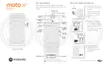
Share photos and videos
You can wirelessly share one, multiple, or all items from any Photos view, sending them as email or message
attachments, uploading to the cloud, or using device-to-device connections like Bluetooth.
In addition to sharing wirelessly, you can transfer photos to your computer with a USB connection. You can also
move photos from internal memory to SD card.
To share wirelessly:
1.
Open the Photos app.
2. Navigate to the thumbnail of the item you want to share.
3. Select the item to share:
•
To select one item, touch & hold its thumbnail.
•
To select multiple items, touch & hold the first thumbnail, then touch the others to select them.
Tip: To clear all selections, touch .
4.
Touch and select the way you want to share.
Upload photos and videos
Back up automatically
1.
Open the Photos app.
2.
Touch your profile icon > Turn on backup.
3. Select back up and sync settings and touch Confirm.
You can change these settings any time.
Adjust back up settings
1.
Open the Photos app.
2.
Touch your profile icon > Photos settings > Back up & sync.
3. Adjust settings as needed:
•
To choose high quality or original size for uploads, touch Upload size.
•
To back up items in your Download, Screenshots, and third-party app folders, touch Back up device
folders.
•
To back up items over your cellular network, touch Cell data usage, then adjust options for photos,
videos, and roaming.
Apps : Photos app
96








 To Next Page