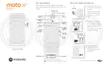
3. Enter your current PIN, password, or pattern to confirm your identity.
4. Select None or Swipe.
Adjust lock options
Set time before locking
Unless kept unlocked automatically, your phone locks the screen five seconds after the screen turns off.
To increase or decrease the amount of time before automatically locking the screen:
1. Go to Settings > Security.
2.
Next to Screen lock touch .
3. Touch Automatically lock, then select a duration.
Stop Power button from instantly locking
You can manually lock your phone by pressing the Power button. If you want the Power button to turn off the
screen but not lock it:
1. Go to Settings > Security.
2.
Next to Screen lock touch .
3.
Touch Power button instantly locks off .
After the screen turns off, your phone will still lock after the time set for the automatic lock.
Hide your password or pattern
You can hide your password or pattern to prevent others from viewing it when you unlock your screen.
For passwords:
1. Go to Settings > Privacy.
2.
Turn Show passwords off .
For patterns:
1. Go to Settings > Security.
2.
Touch .
3.
Turn Make pattern visible off .
Unlock with trusted devices
Set up trusted devices
You can keep your phone unlocked when it is connected to a trusted device, like your Bluetooth watch or car.
Other settings : Security : Lock and unlock phone
155







 To Next Page