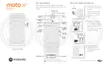
2. Ask a question or say a command. For example, you can say “What's the weather today?” or “Set alarm for 7
AM tomorrow.”
Tip: To see a list of commands, say “Help”.
3.
To silence Google Assistant when it's talking to you, touch .
Google Assistant will stop listening after a few seconds.
To learn about changing settings for Google Assistant, read Google's help.
Get directions to a location
Navigation and battery life
Navigation is one of the most power-intensive apps, so keep your phone plugged into a high-quality car charger,
especially if you're streaming music and/or using Bluetooth (also power-intensive features).
Use voice commands to get directions
1. Be sure you set up voice commands.
2. Say “OK, Google” or “Hey, Google.”
3. Say “Navigate to [destination].”
Use Directions widget
1. Before you hit the road, add a Maps Directions widget to your home screen, and you'll have directions to any
destination you choose.
2. When you're ready to roll, just touch the widget, and your phone will talk you through the directions.
Tip: Combine your Directions widgets into a folder on your home screen.
Get directions to home or work
Get directions from anywhere to your home or work addresses with one touch by setting up a task shortcut for the
Maps app:
1.
Touch & hold .
2.
Drag to a blank space on your home screen.
3. If you haven't set your home or work address yet in Maps, touch the shortcut and follow the onscreen
instructions to add it.
When you're ready to roll, just touch the shortcut, and your phone will talk you through the directions.
Learn the basics : Frequently used tools
39







 To Next Page