•
On your lock screen
•
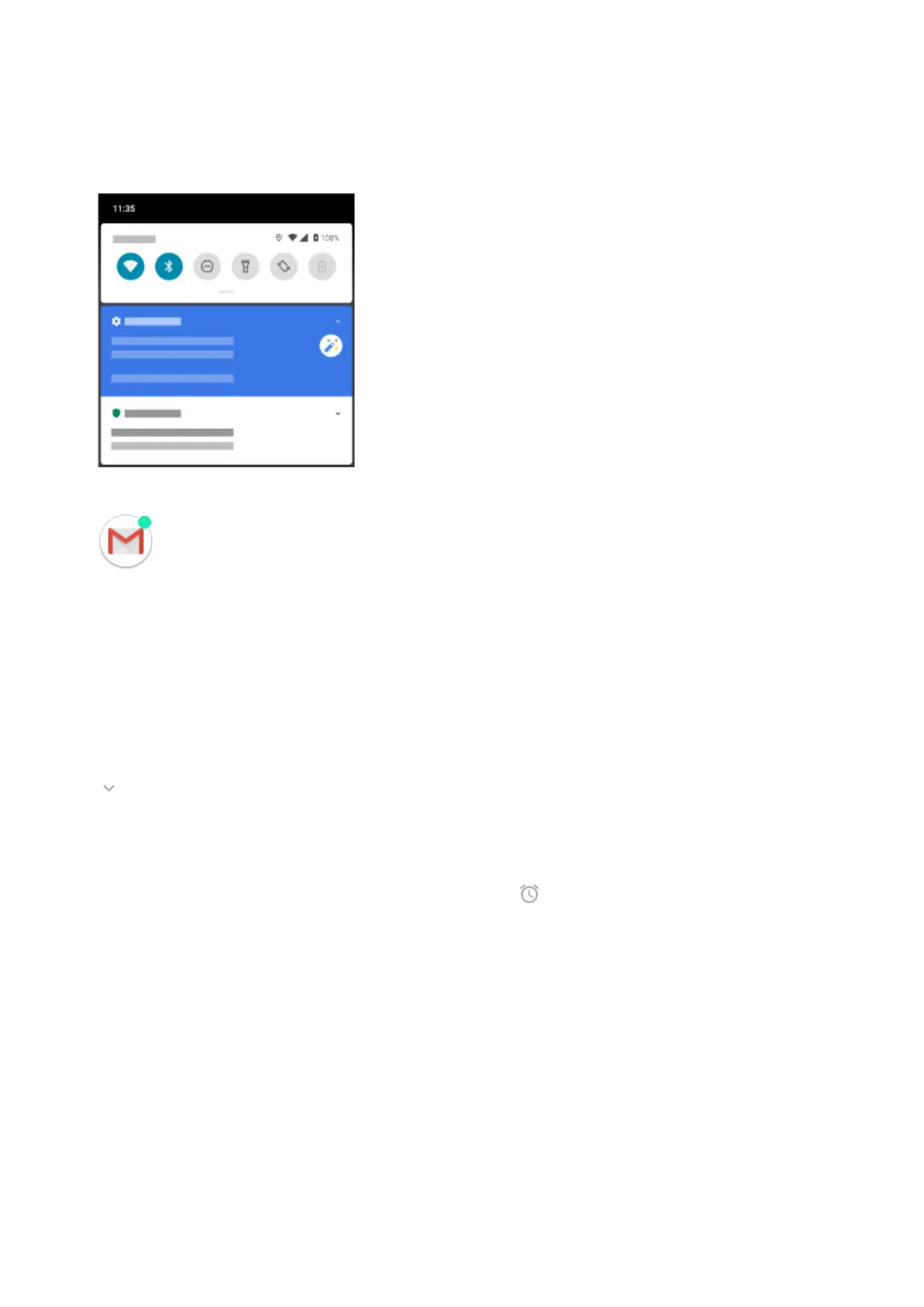
When you swipe the status bar down on any screen
•
When you touch & hold an app icon that shows a notification dot
If you receive multiple notifications from an app, they're bundled together. Swipe down to view more details.
Some important notifications pop up briefly over your current app so that you can take action. For example, a
notification for an incoming call might appear while you're watching a video, so that you can answer or dismiss the
call.
What you can do with notifications
•
Respond from a notification. Many notifications include actions at the bottom that let you complete common
tasks without opening the full app. If you have several notifications, these actions are hidden. When you see
, touch it to reveal actions.
•
Open the app that sent the notification Swipe down from the top of the screen and touch the notification to
open the app. From your lock screen, touch the notification twice and enter your PIN, pattern, or password to
unlock your screen and open the app.
•
Snooze a notification. Swipe left or right slowly. Then touch and select a duration to snooze notifications.
To snooze notifications, first turn on snoozing.
•
Dismiss a notification. Swipe it sideways.
•
Clear all notifications. Swipe to the end of your notifications and touch Clear all. Some notifications, like
voicemails, require an action and cannot be dismissed.
Customize your notifications
Use Do Not Disturb to silence all notifications when you don’t want interruptions.
Touch & hold a notification to customize that app's notifications. Then you can:
•
Stop all notifications from that app.
•
Change the app's notifications to be Silent instead of Alerting.
Apps
67









 To Next Page