Need help?
Do you have a question about the Motorola moto G8 PLUS and is the answer not in the manual?
Diagram showing physical components of the phone.
Troubleshooting steps for SIM card recognition and functionality issues.
Troubleshooting steps for SD card recognition and functionality issues.
Instructions for transferring data from an iPhone to the new phone.
Instructions for transferring data from an Android phone to the new phone.
Steps to import contacts saved on a SIM card into the phone.
Information about using two SIM cards simultaneously in the phone.
How to set or recover the voicemail password and greeting.
How to set or recover the voicemail password and greeting.
How to change voicemail settings like service and dial number.
Guide to setting up Gmail and other personal email accounts on the phone.
Instructions for setting up corporate email accounts using Exchange and Office 365.
How to view different email accounts in the Gmail app.
How to set up emergency contact and medical information visible on the lock screen.
How to view emergency contact information from the lock screen.
How to add a personal message to the lock screen for anyone who finds the phone.
How Emergency Location Service (ELS) works and how to enable/disable it.
How to manage emergency alerts from FEMA, including AMBER and Presidential alerts.
Customizing wallpaper, apps, screen settings, navigation, ringtones, and Do Not Disturb.
Setting up screen lock, fingerprint security, and Find My Device for phone security.
Connecting Bluetooth devices, Wi-Fi networks, and setting up multiple languages.
Highlights improvements in Android 10, such as volume controls.
How to adjust volume levels for different media types and notifications.
Explains gesture navigation and 3-button navigation for moving between apps and screens.
How to enable dark theme for better viewing and battery saving.
Details on improved notification management, suggested actions, and predictive text.
How to connect to Wi-Fi networks using QR codes and share hotspots.
Managing app permissions and file management controls for enhanced privacy.
Controlling location data sharing and app access to location information.
Information on faster security updates via Play Store.
Features like app info page, Bluetooth access, screen timeout, power button menu, and share options.
Basic concepts for navigating the phone and common tasks for new users.
Key concepts for phone navigation, gestures, and understanding status bar icons.
How to download and install apps from the Play Store to enhance phone functionality.
Steps to secure the phone with screen locks, PINs, patterns, and Find My Device.
Customizing phone settings like wallpaper, ringtones, font sizes, and data usage.
Understanding data usage, conserving data with Wi-Fi, and managing cellular data settings.
Tips on finding phone info, using voice commands, storing stuff, and rebooting the phone.
Guidance for iPhone users transitioning to Android, covering assistant, apps, and podcasts.
Navigating the home screen, managing apps, notifications, and quick settings.
How to access settings quickly via swipe gestures and toggles.
Understanding Google account for cloud storage and app integration.
Using Nearby Share for file sharing, similar to AirDrop.
How a Google account helps organize and access personal information and files across devices.
Basic maintenance for a Google account, including sync control and information management.
Information on preloaded Google apps like Gmail, Chrome, Photos, and Maps.
Explains icons in the status bar indicating phone status and notifications.
Table detailing common status icons and their meanings for calls and phone status.
Selecting between gesture and 3-button navigation for moving between apps.
Detailed explanation of gestures for navigation and app switching.
Explanation of the traditional 3-button navigation system for moving between screens.
How to access and view quick settings from the status bar.
How to customize the quick settings panel by adding or removing tiles.
Reasons for automatic screen turn-off, like saving battery or preventing accidental touches.
Steps to manually turn the screen on or off using the power button.
How to adjust volumes for in-call audio, media, ringtones, and alarms.
Methods for capturing screenshots using gestures, power button, or button combinations.
Setting up "OK, Google" or "Hey, Google" for voice commands.
How to use voice commands for various tasks like calls, navigation, and setting alarms.
Tips for optimizing battery life during navigation and using voice commands.
How to use voice commands to start navigation to a destination.
Adding and using a Maps Directions widget for quick access to navigation.
Setting up shortcuts for one-touch navigation to home or work addresses.
Steps to add the Time and Weather widget to the home screen for quick access.
How to set, adjust, and delete alarms using the Clock app.
How to view and manage weather forecasts and alert notifications.
Reviewing phone usage charts for screen time, app usage, and notification frequency.
Accessing the calendar to view upcoming events and add new ones.
Configuring screen saver settings, previewing, and adjusting start times.
How the screen saver starts automatically on dock/charger and how to exit it.
Steps to disable the automatic start of the screen saver.
How to find and install additional screen saver apps from the Play Store.
How to select a default ringtone for calls, including using songs.
How to set the phone to vibrate for incoming calls and extend battery life.
Assigning unique ringtones to specific contacts for easy identification.
Setting default or unique ringtones for app notifications.
Ways to obtain additional ringtones from the Play Store or computer.
Troubleshooting steps for issues with ringtones not being heard.
How Moto Audio automatically adjusts sound based on media and listening device.
Choosing preset sound profiles (Smart audio, Music, Movie, Custom) for different audio experiences.
How to quickly enable or disable Do Not Disturb mode for muting sounds and notifications.
Enabling the gesture to turn on Do Not Disturb by placing the phone face down.
Configuring how sound, vibration, and notifications behave when Do Not Disturb is active.
Adjusting settings for alarms, media, and touch sounds when Do Not Disturb is on.
Customizing how notifications are displayed or hidden when Do Not Disturb is active.
Setting exceptions for calls, messages, and calendar events to bypass Do Not Disturb.
Accessing other gesture-related settings and information.
Steps to download and install apps from the Google Play Store.
Downloading apps from sources other than the Play Store, with security precautions.
How to control automatic app updates from the Play Store.
Using folders to organize apps on the home screen.
Adjusting app permissions for data access and phone features.
Starting the phone in safe mode to diagnose issues caused by third-party apps.
Steps to exit safe mode and return the phone to normal operation.
Using Google Play Protect to scan for and remove potentially harmful apps (malware).
Troubleshooting steps if the phone is slow despite no harmful apps being detected.
Setting up the phone to be remotely located, locked, or erased using Find My Device.
Using Google Assistant from any app to search the web and get results.
Using the search widget on the home screen to quickly type search terms.
Using Google Lens in the Camera app to search for information about objects and text.
Using the search widget to find files, apps, and settings on the phone.
How to find and open apps from the app list.
Connecting to the internet, browsing websites, and bookmarking pages in Chrome.
Managing browser tabs within the Chrome app.
Explains SMS messaging, character limits, and sending messages to multiple recipients.
Explains MMS messaging, including text, photos, videos, and data usage.
How group messaging works, including replies and charges.
Steps to read, reply to, and manage incoming text messages.
How to attach photos, videos, voice messages, or other files to text messages.
Pairing the phone with a computer to send and receive text messages via web browser.
How messages appear on the computer and requirements for sending.
Steps to sign out of Messages for web on a paired computer.
How to open, view, and manage emails received on the phone.
Steps for replying to, forwarding, and copying recipients in emails.
Composing and sending new emails, including adding recipients and attachments.
How to attach files to an email from the phone.
How attachments appear in emails and how to view or save them.
Saving email attachments to the phone or Google Drive.
Removing saved email attachments from the phone.
How to view upcoming events from notifications or the Calendar app.
Navigating the calendar, changing views, and editing event details.
Steps to create new calendar events, including suggestions and reminders.
How to edit or delete existing calendar events.
Temporarily hiding events from specific Google accounts or excluding Gmail-generated events.
Adjusting notification settings for calendar events.
Creating and managing alarms using the Clock app's touch interface.
Setting alarms using voice commands with Google Assistant.
How alarms are indicated in the status bar and lock screen.
Removing alarms from the Clock app.
Setting and managing multiple countdown timers with labels.
Adjusting the time display format (12-hour or 24-hour).
Enabling automatic date and time synchronization via network.
Manually setting the date, time, and time zones.
Changing the phone's time zone to a regional setting.
Viewing multiple time zones simultaneously in the Clock app.
Displaying the home time zone in the Clock app when traveling.
Setting up automatic backup of photos and videos to Google Photos.
Configuring backup quality, device folders, and cellular data usage for uploads.
How to answer incoming calls from the call screen or lock screen.
Setting the phone to automatically answer calls when using a headset.
Options to divert calls to voicemail, respond with text, or block calls.
Silencing the ringer and managing call notifications.
Steps to make a phone call by dialing a number or using contacts.
Placing calls from the Phone app, Contacts app, or other apps with phone numbers.
How to enable or disable Wi-Fi calling for better call quality in low-signal areas.
Explanation of call and text blocking features and their effects.
Steps to block specific phone numbers from calls and texts using Phone or Messages app.
Blocking all numbers associated with a specific contact.
How to block calls from unknown or private numbers.
Viewing recent calls, missed calls, answered calls, and outgoing calls.
Saving a number from the call history as a new or existing contact.
How contacts are added automatically when accounts are synced.
Steps to add new contacts using the Contacts app.
Creating contacts directly from text messages.
Additional methods like saving recent calls or scanning business cards.
Changing contact information like name, photo, and ringtone.
Combining duplicate contact entries into a single listing.
Sorting contacts by name format or order in the Contacts app.
Sorting contacts by name format in the Phone app.
Sharing contacts via name card file (.vcf) or text message attachment.
Steps to select and share specific contacts.
Exporting all contacts as a .vcf file for backup or transfer.
How to listen to voicemail messages using the status bar or dialling.
Managing voicemail messages, mailbox, and contacting the carrier for help.
Troubleshooting steps if the voicemail icon remains after listening.
Streaming or downloading music, and supported file formats.
Using volume buttons to switch tracks when the screen is off.
Guidance on transferring music from Google Play Music to YouTube Music.
How to transfer music files between devices and cloud storage.
Steps to connect the phone to a charger and electrical outlet.
Tips for faster charging, charging issues, and battery notifications.
Settings to optimize battery life by reducing power consumption.
Using Battery Saver mode and avoiding battery-intensive activities.
Ensuring adaptive battery is enabled to manage battery usage by infrequently used apps.
Verifying battery optimization is enabled for apps to prevent unnecessary battery drain.
How Battery Saver conserves power by adjusting screen, location, and app background activity.
Manually turning Battery Saver on or off via quick settings.
Setting Battery Saver to turn on automatically based on battery percentage.
Configuring Battery Saver to turn off automatically when the battery reaches 90%.
Storing photos, videos, music, and apps on the phone's internal memory.
Storing media files on an SD card for immediate access and more control.
Using cloud storage for sharing and accessing files from any device.
Scanning the phone for old and unused items to remove and free up space.
Moving media files from internal storage to the SD card to free up space.
Turning Wi-Fi on and connecting to available networks.
Finding and connecting to Wi-Fi networks, including open and password-protected ones.
Modifying network settings, sharing connection, and forgetting saved networks.
Toggling mobile data on or off to manage data usage and connect via Wi-Fi.
Setting data usage warnings and limits to prevent exceeding plan limits.
Managing background data usage for apps to conserve data.
Using the phone as a Wi-Fi hotspot or for USB/Bluetooth tethering.
Steps to set up and manage a Wi-Fi hotspot for sharing internet connection.
Understanding USB transfers and changing connection types for file transfer.
Steps to connect the phone to a computer via USB for file transfer.
Directory structure for files stored on the phone, like DCIM, Pictures, and Music.
Troubleshooting steps for file transfer issues.
Setting up Wi-Fi or Wi-Fi Direct printing from the phone.
Turning Bluetooth on or off to save battery and manage connections.
Steps to pair the phone with new Bluetooth accessories or devices.
Setting sharing options and using paired Bluetooth devices for calls, music, and data.
Configuring payment apps and NFC for contactless payments.
How to make contactless payments using NFC by tapping the phone to a terminal.
Enabling NFC for quick and secure sharing of information.
Sharing content by touching devices together, usually back-to-back.
Reading information from NFC tags on accessories, posters, and signs.
Displaying an NFC icon in the status bar to indicate NFC status.
Disabling NFC functionality from connection preferences.
Mirroring the phone's screen on a TV using Chromecast.
Casting specific apps to a smart TV or Chromecast device.
Troubleshooting steps if the phone cannot find a smart TV.
Troubleshooting steps if the phone cannot find a smart TV.
Resources for troubleshooting casting issues with specific apps.
Understanding USB transfers and changing connection types for file transfer.
Steps to connect the phone to a computer via USB for file transfer.
Directory structure for files stored on the phone, like DCIM, Pictures, and Music.
Troubleshooting steps for file transfer issues.
Setting up Wi-Fi or Wi-Fi Direct printing from the phone.
Types of content that can be shared wirelessly.
Factors to consider when sharing photos or videos.
Picking default apps for actions like opening links or browsing.
Adjusting app permissions for data access and phone features.
Turning off notifications for specific apps or all apps.
Categorizing app notifications as Alerting or Silent.
Adjusting the volume level for all app notifications.
Controlling which notifications show on the lock screen and their content.
Hiding sensitive notification content from specific apps on the lock screen.
Scheduling Night Light to turn on and off automatically.
Manually turning Night Light on or off at any time.
Adjusting the intensity of the amber filter for Night Light.
Customizing display themes with fonts, colors, and icon shapes.
Adjusting the screen timeout duration before the phone sleeps.
Turning off automatic screen rotation and enabling manual rotation.
Enabling automatic screen rotation for all apps.
Controlling which notifications show on the lock screen and their content.
Adding a personal message to the lock screen for anyone who finds the phone.
Temporarily enhancing security by disabling fingerprint unlock and notifications.
How the phone uses GPS, Wi-Fi, and networks to estimate location for apps.
Controlling location information access for the phone and apps.
Checking which apps have recently accessed the phone's location.
Managing location services like Emergency Location Service and Google Location Accuracy.
Troubleshooting steps when the phone's location services are not functioning correctly.
Troubleshooting steps to improve the accuracy of the phone's location.
Setting up screen locks like pattern, PIN, or password for phone security.
Using the fingerprint sensor for unlocking the phone and authenticating apps.
Protecting the phone with Find My Device, VPN, SIM lock, and Google Play Protect.
Using Google Play Protect to scan for and remove potentially harmful apps (malware).
Troubleshooting steps if the phone is slow despite no harmful apps being detected.
Setting up the phone to be remotely located, locked, or erased using Find My Device.
Setting up and changing the phone's screen lock type (pattern, PIN, password).
Overview of different screen lock options: None, Swipe, Pattern, PIN, and Password.
Setting up automatic unlocking based on trusted devices, locations, or face recognition.
Adjusting the time delay before the screen automatically locks after turning off.
Disabling the power button from instantly locking the screen.
Preventing others from viewing your password or pattern while unlocking.
Connecting the phone to trusted devices like Bluetooth watches or cars for automatic unlocking.
Removing previously set trusted devices for automatic unlocking.
Manually locking the phone even when connected to a trusted device.
Important considerations and precautions before setting up face matching.
Step-by-step guide to setting up face recognition for unlocking the phone.
How to unlock the phone using face recognition.
Steps to disable face recognition unlocking feature.
Configuring trusted locations like home or work for automatic phone unlocking.
Manually locking the phone when in a trusted place.
Steps to register fingerprints for unlocking the phone and authenticating apps.
Adding multiple fingerprints for user profiles or different fingers.
Enabling screen pinning to keep an app in view until unpinned.
Steps to pin and unpin a screen for single-app usage.
Setting up a SIM card lock using the carrier-provided PIN.
How to unlock the SIM card using the PIN when prompted.
Steps to contact the carrier for a PUK code if the SIM is disabled.
Steps to add a Google account for app downloads and service integration.
Adding other email or app accounts like corporate email or messaging apps.
Removing synced account information from the phone.
Explanation of how phone syncs refresh Google app data and provide notifications.
Identifying which Google apps sync automatically and managing auto-sync for individual apps.
Understanding the impact of turning off auto-sync and performing manual syncs.
Reviewing Google apps and their last sync status.
Determining if other installed apps support auto-sync functionality.
Disabling auto-sync for specific Google apps like Calendar or Gmail.
Disabling automatic data sync for the entire Google account.
Using color correction to improve screen visibility for color blindness.
Using gestures or shortcuts to magnify the screen for better visibility.
Turning on TalkBack for screen reading assistance.
Accessing keyboard settings directly from the keyboard interface.
Customizing keyboard background color and height for typing comfort.
Controlling keyboard sounds for key presses.
Turning off or adjusting vibration feedback for key presses.
Changing the phone's display language and managing keyboard languages.
Using swipe gestures for navigation and app switching.
Using the traditional navigation buttons for moving between screens.
Enabling the fingerprint sensor to open notifications and quick settings.
How to use the swipe gesture on the fingerprint sensor.
Automatically backing up phone data like apps, call history, and contacts to a Google account.
Setting up separate user spaces for family, friends, or guests.
Defining the capabilities of phone owners, users, and guests.
Switching between user profiles or viewing the currently active one.
Steps to add new users to the phone, including lock screen setup.
Controlling user access to making calls and sending text messages.
Steps to remove yourself or other users from the phone.
Creating a temporary guest profile for sharing the phone.
Ending a guest session and deleting associated data.
Identifying the cause of phone slowness or instability.
Steps to resolve performance issues like slow operation or freezing.
Normal operating temperatures and indicators for overheating.
Activities that can cause the phone to heat up.
Disabling grayscale or color inversion settings.
Restoring the Phone app shortcut if it disappears from the home screen.
Troubleshooting steps when the SIM card is not recognized by the phone.
Troubleshooting steps for poor or no network signal.
Troubleshooting steps when the screen goes black during calls.
Steps to resolve issues with dropped calls, including signal strength and proximity sensor.
Troubleshooting steps if the microphone is covered or Voice Privacy is enabled.
Normal operating temperatures during charging and indicators for overheating.
Troubleshooting steps if TurboPower charging is not working as expected.
Preventing Bluetooth from turning on automatically due to third-party apps.
Troubleshooting steps for issues when pairing Bluetooth devices.
Steps to unpair and re-pair a previously connected Bluetooth device.
Troubleshooting steps for issues with hearing music over Bluetooth or car audio.
Troubleshooting steps for connecting to Wi-Fi networks, including password issues.
Steps to resolve issues with Wi-Fi connection drops.
Troubleshooting steps for connecting to the phone's Wi-Fi hotspot.
Ensuring computer settings and software are configured for phone connection.
Verifying phone software updates and connection status.
Troubleshooting USB cable and port issues for file transfer.
Steps to manually sync Google account data for apps.
Checking auto-sync status and performing manual sync tests.
Steps to add widgets or app shortcuts if they disappear from the home screen.
Troubleshooting steps for apps that crash, fail to open, or do not work correctly.
How to use and exit safe mode when apps are disabled.
Troubleshooting steps for issues with installed apps, including updates and help.
Tips to improve photo clarity, including lens cleaning and resolution settings.
How to recover recently deleted photos and back them up.
Troubleshooting steps to permanently delete photos or videos from SD cards.
Troubleshooting problems with taking photos or videos within the WhatsApp app.
Steps to resolve camera errors by restarting and clearing cache.
Troubleshooting steps for unsent text messages due to signal strength.
How to check the current Android version running on the phone.
Steps to check for and install Android software updates.
Explanation of data erased during a factory reset.
Important steps before resetting the phone, including data backup and security info.
Steps to perform a factory reset through the phone's settings.
Performing an external reset if the phone's settings cannot be accessed.
 General
| RAM type | DDR4 |
|---|---|
| RAM capacity | 4 GB |
| USB mass storage | Yes |
| Compatible memory cards | MicroSD (TransFlash) |
| Maximum memory card size | 512 GB |
| Internal storage capacity | 64 GB |
| 4G standard | LTE-TDD & LTE-FDD |
| 2G standards | GSM |
| 3G standards | HSPA+, UMTS, WCDMA |
| SIM card type | NanoSIM |
| Wi-Fi standards | 802.11a, 802.11b, 802.11g, Wi-Fi 4 (802.11n), Wi-Fi 5 (802.11ac) |
| Bluetooth version | 5.0 |
| Bluetooth profiles | APT-X |
| SIM card capability | Dual SIM |
| Mobile network generation | 4G |
| Screen shape | Flat |
| Pixel density | 401 ppi |
| Display diagonal | 6.3 \ |
| Touch technology | Multi-touch |
| Touchscreen type | Capacitive |
| Display resolution | 2280 x 1080 pixels |
| Native aspect ratio | 19:9 |
| Processor cores | 4 |
| Processor family | Qualcomm Snapdragon |
| Processor frequency | 2 GHz |
| Coprocessor frequency | 1.8 GHz |
| Processor lithography | 11 nm |
| Flash type | LED |
| Rear camera type | Triple camera |
| Front camera type | Single camera |
| Maximum frame rate | 240 fps |
| Video recording modes | 720p, 1080p, 2160p |
| Rear camera pixel size | 1.6 µm |
| Front camera pixel size | 1.8 µm |
| Rear camera aperture number | 1.7 |
| Resolution at capture speed | 1280x720@240fps, 1280x720@30fps, 1920x1080@120fps, 1920x1080@30fps, 1920x1080@60fps, 3840x2160@30fps |
| Front camera aperture number | 2 |
| Third rear camera pixel size | 2 µm |
| Second rear camera pixel size | 1.12 µm |
| Video capture resolution (max) | 3840 x 2160 pixels |
| Rear camera resolution (numeric) | 48 MP |
| Front camera resolution (numeric) | 25 MP |
| Second rear camera aperture number | 2.2 |
| Third rear camera resolution (numeric) | 16 MP |
| Second rear camera resolution (numeric) | 5 MP |
| Third rear camera field of view (FOV) angle | 117 ° |
| Subscription type | No subscription |
| USB version | 2.0 |
| USB connector type | USB Type-C |
| Headphone connectivity | 3.5 mm |
| Multimedia Messaging Service (MMS) | Multimedia Messaging Service (MMS) is a standard way to send messages that include multimedia content to and from a mobile phone over a cellular network |
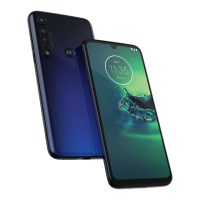
| Color name | Cosmic Blue |
| Form factor | Bar |
| Product color | Blue |
| Themes | Wallpapers |
| Video call | - |
| Graphics card | Adreno 610 |
| Personalization | Icons, Menu, Shortcuts |
| Personal info management (PIM) | Alarm clock, Calculator, Calendar |
| Speakers | stereo |
| Platform | Android |
| Google applications | Google Maps, Google Play |
| App distribution platform | Google Play |
| Operating system installed | Android 9.0 |
| Battery capacity | 4000 mAh |
| Standby time (3G) | - h |
| Body SAR (EU) | 0.882 W/kg |
| Head SAR (EU) | 0.589 W/kg |
 Weight and Dimensions
| Depth | 9.09 mm |
|---|---|
| Width | 75.83 mm |
| Height | 158.35 mm |
| Weight | 188 g |





 To Next Page