Page 7
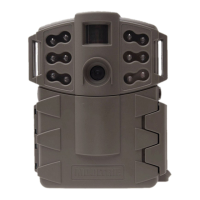
D-555i Digital Game Camera
Page 14
Time Lapse Software
Setting Capture Mode
Press the OK button. Use the Up/Down buttons to choose between operating modes.
This camera has 3 modes.
1. Motion Detect - Capture photo or video when motion
or heat is detected.
2. Time lapse - Capture photo based on the Time Lapse
program setting.
3. Hybrid - Uses a combination of Time Lapse and
Auto modes at dierent times of the day.
Press the OK button to lock in selection.
Press the Right button to move to the next setting.
CAPTURE MODE
X HYBRID
TIME LAPSE
MOTION DETECT
Reset to Default settings
You can reset your camera to the factory default settings.
Use the Up/Down buttons to choose between Yes - all setups
restored to factory default, or No - keep the custom settings.
When your selection has been made, press the OK button to
conrm the selection. Press the Right button to move to the
next screen.
RESET TO DEFAULT?
YES
X NO
Erase Images
Use the Up/Down buttons to choose between Yes - erase all
images, or No - does not change stored images. When your
selection has been made, press the OK button to conrm the
selection. Press the Right button to move to the next screen.
ERASE IMAGES?
YES
X NO
Setting (IR) Infrared Flash
Use the Up/Down buttons to choose between:
AUTO- IR ash will fire depending on light intensity
OFF- IR ash is permanently o
Press the OK button to conrm the selection.
Press the Rightbutton to move to the next screen.
IR FLASH
OFF
X AUTO
Download Images
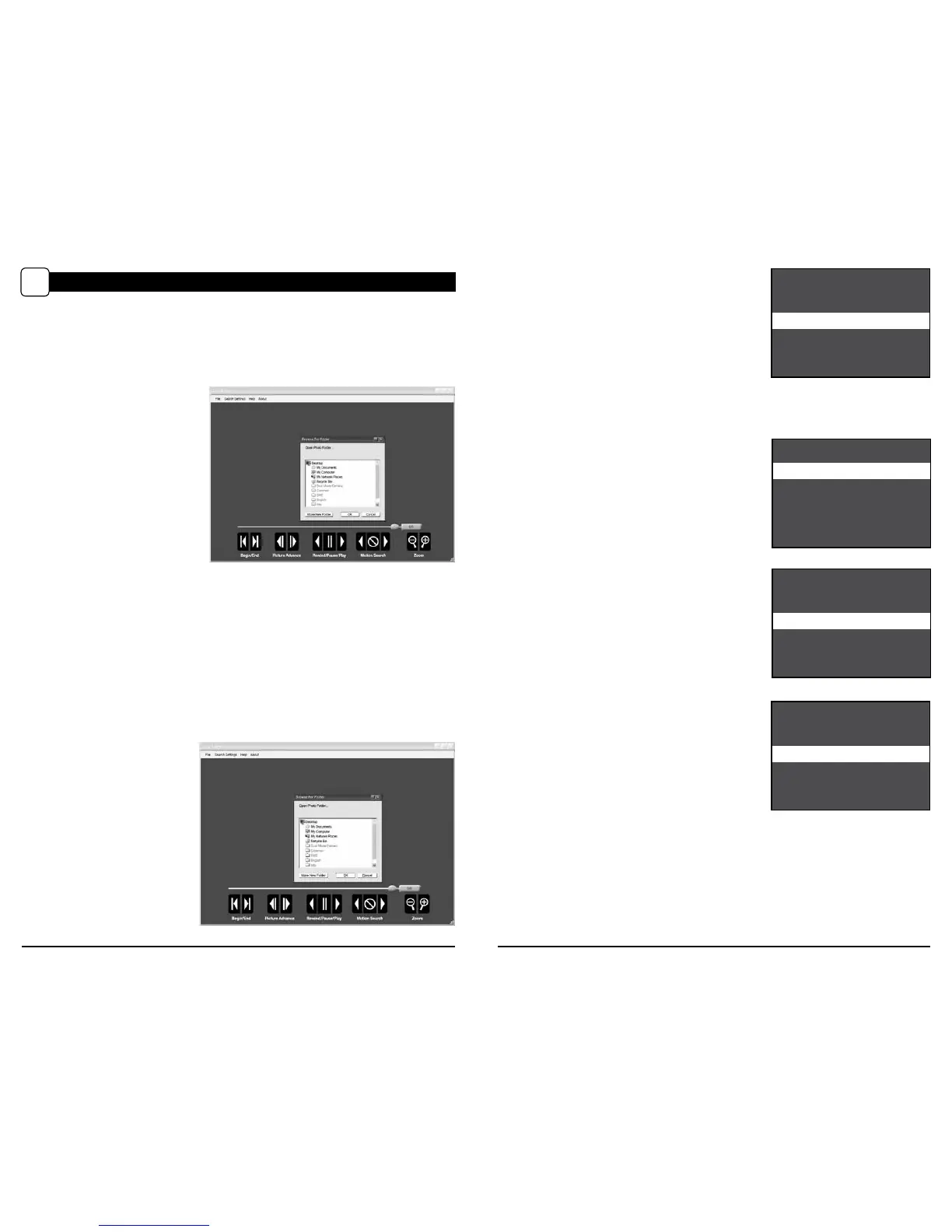
1. Double-click on Time Lapse
Icon to open the software.
2. Click on File -> Open Photo Folder
3. Browse through your files to
the folder where the images you
wish to view are stored.
4. Once the folder is selected, click OK.
5. The images saved in the folder are
now available to view through
the Time Lapse Software.
TIME LAPSE SOFTWARE
VIII
INTRODUCTION
In time-lapse photography a series
of still photos are taken at regular
time intervals. The PlotStalker
Software allows you to load the
time lapse le that was captured
from your Moultrie Game Camera
and scroll backward and forward
through your photos, single step,
search for activity in a designated
area, and save the les.
SYSTEM REQUIREMENTS
Computer: Intel® Pentium® 4 or AMD Athlon® 64 processor or above; 1GB RAM minimum;
100 MB hard disk space minimum.
Operating System: Microsoft® Windows® 32 bit - XP with Service Pack 2 or later; Windows Vista®
Home Premium, Business, Ultimate, or Enterprise with Service Pack 1;
or Windows 7
SOFTWARE INSTALLATION
Download your free Time Lapse software at www.moultriefeeders.com/timelapsesoftware



 To Next Page