Page 6
D-555i Digital Game Camera
Page 15
Time Lapse Software
Video Length
Use the Up/Down buttons to choose between 5 video length
settings (5, 10, 30, 60 or 90 seconds). When your selection
has been made, press the OK button to conrm the selection.
Press the Right button to move to the next screen.
Note: With night time video, only 5 and 10 seconds length are
available. If you set length higher than 10 seconds, the video
will be taken in 10 seconds duration during night time.
Setting Multiple-Shots
Use the Up/Down buttons to choose between settings.
Choose how many pictures you would like to be taken in a
sequence when the camera is triggered (1 to 10 pictures).
When your selection has been made, press the OK button to
conrm the selection. Press the Right button to move to the
next screen.
VIDEO LENGTH
60 SECONDS
30 SECONDS
X 10 SECONDS
5 SECONDS
AUDIO ON/OFF
AUDIO ON
X AUDIO OFF
Audio On/O
Use the Up/Down buttons to choose between Audio On or
Audio O when taking a video. When your selection has been
made, press the OK button to conrm the selection. Press the
Right button to move to the next screen.
MULTI-SHOTS
4-SHOTS
3-SHOTS
2-SHOTS
X OFF
Setting Photo Quality
Press the OK button. Use the Up/Down buttons to choose
between 4 image quality settings.
1. Enhanced (8 MP): 3840 x 2160
2. High (4 MP): 2688 x 1512
3. Med (2 MP): 1920 x 1080
4. Low (0.9 MP): 1280 x 720
Press the OK button to conrm the selection.
Press the Right button to move to the next screen.
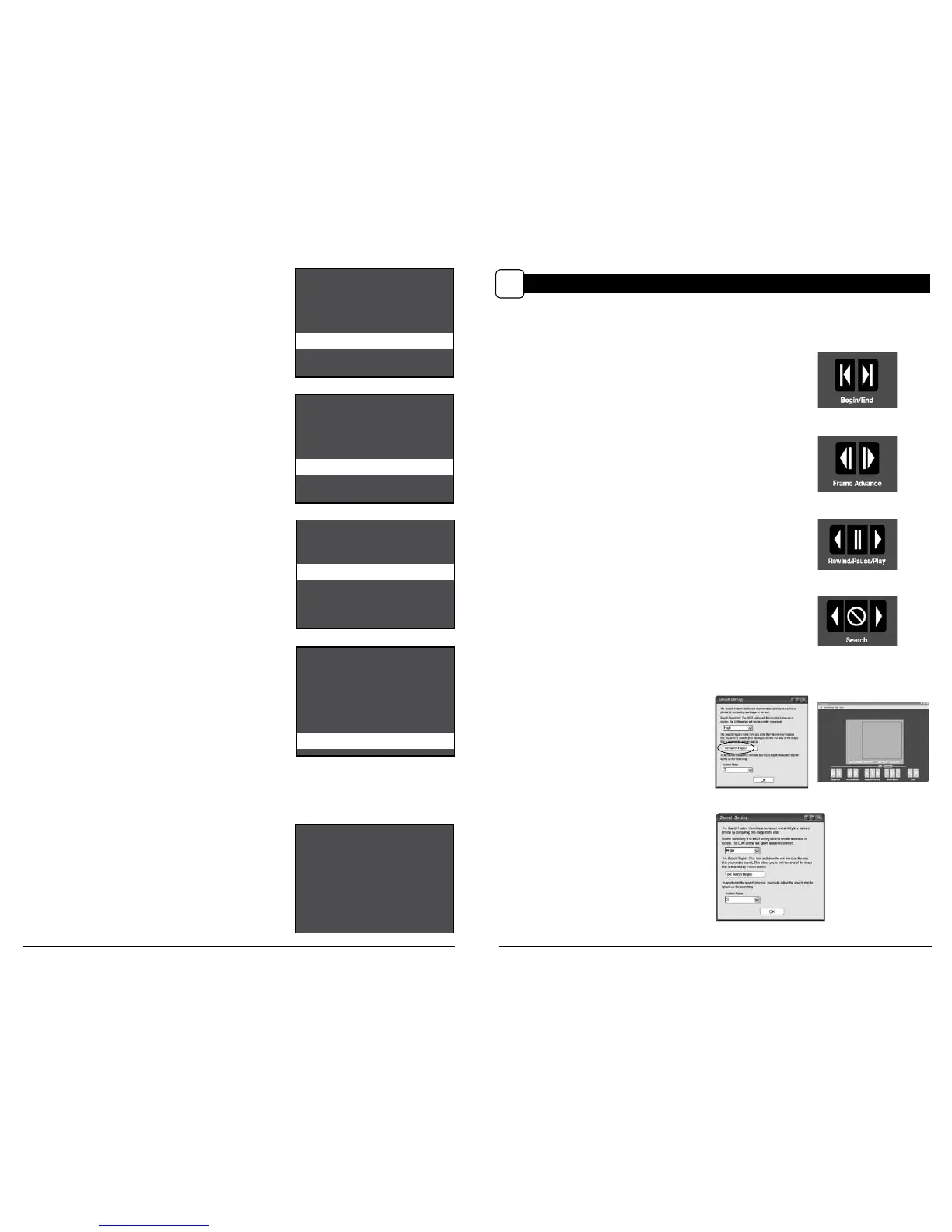
This easy-to-use software allows you to advance through the series of images a number of dierent ways:
SEARCH REGION
Click on Set Search Region Button.
This allows you to define a specific search
area, rather than the whole photo. Drag the
red outline to the area you want to search.
This allows you to focus on a very precise area
if required.
SEARCH STEPS
This allows for even faster scans by skipping
the selected amount of images (1-50). The
higher this setting, the lower the search
results as it is ignoring selected photos. You
may find this option helpful if you have a
very large quantity of photos to scan.
Click OK.
Click on Motion Search Advance button.
VIEWING TIME LAPSE
IX
BEGIN/END
Goes to the rst or last photo in the Plot File.
FRAME BY FRAME SEARCH
Individually step forward or backward through each photo.
REWIND/PAUSE/PLAY
Play photos in sequence, pause, or play the photos in reverse order.
These functions simulate a video and are useful for manually searching
changes in the photos. When a sequence is being played, press
fast-forward or fast-rewind multiple times to increase speed. (1x-5x)
SEARCH
This function allows quick scanning of images foreword and back. The
scan pauses when the software detects a change in pixel content from
the last photo viewed. We detect change based on averages so it
will not be as accurate as a manual frame by frame search.
Setting General Features
When you choose General the LCD Display will automatically start showing the dierent features
within General. Using the navigation process, set the features you desire.
Setting Date and Time
Use the Up/Down buttons to move from one value to the
next. Press the OK button to lock in selections. When all your
selections have been made, and the date and time has been
set, press the Right button to move to the next screen.
DATE/TIME
08 / 16 / 2012
02 : 34 pm
PHOTO QUALITY
ENHANCED (8MP)
HIGH (4MP)
MEDIUM (2MP)
LOW (0.9MP)
X



 To Next Page