10 11
ENEN
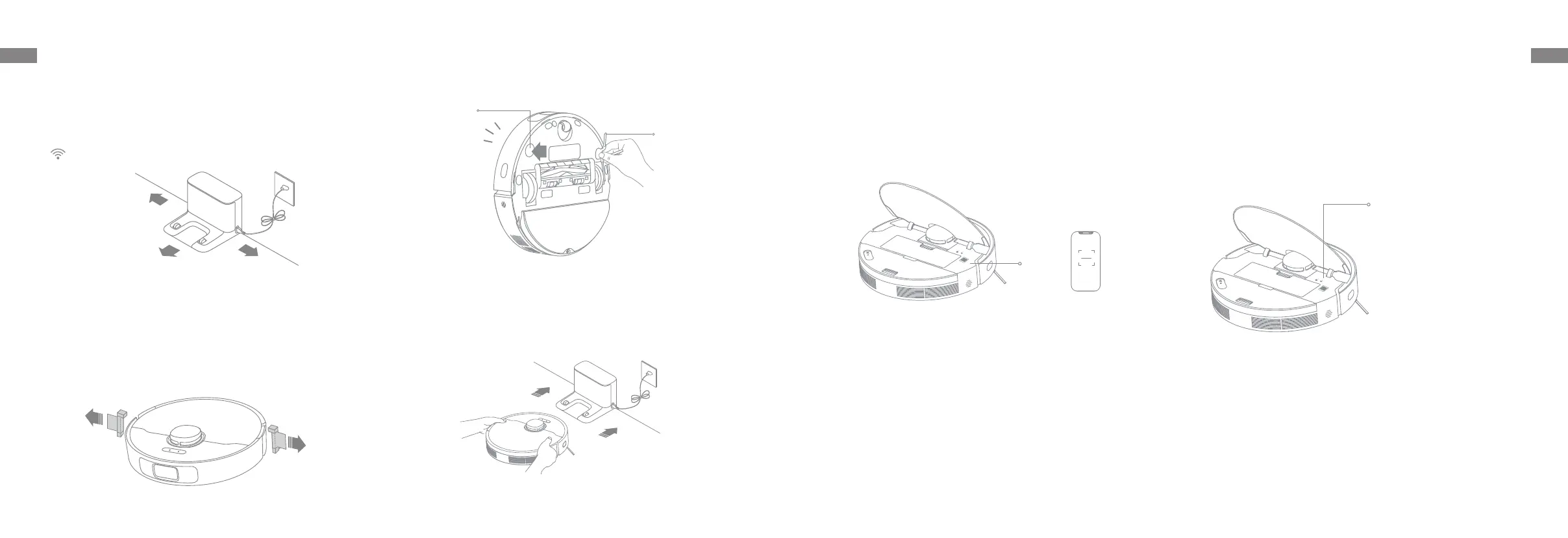
2. Remove the Protections
1. Place the Charging Dock and Connect to an
Electrical Outlet
Before Use
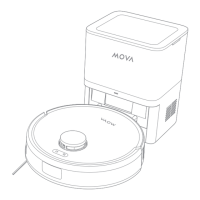
Place the charging dock on level ground against the wall. Insert the power
cord into the charging dock and plug it into the socket.
Place the charging dock in a location that is as open as possible with
a good Wi-Fi signal.
Note:
• Remove any objects that are closer than 60" (1.5 m) from the front and
19,7" (0.5 m) from either side of the charging dock.
• Do not place the charging dock in an area with direct sunlight or where
other objects might block the signal, as this may hinder the robot from
returning to the charging dock.
3. Install the Side Brush
4. Charge the Robot
When placing the robot, align the charging contacts at the bottom of the
robot with the charging contacts of the charging dock, and the robot will
automatically turn on and start charging.
Note: Install the side brush until it clicks into place.
Note: It is recommended to fully charge your robot before first time use.
Side Brush Clip
Side Brush
Click
> 60"
> 19.7"
> 19.7"
Open the Dreamehome app, tap "Scan QR code to connect", and scan the
same QR code on the robot again to add the device. Please follow the
prompts to finish the Wi-Fi connection.
Connecting with Dreamehome App
1. Download Dreamehome App
Scan the QR code on the robot, or search "Dreamehome" in the app store to
download and install the app.
2.Add Device
Note:
• Only 2.4GHz Wi-Fi is supported.
• Due to upgrades in the app software, the actual operations may dier
from the directions in this manual. Please follow the instructions based on
the current app version.
Note: If you want to reset Wi-Fi, repeat step 2 and then follow the prompts
to finish the Wi-Fi connection.
Wi-Fi Indicator
· Blinking slowly: To be connected
· Blinking quickly: Connecting
· On: Wi-Fi connected
QR Code


 To Next Page