Moxee Tablet User Manual 10
Customize Home Screen
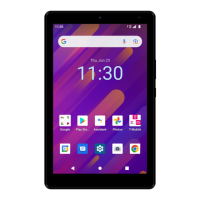
You can view and nd all Apps, folders, and widgets on the Home Screen.
Add an App shortcut
1. From App list, choose the App that you want
to move and hold it, drag the icon to the top of
the screen then Home Screen should open.
2. Drag the icon to the desired location you
want to place the App and drop it.
Remove an App shortcut
Tap and hold the App icon you want to remove, drag
the app to the Remove at the top of the screen.
Create a folder
1. Drag the App icon to another App you
want to create a folder with and drop it,
the folder should create right there.
2. Tap to open the folder and tap Unnamed
Folder to name the folder.
Change the Wallpaper
You can change the wallpaper for Home and Lock
screen, choose from preloaded wallpapers or Photos
app.
1. Tap and hold on an empty space on the
Home Screen, the options list will show up.
2. Tap Wallpaper and select Wallpapers
to open the images list.
3. Preview the images and select one.
4. Tap Set wallpaper, apply option should
display and let you choose apply screen.
Move Apps to another screen
1. Tap and hold the app that you want to move.
2. Drag it to the left or right side of
the screen and drop it.
Delete a folder
Tap on a folder to enter it and drag App icons out of
folder. When one App icon is left, the folder should
be dismissed.
Add widget
1. Tap and hold on empty space on the Home
Screen, the options list will show up.
2. Tap Widgets to open widgets list
and choose widgets from list.
3. Drag and drop selected widget to the Home Screen.
Remove widget
Tap and hold the widget and drag it to the Remove.


 To Next Page