Moxee Tablet User Manual 12
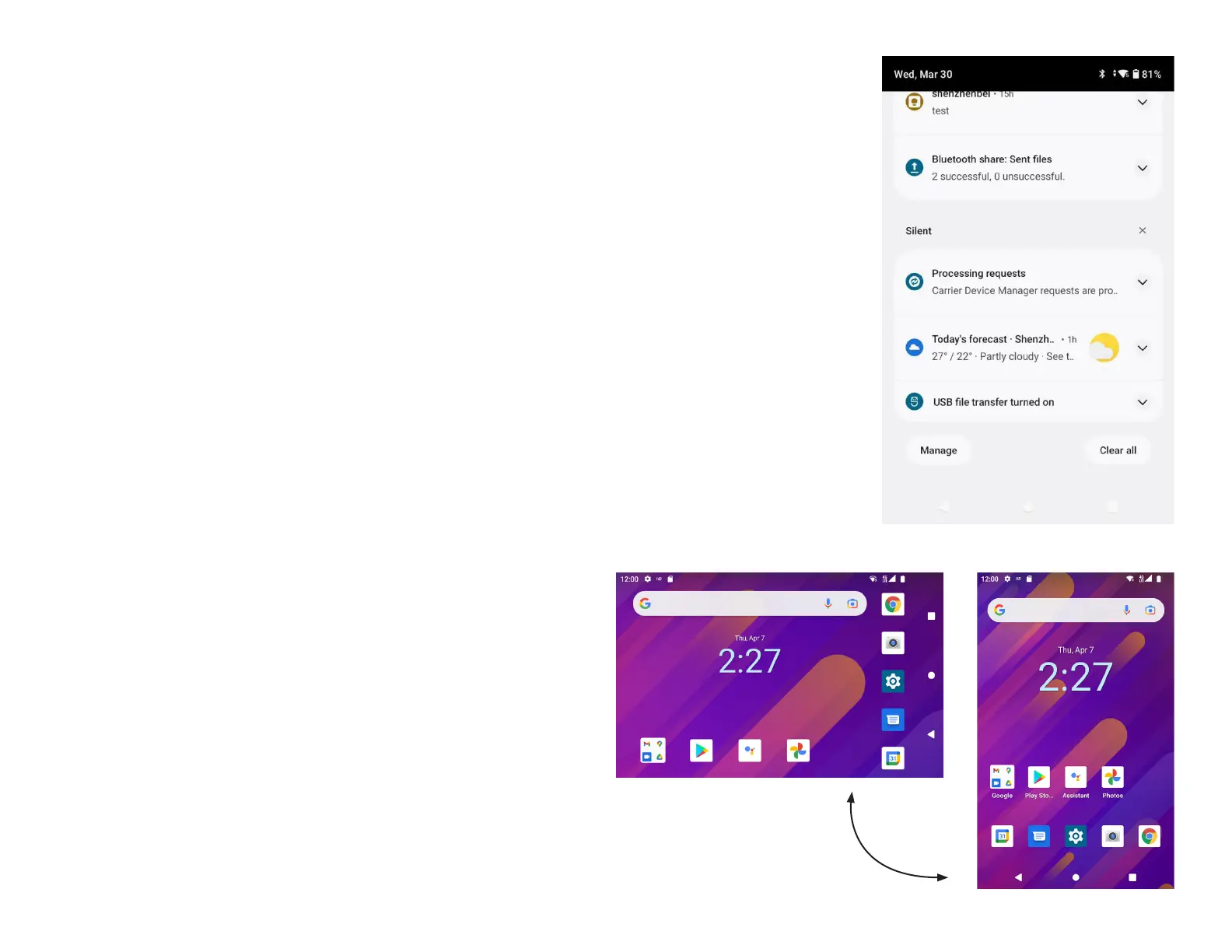
Notications panel
You can open the Notications panel from any screen
1. To access the Notifications panel,
drag the status bar downward.
2. To open a notification, just tap it.
3. To dismiss a notification, tap
and swipe to right or left
4. To dismiss all notifications, tap CLEAR ALL
at the bottom of the Notifications panel.
5. To close the Notifications panel, swipe up from
the bottom of the screen or tap Back to close it.
Screen orientation
Tap Auto rotate icon from the Quick settings or go
to Settings > Display, switch on Auto-rotate screen,
device screen orientation can be set to automatically
switch according to the device’s physical orientation.
If Auto-rotate screen is o, the device screen
orientation should keep in portrait only, depending
on user preference.


 To Next Page