10
Buttons and Ports
Power Button:
Long press for 3s: Power On/Off, long press the power button to turn on NANO SE.
When the gimbal is turned on, long press the power button again to turn it off.
Short press for 0.5s: Sleep Mode/Wake Up
Remote Control:
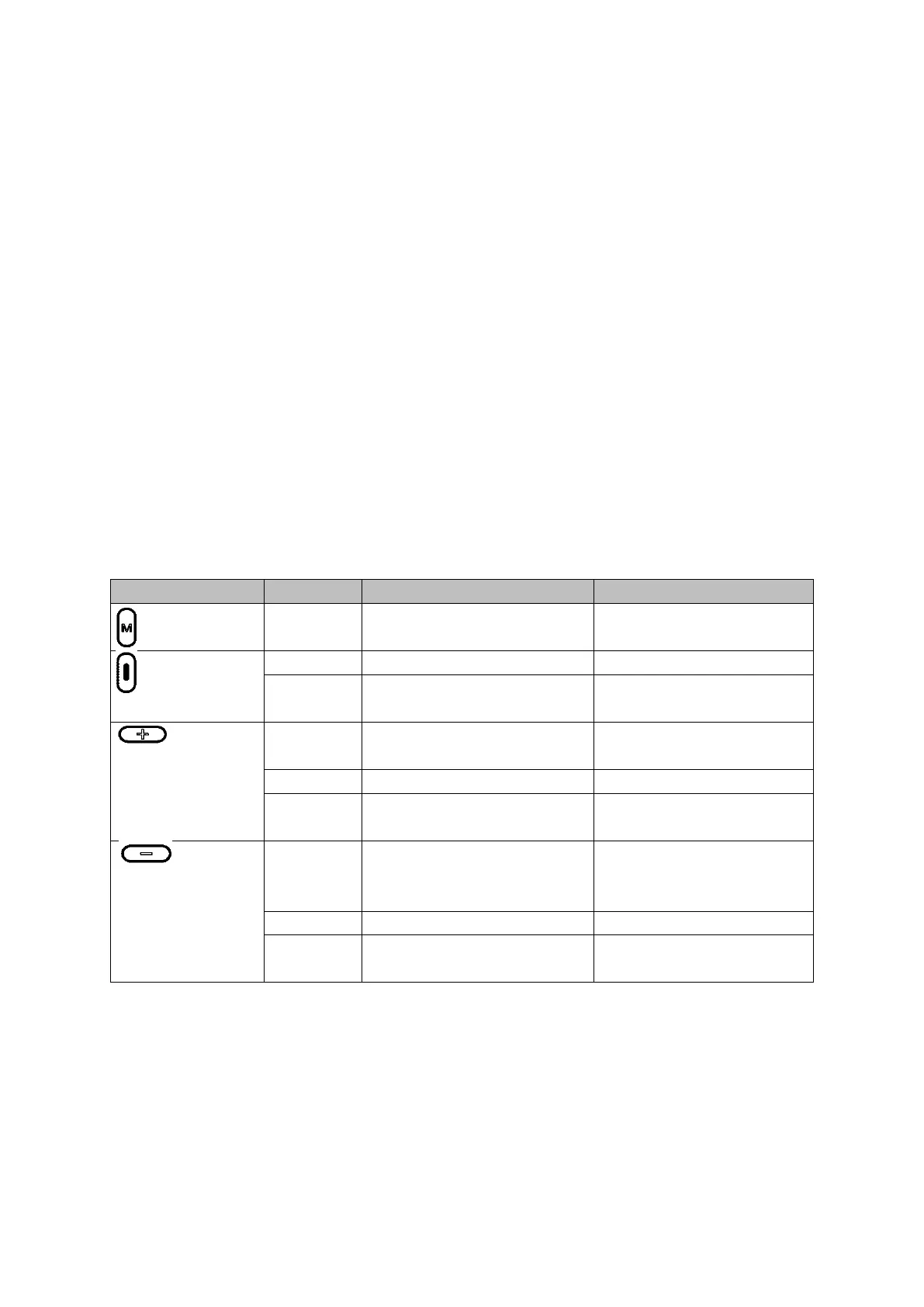
M Button (Top Button)
Click: Switch between horizontal and vertical shooting modes
Double click: Switch between Follow and Lock mode
Press and hold the M button (top button), then quickly triple-click the + button (right
button): Reset Bluetooth
When the mobile phone cannot search NANO SE or Bluetooth connection is failed,
NANO SE Bluetooth need to be reset.
Button functions of the remote controller when connected with App or native camera
Note:
*When the native camera is in recording mode, the device will record movies. When the
native camera is in photo mode, the device will take still photos.
**Magic Video can only be used after NANO SE and Genie App are connected.
*** NANO SE only supports some mobile phones, please refer to the official website
compatibility list or consult our after-sales service.


 To Next Page