15
Introduction to MOZA Genie App
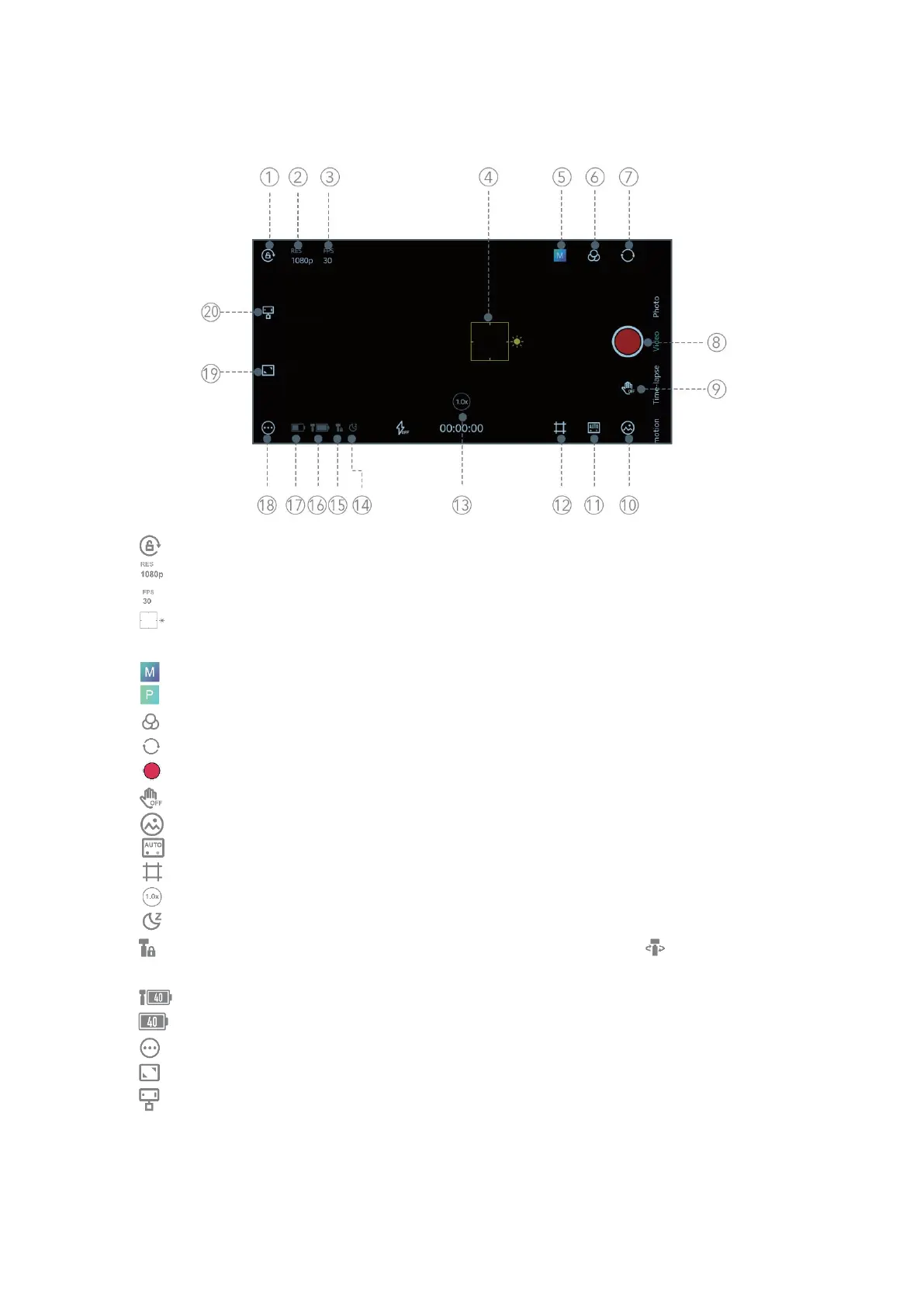
1. Screen orientation lock
2. Screen resolution
3. Video frame rate
4. Focus and metering frame (click on the frame and drag up and down on the
screen to adjust the exposure)
5. Magic Video (only displayed after connecting to NANO SE)/
Magic Photo
6. Filter
7. Switch between front and rear cameras
8. Record button
9. Gesture control
10. View photos
11. Automatic (Auto)/Pro (Pro) mode switching
12. Frame ratio / auxiliary line / safe area
13. Zoom factor
14. Sleep mode (icon will only be displayed when NANO SE is in sleep mode)
15. Lock mode status (icon shows the gimbal is in locked mode; the gimbal is in
follow mode)
16. Gimbal power display
17. Phone power display
18. App general settings
19. Clear the screen, do not display the parameters icon
20. NANO SE setting


 To Next Page