16
Firmware Upgrade
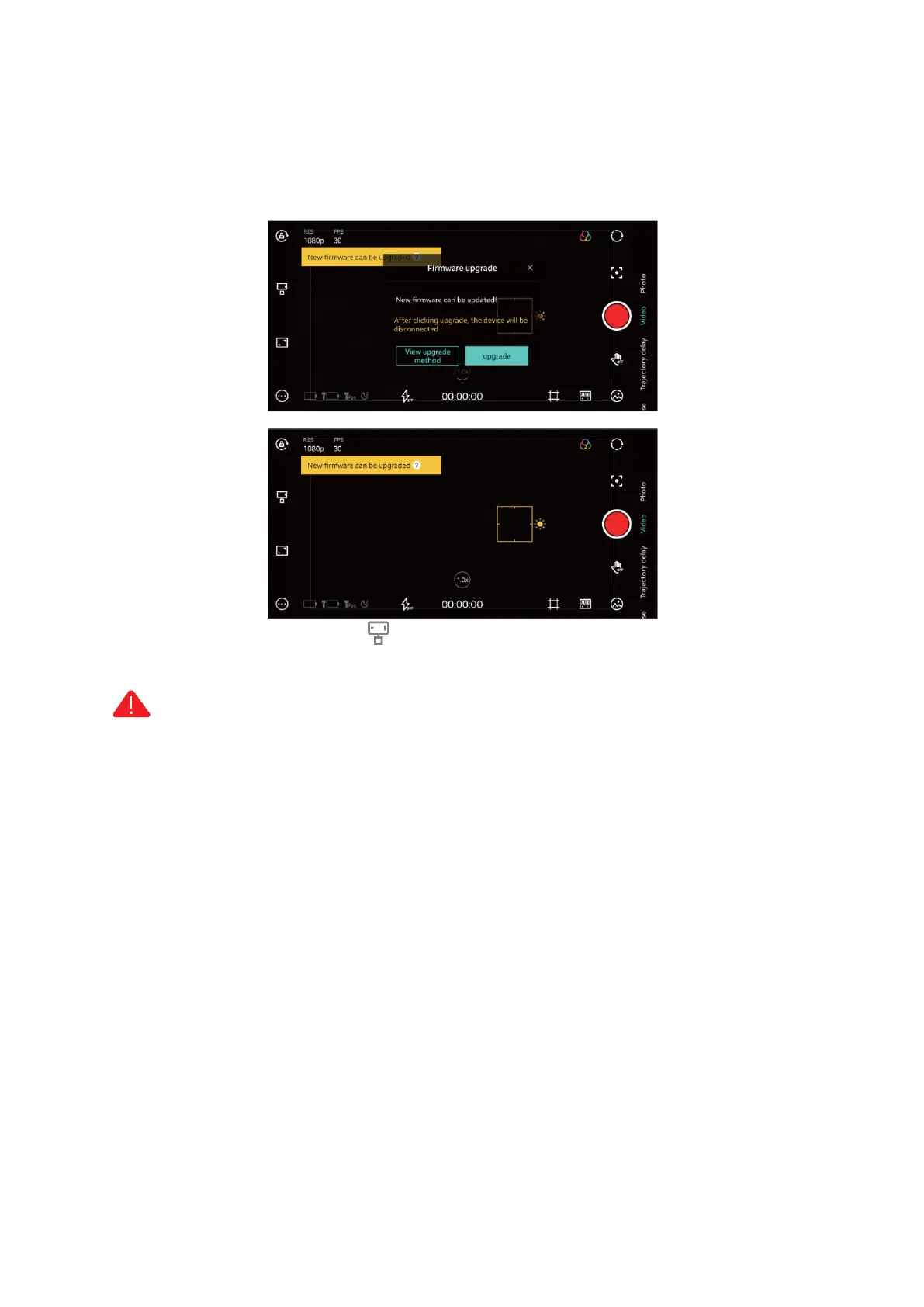
1. Turn on the MOZA NANO SE and connect it to the MOZA Genie App
2. A prompt will appear in the upper left corner of the App interface when new firmware
is available, click the yellow button in the upper left corner to upgrade the firmware.
Also, you can click the NANO SE setting and “Firmware Upgrade” in the menu to
upgrade.
Notes:
1. Check the battery level of NANO SE and make sure that at least two of the battery
indicator lights are on before upgrading. After NANO SE is connected to MOZA Genie
App, follow the above operations if the App prompts to upgrade the firmware.
2. Do not exit the MOZA Genie App interface or transfer the App to the background
operation or turn off the NANO SE when upgrading. Pay attention to the prompt
information on the App interface. Restart the MOZA Genie App and NANO SE after the
upgradation is successful.
3. If the upgrade fails, the NANO SE will remain in upgrade mode and the power light will
flash from bottom to top. Restart MOZA Genie App and NANO SE, the NANO SE will
automatically enter into upgrade mode. Reattempt to upgrade the firmware after
connecting the Genie App and NANO SE.


 To Next Page