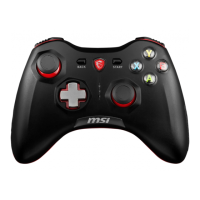
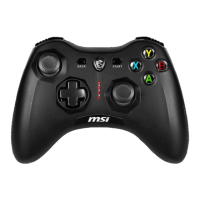
Connection / Pairing
• Wired Connection: Connect to PC with the USB-C to A Cable. If the Power LED turns solid GREEN, the battery is fully charged.
• 2.4 GHz Wireless Connection: Toggle the Wireless Mode Switch to and plug the Wireless USB Dongle into an available USB
port. The Power LED will turn from flashing WHITE to solid WHITE, and then to solid GREEN if the battery is fully charged.
• Bluetooth Pairing: Toggle the Wireless Mode Switch to , and press and hold the Dragon Button. Then, locate the Bluetooth icon
on your PC taskbar, and click ‘Add a device’ to select MSI FORCE GC300 WIRELESS from the list of devices. The Power LED turns
from flashing BLUE to solid BLUE, and then to solid GREEN if the battery is fully charged.
• If Pairing Fails: The Power LED will start flashing for 60 seconds before turning off the controller. Re-pair the controller using one of
the above connectivity methods.
Recharge the Controller (via USB-C Cable)
• Power LED off: Power off.
• Power LED flashing RED: Battery is low within 1%-29%.
• Power LED flashing YELLOW: Battery is charging within 30%-69%.
• Power LED flashing GREEN: Battery is charging within 70%-99%.
• Power LED solid GREEN: Battery is fully charged.
Overview
1. Left / Right Thumbsticks
2. Directional Pad (D-Pad)
3. Dragon Button
4. View Button
5. Menu Button
6. Turbo Button
7. ABXY Buttons
8. Power LED
9. Bumpers (LB & RB)
10. USB-C Port
11. Triggers (LT & RT)
12. 2-level Trigger Locks
13. Customizable Rear Buttons (M1/M2)
14. Wireless Mode Switch
15. Mute Button
16. 3.5mm Headset Jack
17. 2m USB-C to A Cable
18. Wireless USB Dongle
Connect to Headset (Only Available on 2.4 GHz Wireless & Wired Connections)
Connect a 3.5mm wired headset and unmute the microphone (muted by default) by pressing the Mute Button.
Customization & Firmware Updates
Download the latest version of MSI Center to customize controller settings such as reconfiguring buttons, vibration, triggers,
and/or to receive firmware updates. MSI Center can be downloaded from: https://www.msi.com/Landing/MSI-Center
Platform
1
PC
2
Android
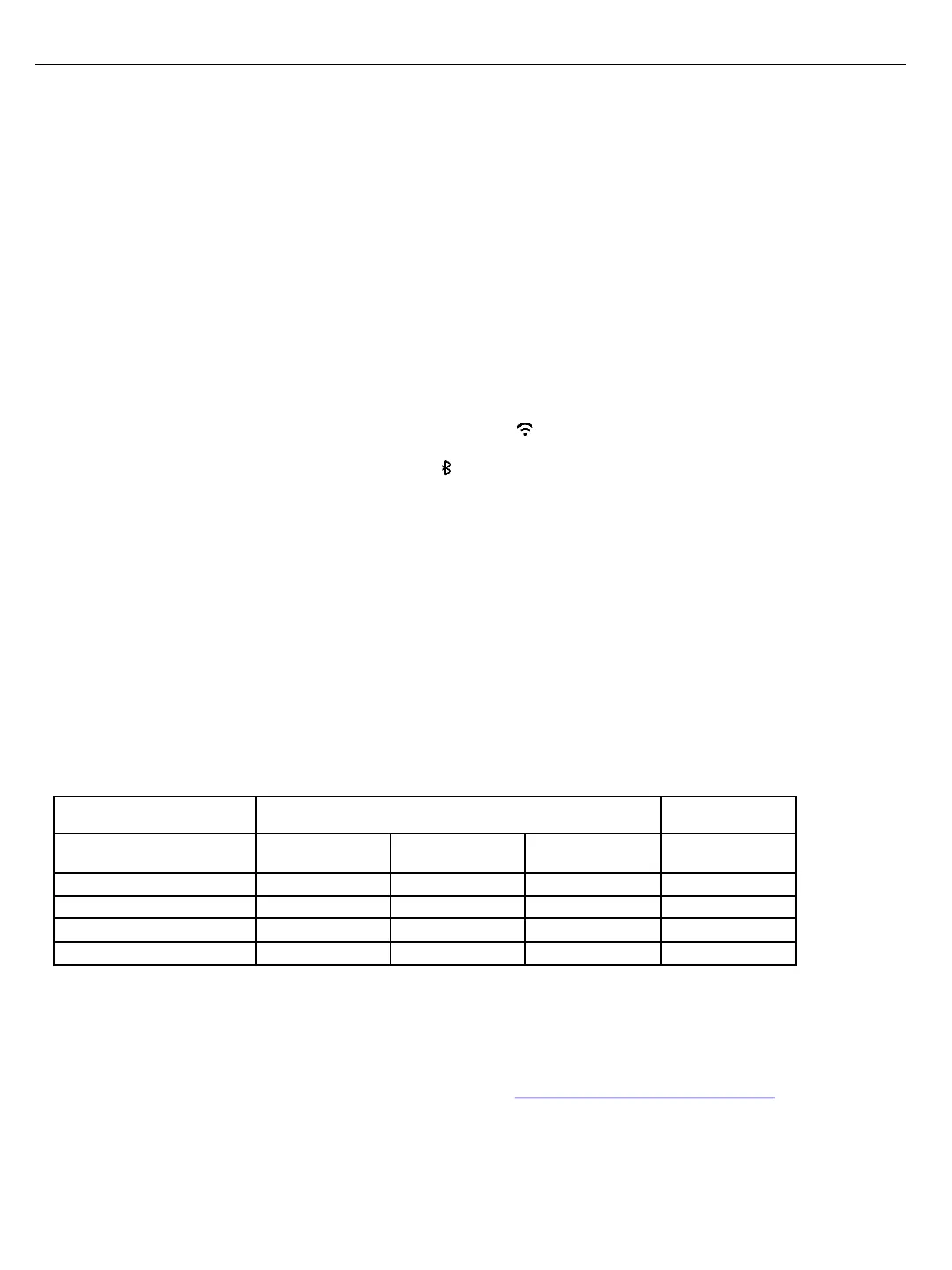
Feature USB-C 2.4 GHz Bluetooth Bluetooth
3
Impulse Trigger V V V
Vibration Feedback V V V
Audio V V
MSI Center V V
Feature Compatibility
※ For more information, please visit MSI official website.
1. PC profile settings must be set up in the MSI Center then saved to the onboard memory.
2. Audio and MSI Center are not supported on Windows 7/8.1.
3. Bluetooth is available on Windows 10/11, and Android 8+.
Power on / Power off / Power Saving
• To power on the controller, press the Dragon Button for 1 second until the Power LED turns on.
• To power off the controller, press the View + B button for more than 3 seconds until the Power LED turns off.
• If there is no activity for 2 minutes, the Power LED will start flashing as a reminder and enter idle mode.
• If there is no activity for 10 minutes, the controller will power off automatically.
English
3


 To Next Page
 Loading...