8 - English
6. Hardware Installation
This Quick Guide will guide you through the correct installation and configuration
procedure of your media player. The media player is to be used together with the MultiQ
digital signage management system. Further information is available in the MultiQ Digital
Signage Management System manual and in technical notes that can be found on the
MultiQ website.
6-1. Unpacking
Please make sure that the following items are included in the package and in good
condition. If you find that any items damaged or missing, please contact your retailer
immediately.
• One media player
• AC/DC adapter with 12V DC output
• AC power cord
• This quick start guide
6-2. Mounting
Mounting and attachment hardware is not included. Please contact your MultiQ reseller
if you wish to mount your media player on the wall or on the back of a MultiQ monitor
with VESA interface. There are several options. Mounting instructions are provided with
each separate mounting bracket.
6-3. Connections
The media players are available in two separate video output versions, DVI-D and
DVI-A.
DVI-D (Digital) – the media player has connections for DVI-D (digital only) or DVI-A
(analogue only), Audio (digital and analogue), LAN and USB I/O.
DVI-A (analogue) - the monitor must support DVI-A or VGA connection, if the monitor
only supports VGA input a DVI-A to VGA cable should be used or alternative a VGA-
VGA cable together with the DVI-A to VGA converter which is included with the media
player.
9 - English
6. Hardware Installation
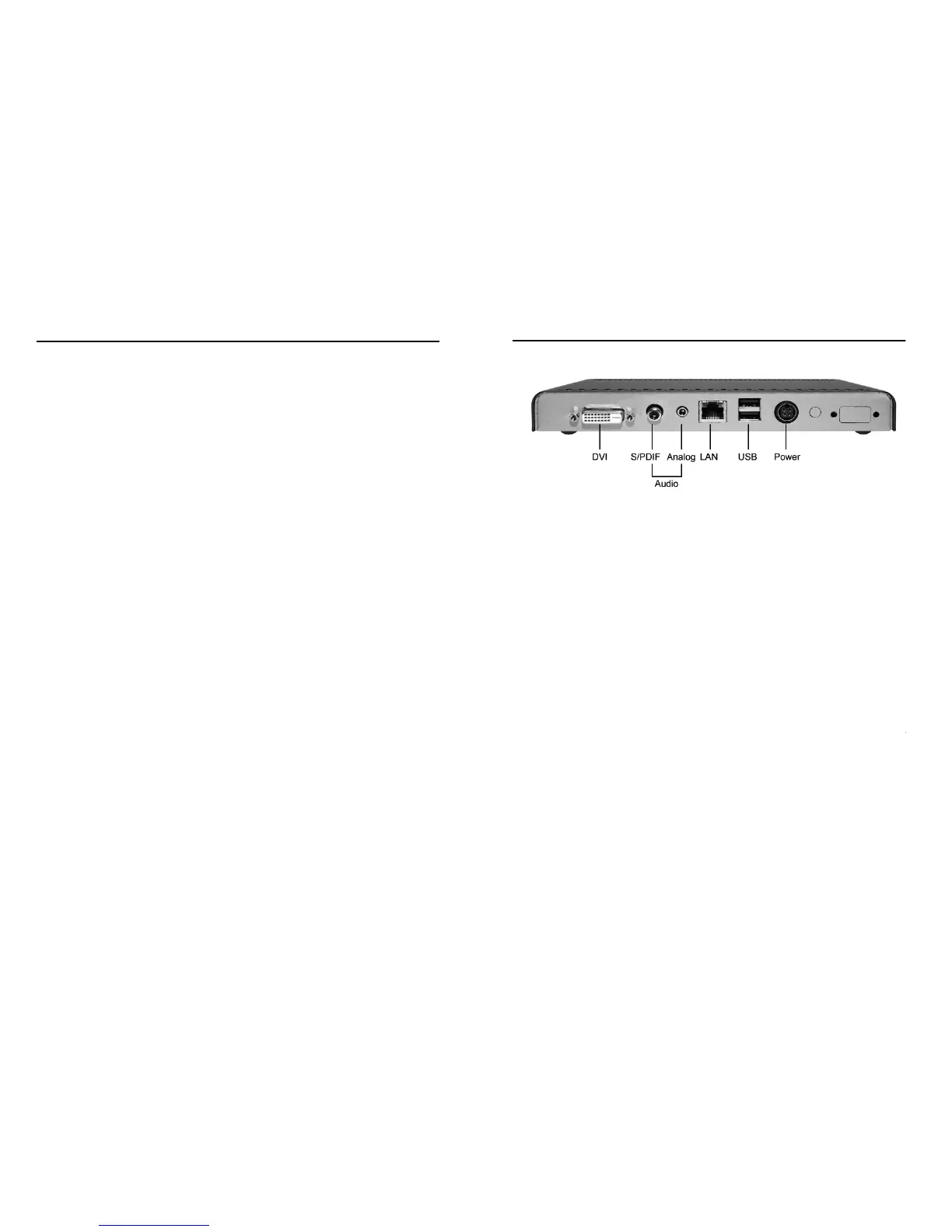
Figure 1. Back panel connections.
A monitor must be used when configuring the media player. Connect the video output to
the monitor to be used.
Media player 4 and 5 – if the monitor has HDMI input, a DVI-D to HDMI conversion
cable must be used.
Media player 4 VGA - the monitor must support DVI-A or VGA, if the monitor only
support VGA input a DVI-A to VGA cable or a VGA-VGA cable with the DVI-A to VGA
converter included with the media player should be used.
The audio outputs may be connected to analogue or digital inputs on external audio
systems. The LAN port must be connected to a LAN with Internet access.
During setup a USB keyboard and USB mouse must be connected to the USB ports. If a
touch panel monitor is to be used it may replace the mouse, one of the USB ports
should be connected to the touch panel interface of the monitor.
Do all connections before powering up by connecting the external power supply.


 To Next Page