16 - English
7. Configuration and connection check
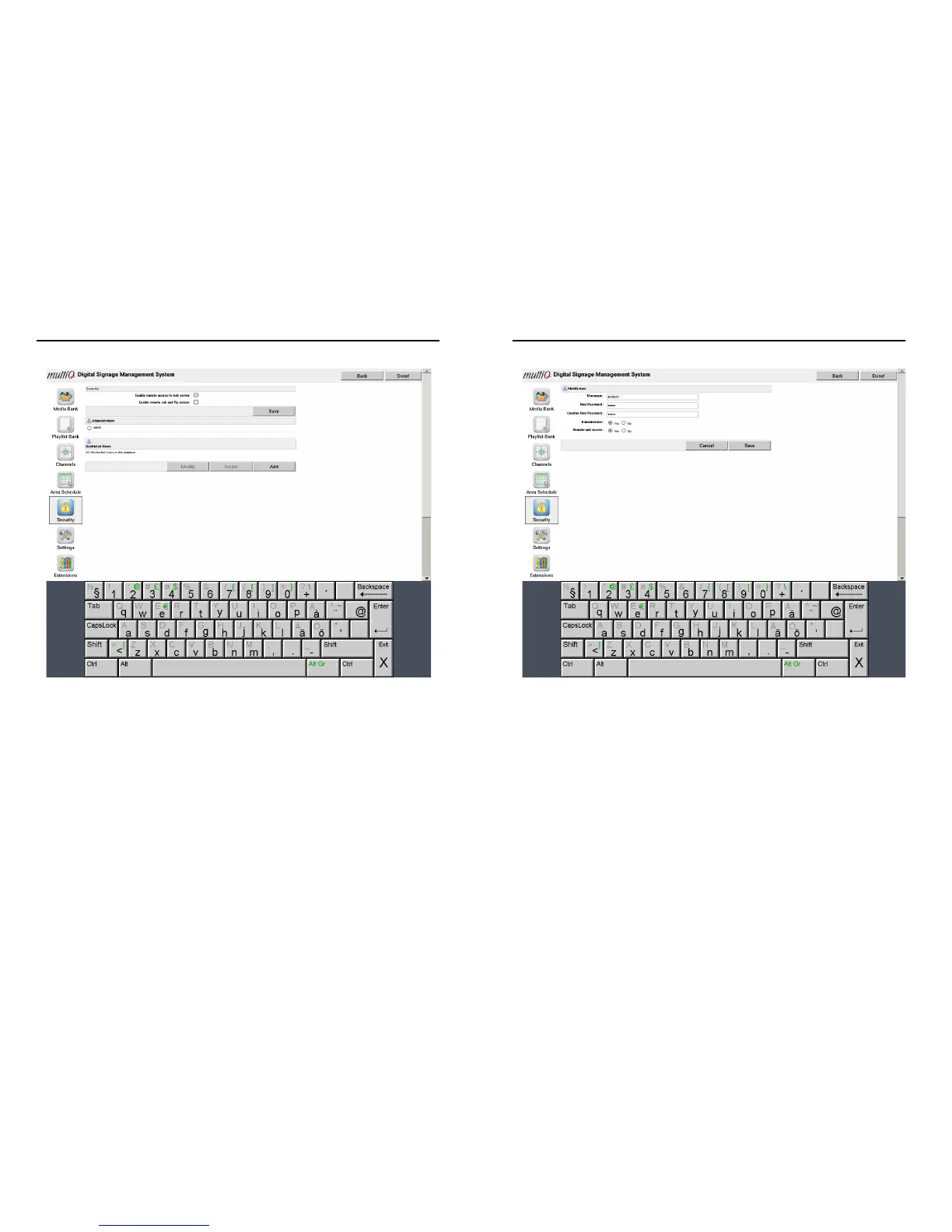
Figure 10. In the “Security menu” (reached by clicking the “Users” icon to the left), the web server
lock can be removed and the password can be changed.
Another thing that should be done at an early stage is to change the administrator
password. In the “Security” menu (Figure 10) tick the “Admin” checkbox and then click
the “Modify” button to change the administrator password. After entering the new
password, press “Save”. Finally press “Done” to leave the onscreen menu system.
17 - English
7. Configuration and connection check
Figure 11. The administrator password can be changed by ticking the “Administrator“ checkbox and
then clicking the “Modify” button.
By connecting your PC to the same subnet as the media monitor it is now possible to log
in to the server from your PC or MAC. Just put the IP address of your media player on
the address line of your web browser and log in to the media player web server using
the password that you have chosen. Using your web browser you can now manage the
content that is to be used in the media player.
7-5. Centrally managed network setup
If the media player is to be used in a centrally managed digital signage network you
should choose “Managed” in the configuration menu. Add the media player ID and the
URL of the server (Account URL) along with the username and the password that have
been provided by the network administrator. Then click the “Test connection” button to
verify that a script file is received from the management server.


 To Next Page