16
17
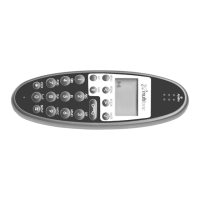
7.2 The key functions
Key Capital letter Small letter
1 ? ! 1 - + * / = & ( ) % ¿ ¡ ? ! 1 - + * / = & ( ) % ¿ ¡
2 A B C 2 Ä Å À Á Ã Æ Ç a b c 2 ä å à á ã æ ç
3 D E F 3 È É Ê Ë d e f 3 è é ê ë
4 G H I 4 Ì Í Î Ï g h i 4 ì í î ï
5 J K L 5 j k l 5
6 M N O 6 Ñ Ö Ò Ó Ô Õ Ø m n o 6 ñ ö ò ó ô õ ø
7 P Q R S 7 ß p q r s 7 ß
8 T U V 8 Ü Ù Ú Û t u v 8 ü ù ú û
9 W X Y Z 9 w x y z 9
0 [Space] , . 0 : ; _ “ ‘ ˆ ˜ [Space] , . 0 : ; _ “ ‘ ˆ ˜
*
A➞aA➞a
# # @ E $ £ ¥ § < > { | } [ \ ] # @ E $ £ ¥ § < > { | } [ \ ]
7.3 Handset set-up
To set-up the handset press “MENU”. You are now able to switch between the different settings. Press “” when
you find the setting you wish to change (or see). Change the setting according to your needs, confirm with “” and
you automatically go to the next setting. Press “Menu” to finalize the setup.


 To Next Page