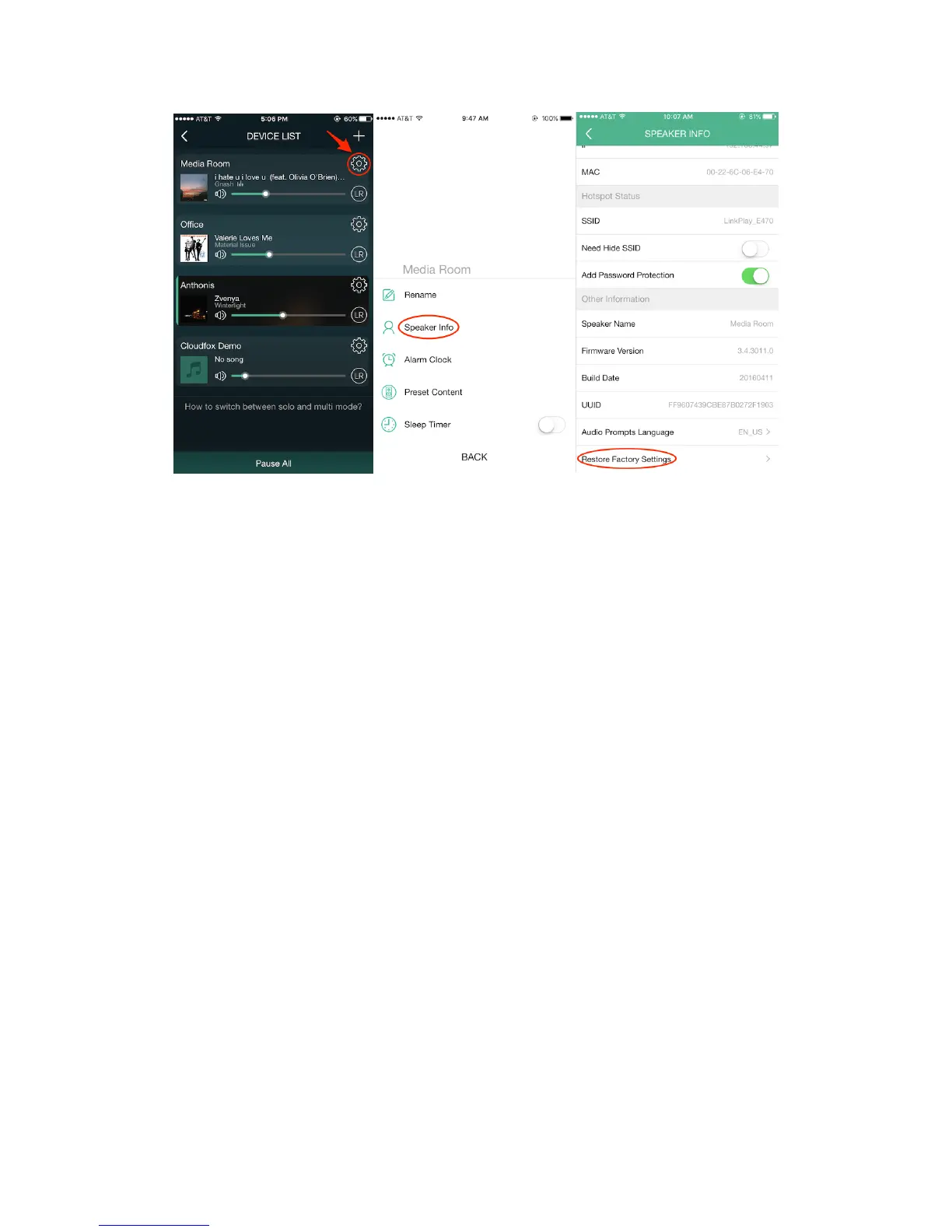
Firmware Update
If you see a “New” icon next to the setting button, it means a new firmware is available
for your unit.
In order to apply this firmware, tap on “New” and you will see a pop up message. Plug
the adapter to your Cobblestone, turn it on and select upgrade and wait until the
device upgrade process finishes.
NOTE: Do not conduct any other operation via the phone or the Cobblestone unit while
the firmware update is in progress.
Manual Firmware Update
1. Connect your computer or smartphone to the Cobblestone Wi-Fi hotspot directly.
Go to your device's wireless connection and select the Cobblestone Wi-Fi SSID (the
name format is "LinkPlay_XXXX").
2. Launch a web browser and enter http://10.10.10.254 in the address bar.
3. To make sure you have the latest version, click the "System" tab and click on
"Online Update". Update the firmware if needed and keep connection to Cobblestone
until firmware is complete.
5. Under the Status tab you can see the current firmware version number.


 To Next Page