LED USB Boundary Microphone User Manual
Thank you for purchasing the MXL
®
AC-404 LED studio. MXL microphones are the result of world-class engi-
neering and manufacturing. They are designed to provide you with outstanding performance and exceptional
value. For best results, please take a few moments to review this literature.
AC- 404 LED
Unied Communications
CONTENTS
Unpack your MXL 990 Microphone package carefully and
verify that all of the following items are included:
INSTALLATION/SETUP
The AC-404-LED microphone is a USB (Universal Serial Bus) device that will interface with Windows® and Mac®
computers without the need for any special drivers. The MXL AC-404-LED is compatible with USB 3, USB 2 and USB
1.1 ports. We recommend connecting your microphone directly to the computer’s USB port as opposed to using a
USB hub as USB hubs can interfere with the performance of various USB devices.
The MXL AC-404-LED includes a headphone jack that accepts most headphones; however, the maximum head-
phone volume will vary by manufacturer and model so care should always be exercised when rst plugging in
your headphones.
SETUP FOR USE WITH MAC®
After connecting the AC-404-LED to an unused USB port, go to: System Preferences > Sounds Icon.
To use the built-in headphone jack on the AC-404-LED as the audio output, click on the Output tab then select the de-
vice named USB Audio CODEC. You can adjust the headphone volume by moving the fader labeled Output Volume.
Next, click the Input tab and select the device named USB Audio CODEC. You can adjust the microphone volume
by moving the Input Volume slider. The gain of the microphone is very sensitive. For most applications the slider
will be set toward the left.
Your computer is now setup to use the MXL AC-404-LED USB Boundary Microphone. Some applications will require
additional settings to be changed within the program.
SETUP FOR USE WITH WINDOWS®
Connect the MXL AC-404-LED to an unused USB port on your computer. To select the MXL AC-404 LED as the de-
fault audio device, go to:
Control Panel > Sound, and select the Recording tab. Control Panel > Sound Icon
Click on the Recording tab, select Highlight the microphone icon labeled USB audio CODEC and click Set Default.
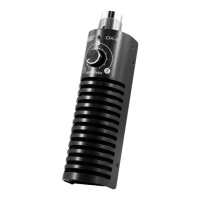
MXL AC-404 LED
USB Boundary Mic
Mini Philips Screwdriver
USB Cable
Cleaning Cloth
Page 1

 Need help?
 General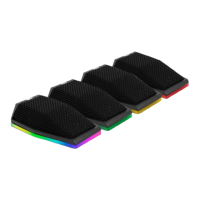

 To Next Page